Findings & triage
A finding is one check that failed on one Azure object — an NSG rule open to the internet, a storage account accepting TLS 1.0, a subscription without a budget. Praefic keeps each finding from the scan that first saw it until the scan that confirms it is gone, with everything your team decided about it in between.
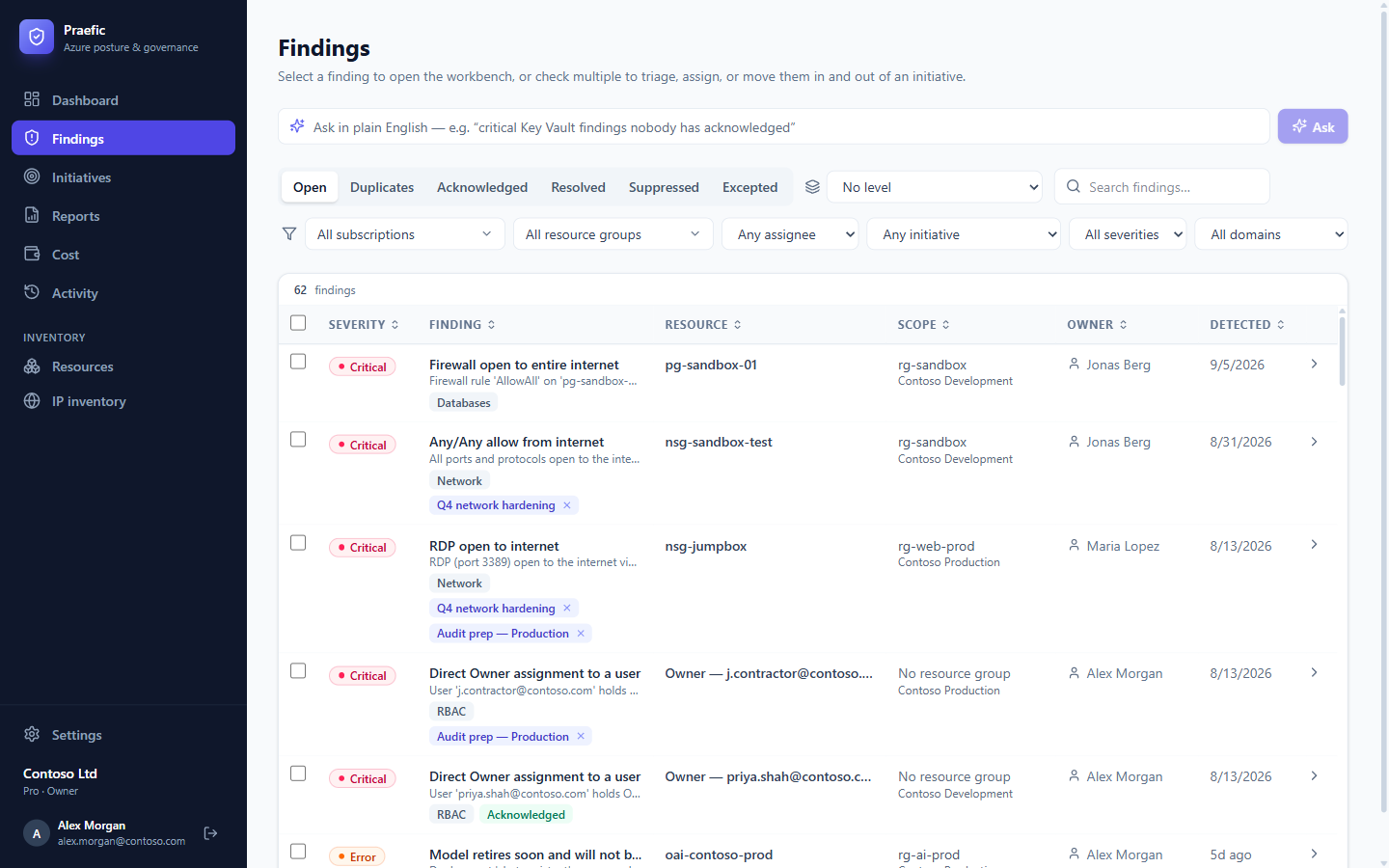
The findings list
The tabs separate findings by what has been decided about them:
| Tab | Shows |
|---|---|
| Open | Everything still to deal with |
| Duplicates | Advisor recommendations that restate one of Praefic's own findings on the same resource |
| Acknowledged | Findings someone has reviewed and noted |
| Resolved | Findings a later scan no longer sees |
| Suppressed | Findings muted by hand |
| Excepted | Findings covered by an approved exception |
Filter by subscription, resource group, assignee, initiative, severity, area or maturity level, or search by name. Filters are part of the URL, so a filtered view can be bookmarked or shared.
Select several findings to assign them, set their status, or add them to (or remove them from) an initiative in one action.
Tip: Where AI features are enabled, Ask in plain English turns a question such as "critical Key Vault findings nobody has acknowledged" into the matching filters.
The workbench
Click a finding to open the workbench. Use j / k to move to the next and previous finding, a to acknowledge, s to suppress and Esc to close.
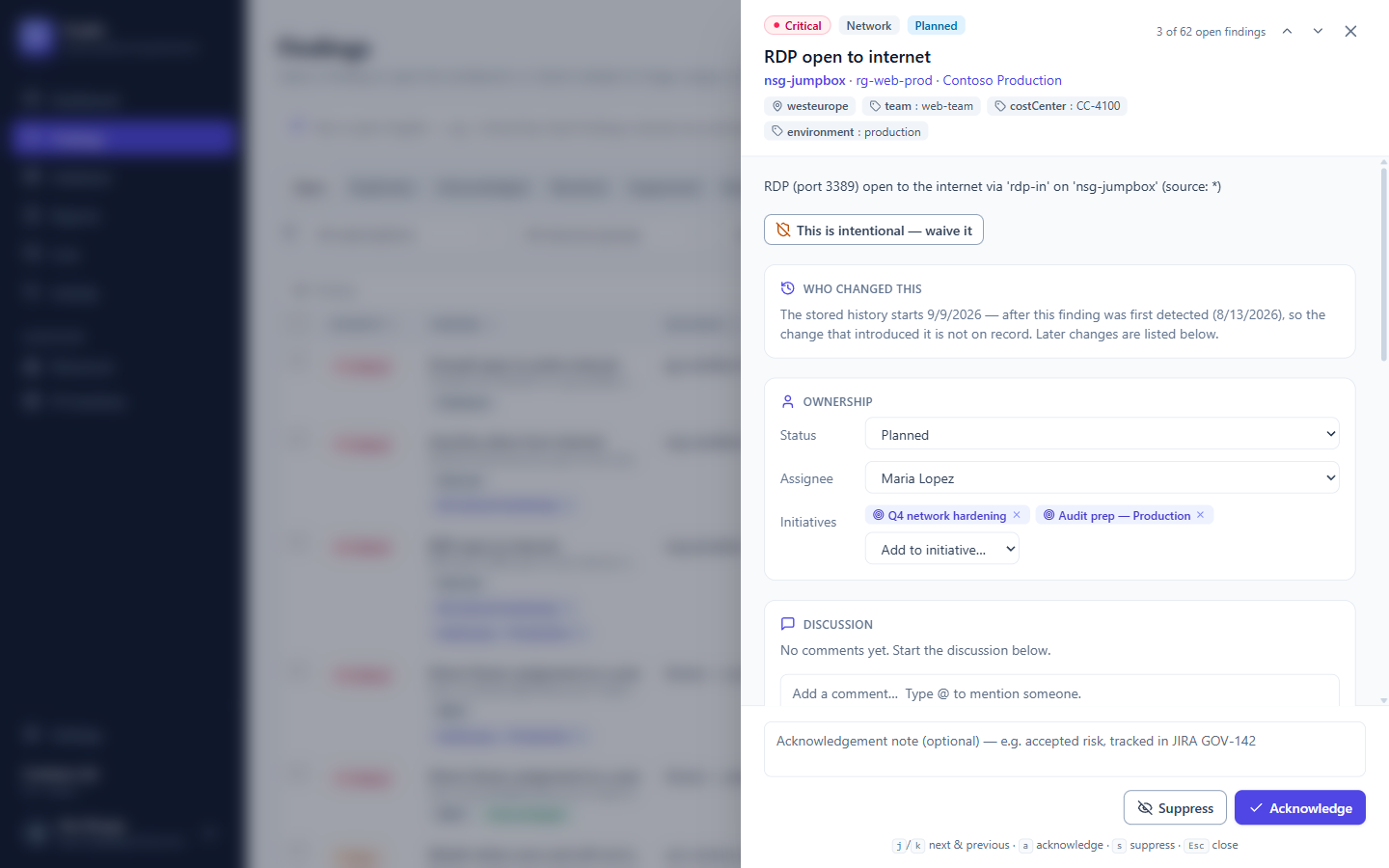
The workbench shows:
- What and where — severity, area, the resource with its resource group, subscription, region and tags.
- Why it matters and how to fix it — written guidance per check, a copyable Azure CLI command, a link to Microsoft's documentation, the CIS / Microsoft cloud security benchmark reference, and a direct link to the resource in the Azure portal.
- Who changed this — the change in the Azure Activity Log most likely to have introduced the finding, and whether anyone has touched the resource since. See Activity.
- Ownership — remediation status, assignee and initiatives.
- Discussion — comments with
@-mentions; a mentioned colleague is notified. - History — every detection, resolution, reappearance, assignment and status change.
When a fix doesn't stick
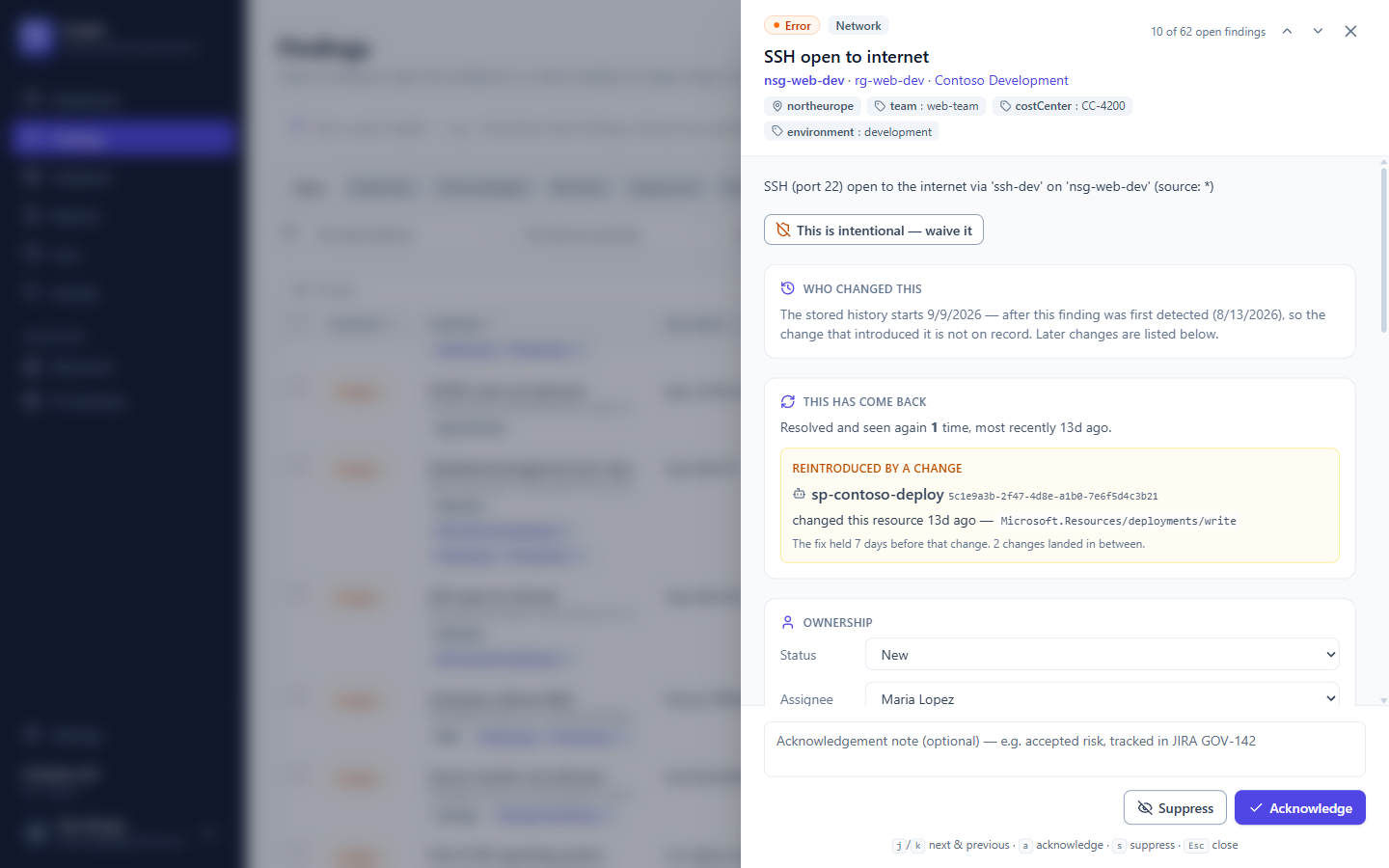
If a finding was resolved and later came back, the workbench says so — and, when the Activity Log shows the change that reintroduced it, names the identity behind it. Very often that is a deployment pipeline or template putting the old setting back, which needs fixing once at the source.
Owners
Assign a finding to a person or a group. Praefic can also assign findings automatically from a resource's owner tag (by default Owner, ProductOwner, TechnicalOwner, ServiceOwner or ApplicationOwner) when the tag names a member or group of your organization. Change the tag keys, or switch this off, under Settings → Organization. Assigning a finding by hand always takes precedence.
Everyone can filter the list to Assigned to me.
Remediation status
Owners record where the work stands:
| Status | Meaning |
|---|---|
| New | Nobody has picked it up |
| Planned | Scheduled |
| In progress | Being worked on |
| Fix applied | The owner has changed the setting |
| Risk accepted | Knowingly left as it is |
| Won't fix | Will not be addressed |
Fix applied is the owner's claim. The finding is only resolved when the next scan confirms the setting really changed — so a fix that went to the wrong resource, or hasn't been deployed yet, stays visible.
Acknowledge, suppress or except?
| Action | Use it when | Effect |
|---|---|---|
| Acknowledge | You have reviewed the finding and want to record a note | Stays open and counted |
| Suppress | You want to mute a finding by hand | Leaves the open list; no reason or expiry is required |
| Exception | A deviation is deliberate and approved | Leaves the open list with a reason, owner and expiry; returns when it lapses |
For anything you intend to keep, prefer an exception: it carries the reasoning and comes back for review on its own.
Severity
Every check has a severity — Critical, Error, Warning or Info. You can change a check's severity, or switch a check off, for your organization under Settings → Rules.