Initiatives
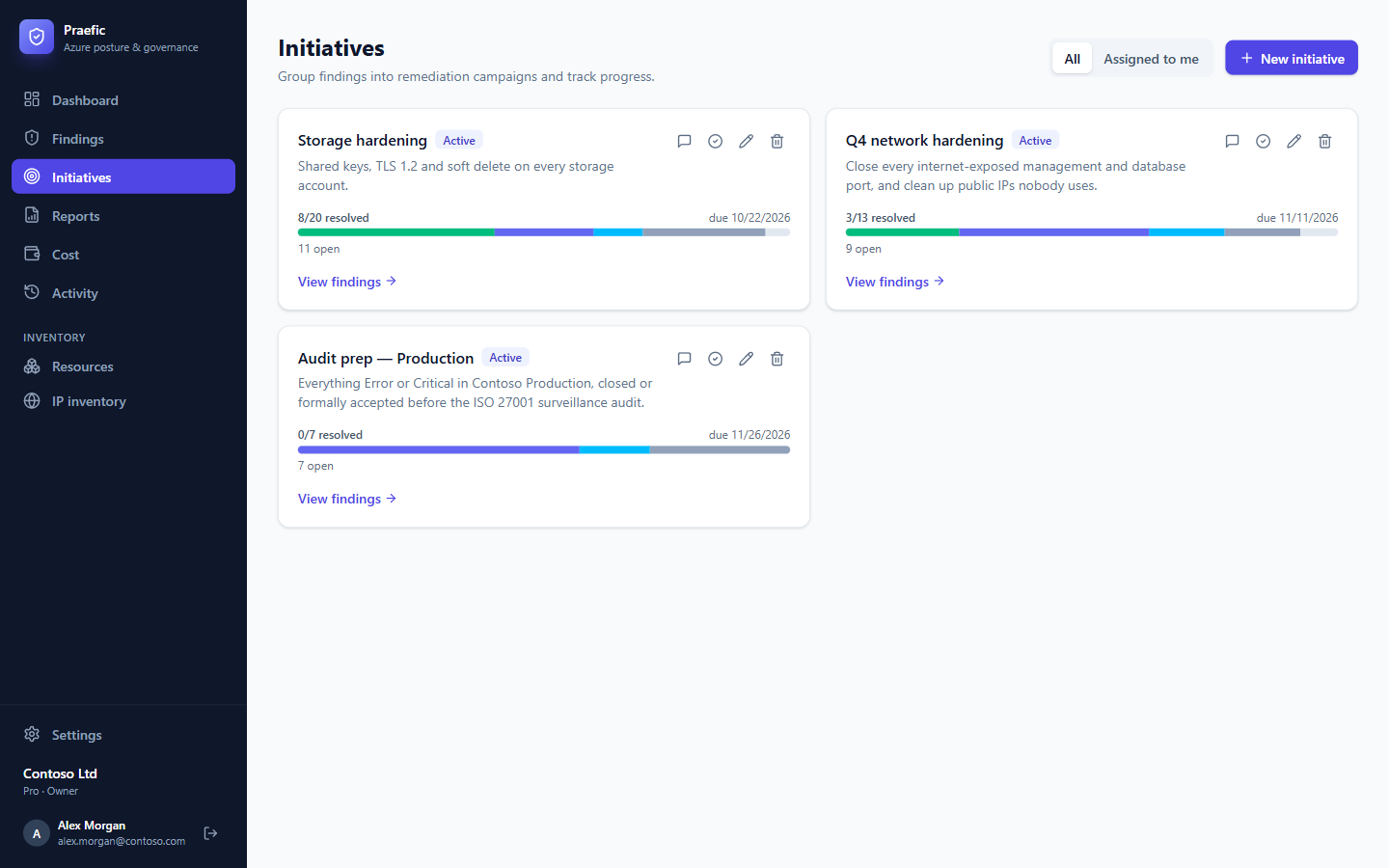
A list of four hundred findings is not a plan. An initiative is: a named remediation project — "Q4 network hardening", "Audit prep — Production" — with a scope, owners, a due date and a finish line the scanner confirms.
Create an initiative
- Go to Initiatives → New initiative and give it a name, a description and (optionally) a due date.
- Add findings to it. The quickest way is from the Findings list: filter to what belongs — an area, a severity, a subscription or resource group, a maturity level — select the findings, and choose Add to initiative.
You can also add or remove a single finding from its workbench. A finding can belong to more than one initiative — an open SSH port on a production VM can be part of both the network clean-up and the audit preparation.
Tip: On a maturity level's page, Create initiative starts an initiative from that level's open findings.
Track progress
Each initiative card shows how many of its findings are resolved and how the rest break down by remediation status. Open an initiative for the detail:
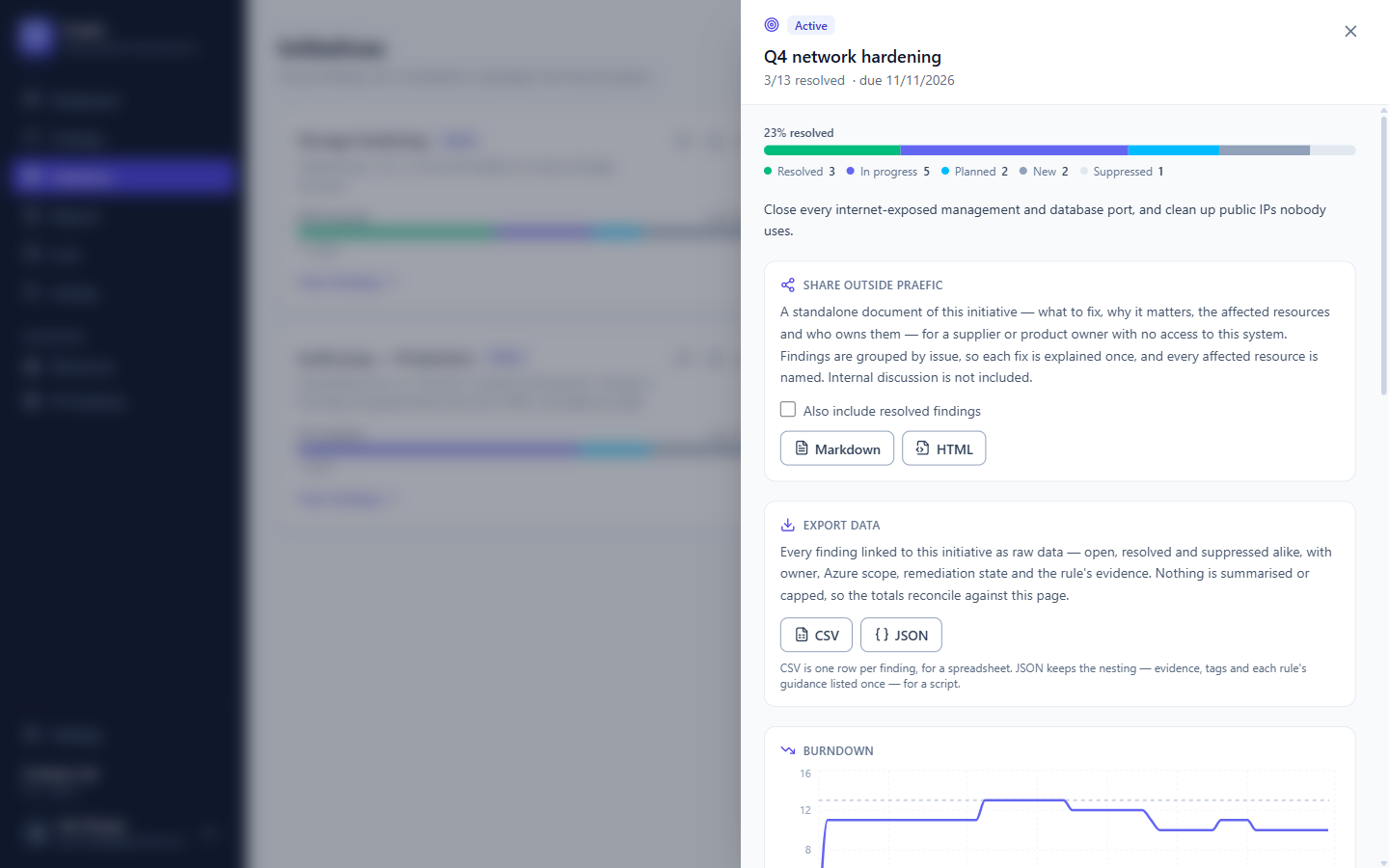
- Progress — resolved, in progress, planned, new, and anything excepted or suppressed.
- Burndown — open findings over time, built from each finding's history. A finding that was fixed and then came back shows up as the line going up: it is not progress, and Praefic doesn't count it as such.
- Discussion — comments on the initiative as a whole.
View findings opens the findings list filtered to the initiative, where you can assign and update everything in bulk. Assigned to me on the Initiatives page shows the initiatives holding findings assigned to you or one of your groups.
Hand the work to someone outside Praefic
Much remediation is done by people who don't use Praefic — a hosting partner, an application vendor, another department. Under Share outside Praefic, download the initiative as:
- Markdown — paste it into a wiki, a ticket or a pull request.
- HTML — a single self-contained file you can e-mail.
The document groups findings by issue, not by resource, so each fix is explained once: why it matters, how to fix it, a ready-to-run Azure CLI command and the CIS / Microsoft cloud security benchmark reference — followed by every affected resource and its owner. A summary table at the top shows which issue clears the most work. Internal discussion is never included. Tick Also include resolved findings to send a record of what has already been done.
Export the data
Under Export data, download every finding in the initiative as CSV (one row per finding, for a spreadsheet) or JSON (for a script or ticket system). Exports include each finding's identifiers, so exports taken months apart can be compared.
Finish an initiative
When the work is done, mark the initiative Completed from its card. Completed initiatives keep their findings and history.