Alerts & notifications
DNS Tool tells you about problems in two ways: alerts, sent the moment a scan finds something your alert rules care about, and the digest, a periodic summary by email. Alerts are delivered through notification channels.
The pages below are under Settings. Setting them up needs the Admin or Owner role; everyone can see them.
Notification channels
Settings → Notification Channels holds one channel of each type:
| Channel | Delivers to |
|---|---|
| An email address, for example a team mailbox. | |
| Microsoft Teams | A Teams channel, as an Adaptive Card, through an Incoming Webhook URL. |
| Slack | A Slack channel through an Incoming Webhook URL. |
| Webhook | Your own HTTPS endpoint, as a JSON POST. An optional secret is sent in the X-Webhook-Secret header so you can check the call came from DNS Tool. |
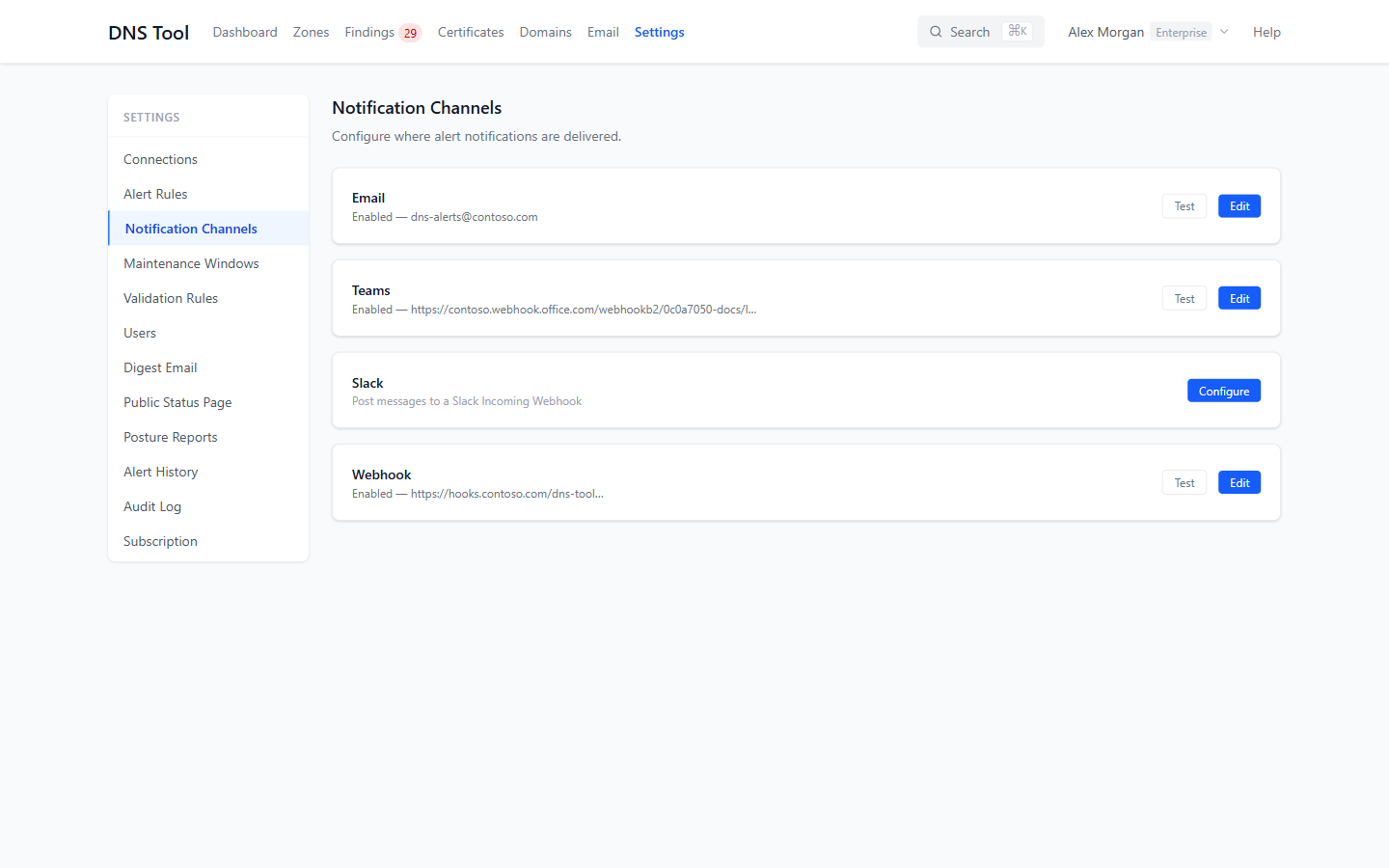
Choose Configure (or Edit), enter the address or URL, and save. Test sends a test message to an email, Teams or Slack channel. Untick Enabled to pause a channel without losing its settings.
Tip: For Teams, add a workflow to the channel from the Post to a channel when a webhook request is received template (⋯ → Workflows) and copy its URL. For Slack, create a Slack app with Incoming Webhooks turned on and copy the webhook URL.
Alert rules
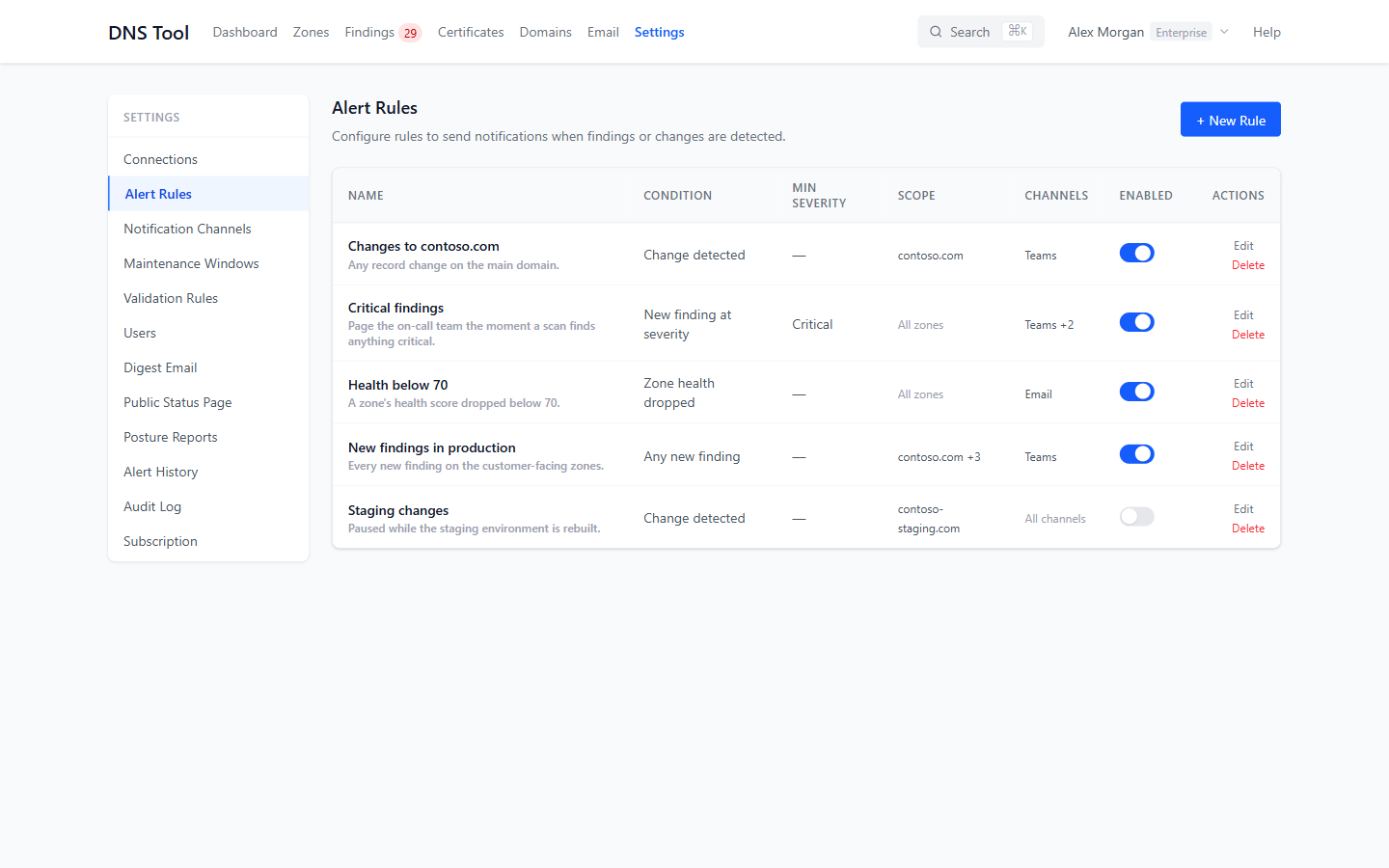
A channel only receives what an alert rule sends it. Settings → Alert Rules lists your rules; + New Rule creates one.
| Condition | Fires when a scan finds… |
|---|---|
| Any new finding | any new finding. |
| New finding at severity | a new finding at or above the Minimum Severity you choose — for example every new Critical. |
| Change detected | any record change. |
| Zone health dropped | a zone's health score falling below the Health Score Threshold you set. |
Limit a rule to some Zones (none ticked means all zones), and choose which Notification Channels it uses (none ticked means all enabled channels). Untick Enabled, or use the switch in the list, to pause a rule without deleting it.
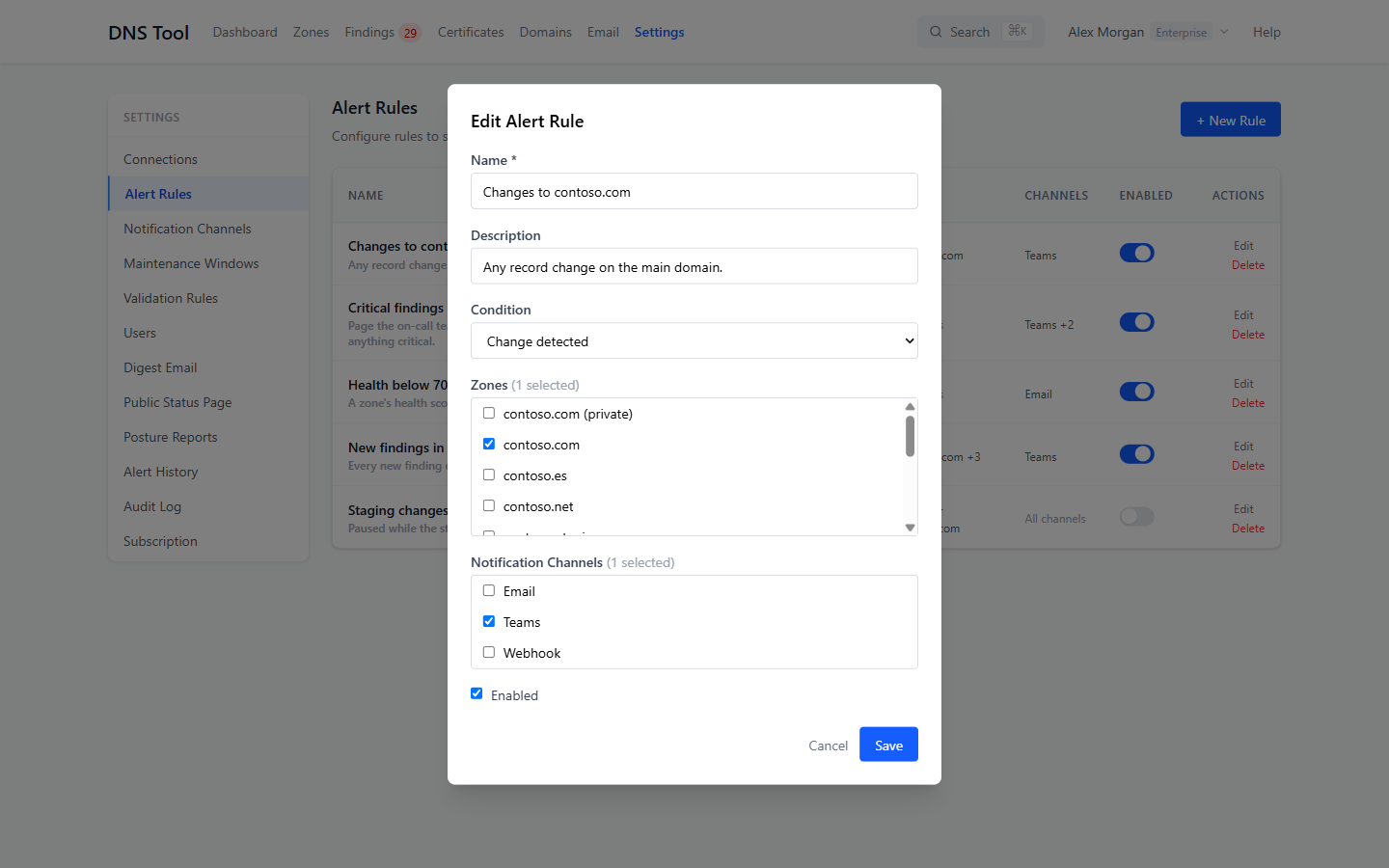
Alert rules are evaluated after every scan, and each finding or change is alerted once.
Maintenance windows
A maintenance window holds back alerts during planned work, such as a migration or a mail cutover. Scans keep running and findings and changes are still recorded — only the notifications are suppressed.
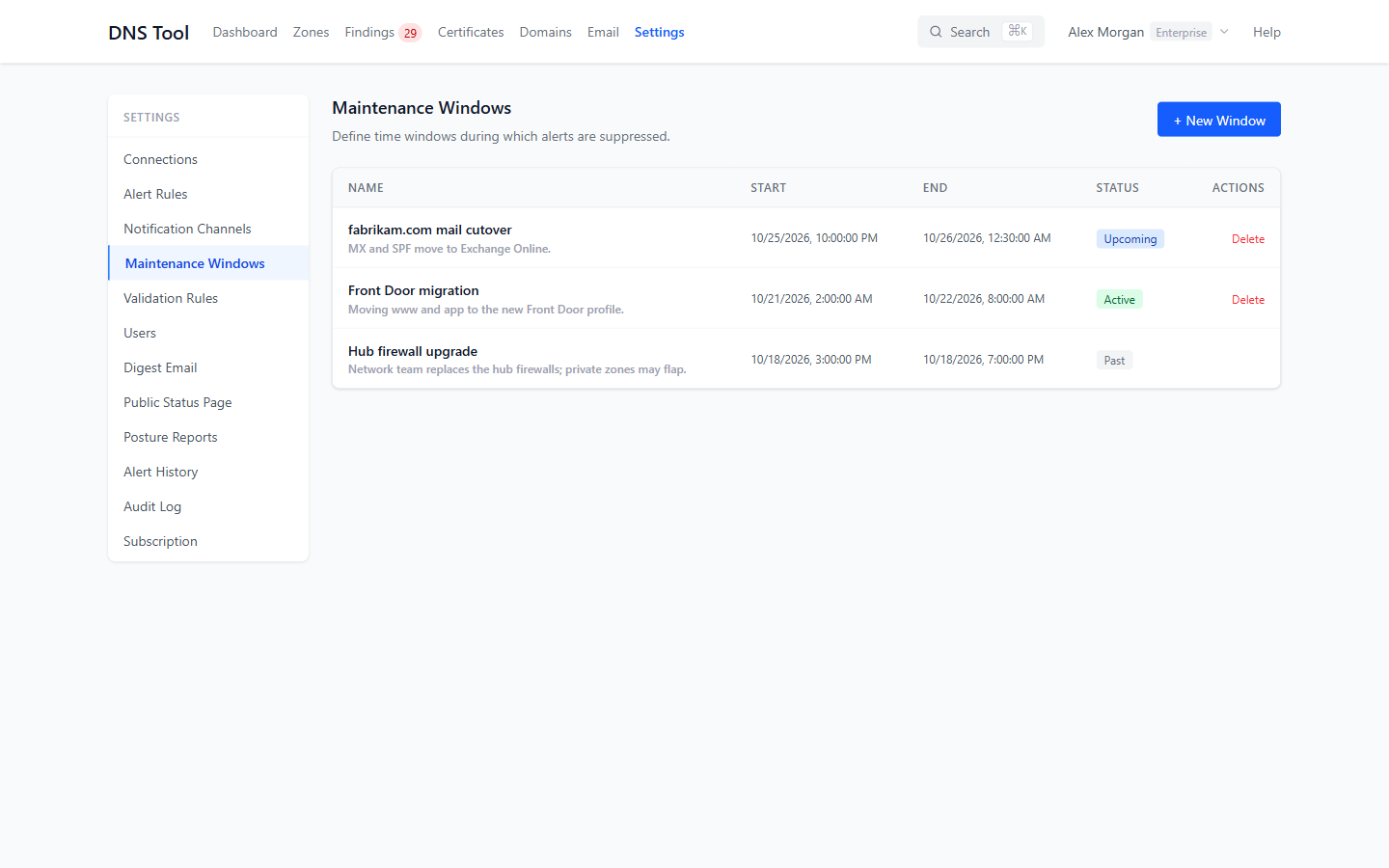
Under Settings → Maintenance Windows, choose + New Window, give it a name, a start and an end, and keep Suppress alerts during window ticked. Each window shows as Upcoming, Active or Past. To change a window, delete it and create a new one.
Alert history
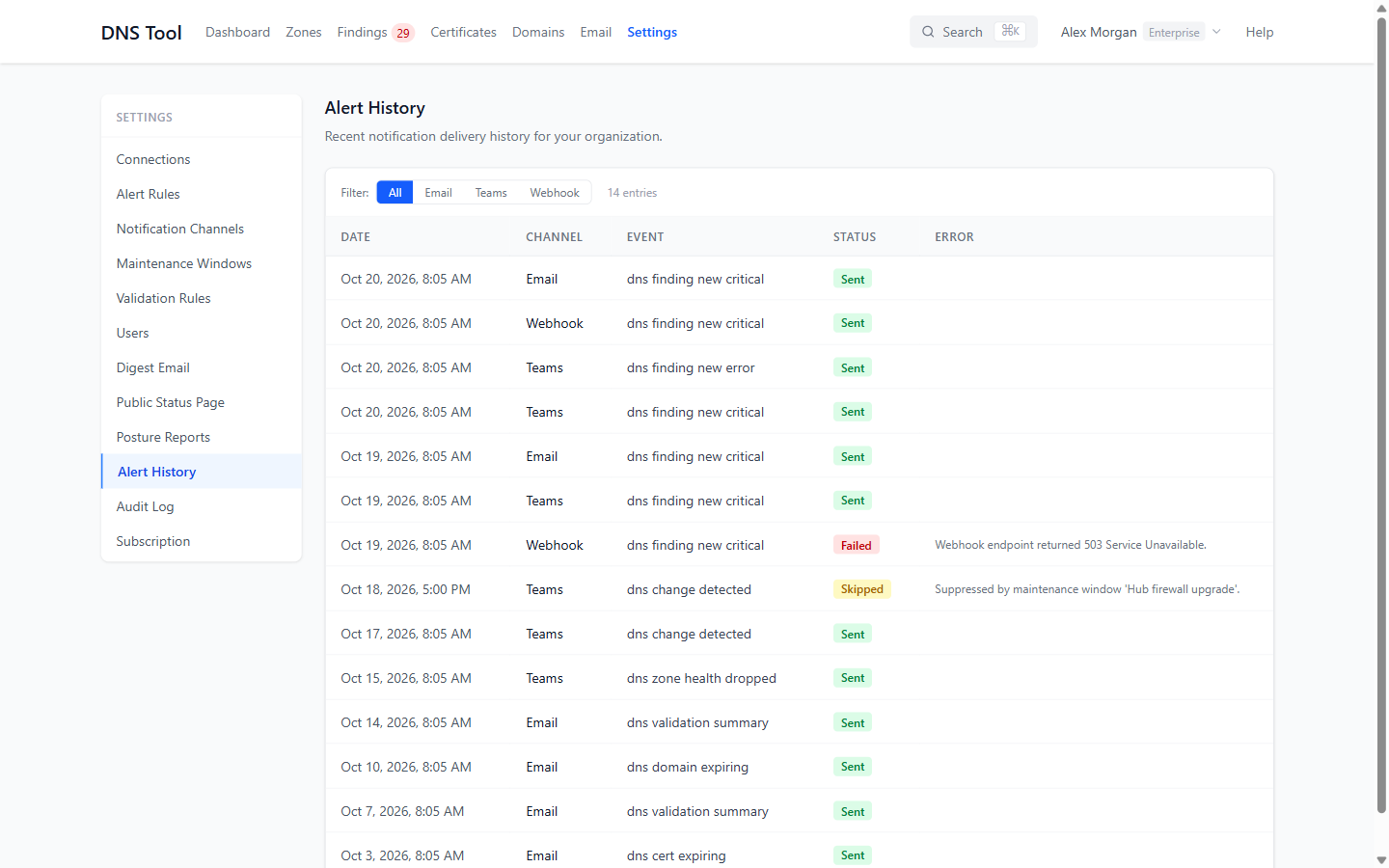
Settings → Alert History shows the last 100 notifications: when, on which channel, for which event, and whether it was Sent, Failed (with the error), Pending or Skipped — for example because a maintenance window was active. Use it to check that alerts reach their destination.
Digest email
The digest is a summary of DNS changes, new findings and health trends, emailed on a schedule — whether or not anything triggered an alert.
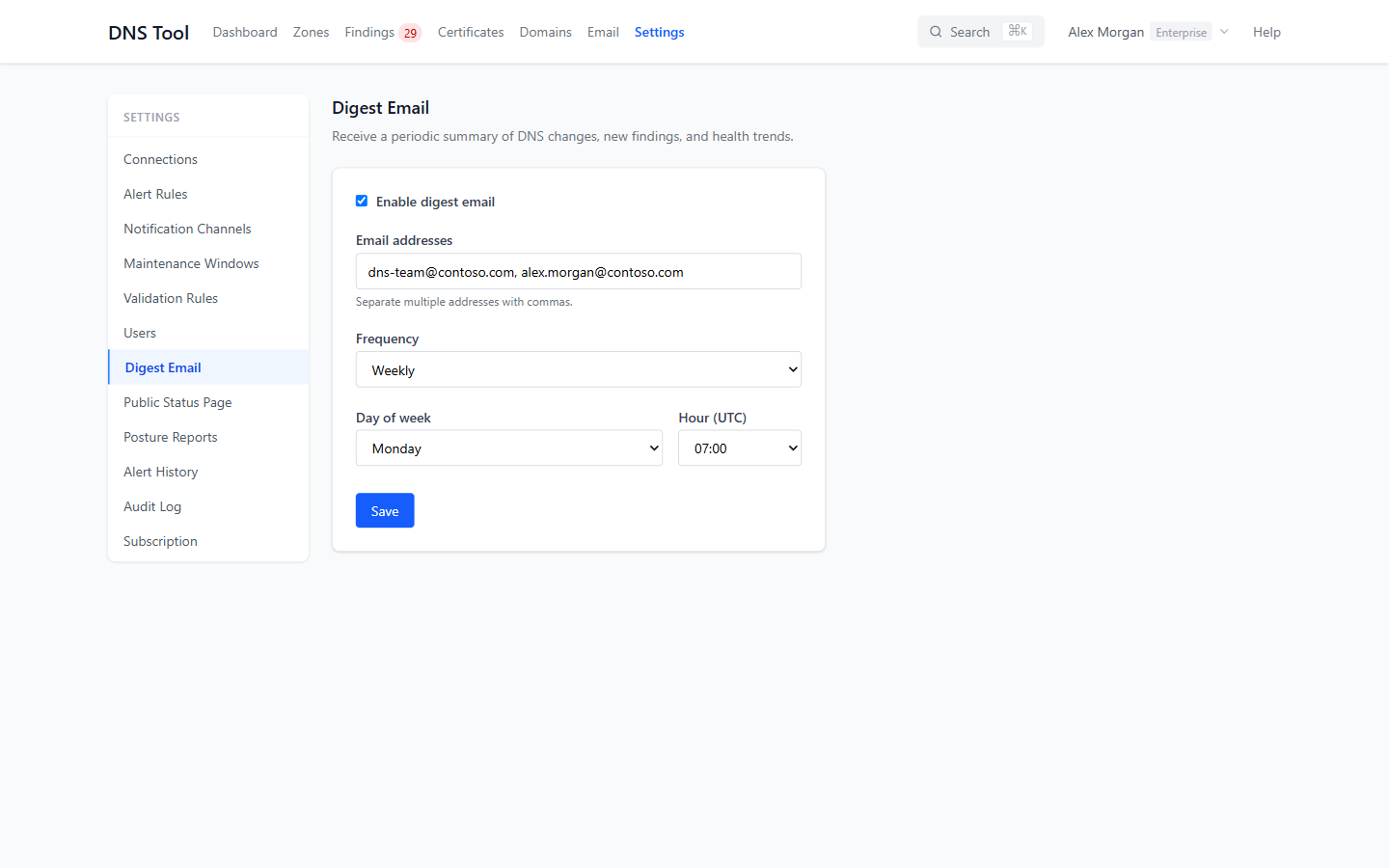
Under Settings → Digest Email, tick Enable digest email, enter one or more addresses separated by commas, and choose the Frequency — Daily, Weekly (pick the day) or Monthly (pick a day from 1 to 28) — and the Hour (UTC).