Settings
Settings in the top bar holds everything that shapes how DNS Tool works for your organization. This page covers who can change what, and the settings pages not covered by their own guide.
| Page | Covered in |
|---|---|
| Connections | Connections |
| Alert Rules, Notification Channels, Maintenance Windows, Alert History, Digest Email | Alerts & notifications |
| Validation Rules | Validation rules |
| Users | Users & roles |
| Public Status Page, Posture Reports | Status page & reports |
| Audit Log | Audit log |
| Subscription | Subscription & trials |
Users & roles
Every member of an organization has one of three roles. Each role can do everything the role before it can.
| Role | Can |
|---|---|
| Member | See everything — dashboard, zones, findings, certificates, domains, changes and settings — acknowledge findings, and rescan zones (Pro and Enterprise). |
| Admin | Change every setting: connections, alert rules, notification channels, maintenance windows, validation rules, the digest, public status links, posture reports and trials; invite and remove users and give them the Member or Admin role; read the audit log. |
| Owner | Give or take the Owner role. An organization always keeps at least one Owner. |
The person who subscribed on the Azure Marketplace becomes the Owner. Colleagues from the same Entra tenant who sign in later join as Members.
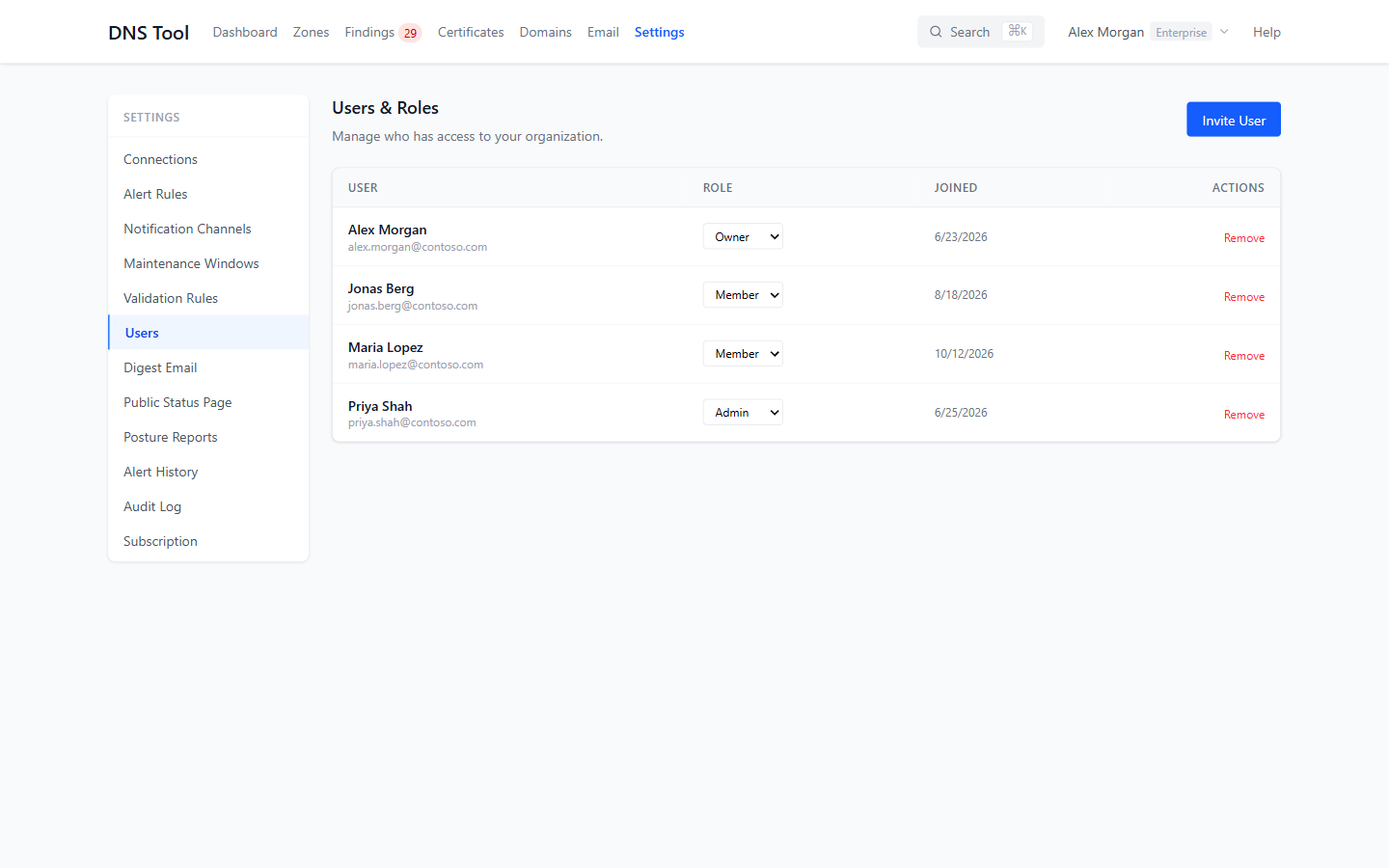
Settings → Users lists everyone in the organization. Admins can change a role from the list, or Remove someone — you can't remove yourself or the last Owner.
Invite User adds a colleague by email address, as a Member or an Admin, and sends them an invitation. When they sign in with Microsoft, they join with that role. Your plan sets the maximum number of users; see Plans & Pricing.
Connections
Settings → Connections lists the Azure tenants — and any CloudFlare accounts — DNS Tool reads. Add Connection connects another one; see Getting started for the Azure steps.
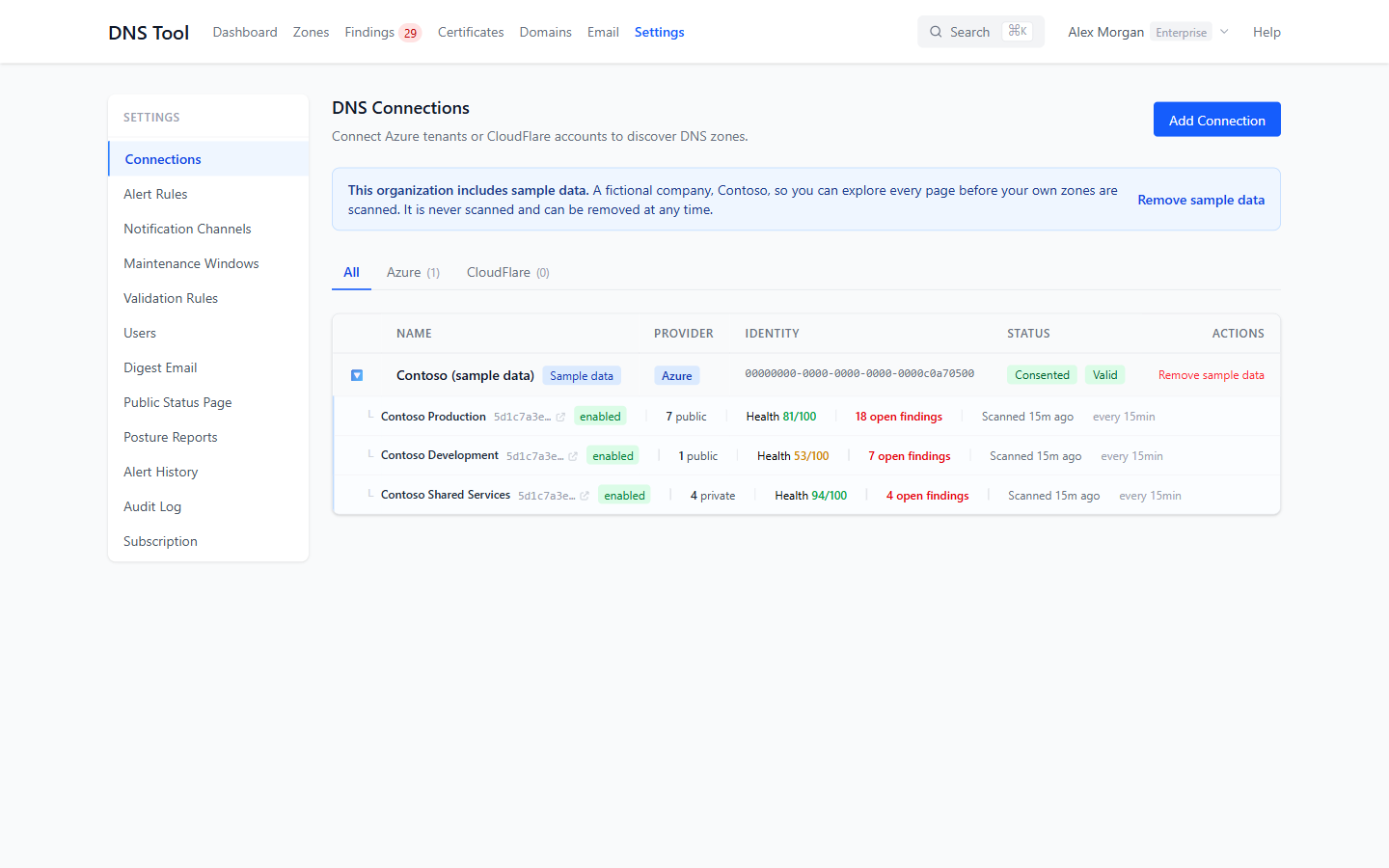
Each connection shows its status:
| Badge | Means |
|---|---|
| Consent pending | An administrator hasn't granted consent yet. Use Grant Consent ↗, or Already consented? Check if consent was given in the Azure portal. |
| Consented | The scanner app may sign in to the tenant. |
| Valid | DNS Tool has read the tenant's subscriptions with the Reader role. |
| Invalid | DNS Tool can't read the tenant — usually because the Reader role is missing. Fix it, then choose Validate. |
| Awaiting verification | The tenant isn't your organization's own Entra tenant. Contact support to verify it before DNS Tool reads it. |
Click ▶ to see a connection's subscriptions: each with its zones, average health, open findings, and when it was last scanned and how often. Click enabled to switch a subscription off — it is no longer scanned and doesn't count toward your plan's subscription limit — and click again to switch it back on.
Rescan (Pro and Enterprise) re-reads the tenant's subscriptions and scans them now. Remove disconnects the connection; DNS Tool stops reading it.
For CloudFlare, add a connection with an API token that has Zone:Read, DNS:Read and Account:Read permissions. DNS Tool stores the token encrypted and shows only its last four characters; Update token replaces it.
If your organization started with the fictional Contoso sample, it appears here as Contoso (sample data); see Sample data.
Validation rules
Settings → Validation Rules lists the 45 rules DNS Tool runs, grouped as Record Health, Email Security, Network & Delegation, and Certificate & Domain Monitoring, each with its description and default severity. Search by name, code or description.
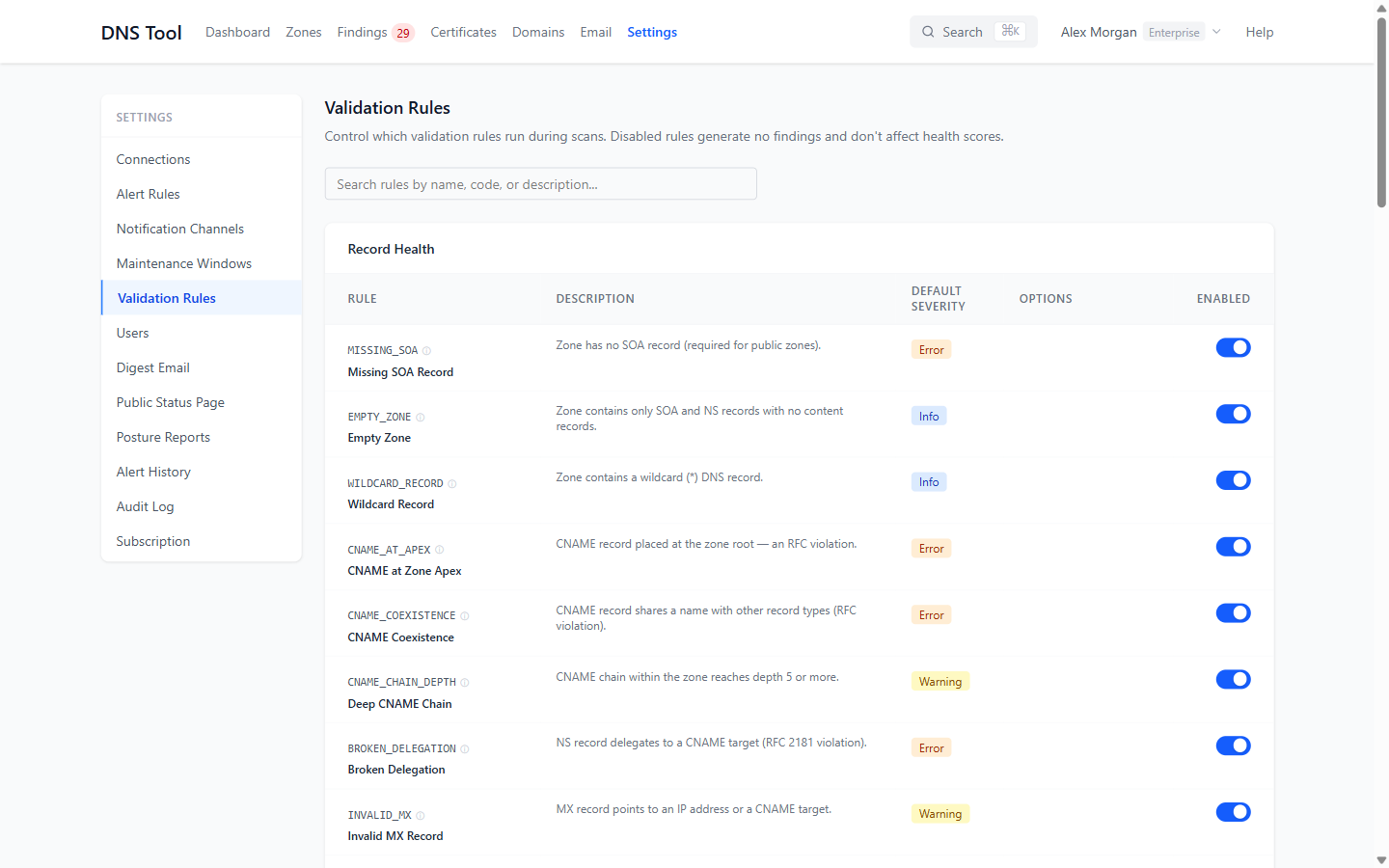
- Switch a rule off to stop it running for your organization. Disabled rules create no findings and don't affect health scores; their open findings resolve at the next scan.
- Certificate Expiry and Domain Registration Expiry have a Warn [n] days before option (1–365, default 30): how long before expiry a finding is raised.
Changing rules needs the Admin or Owner role. To accept a single finding rather than turning a rule off everywhere, acknowledge it. Every rule is described in the validation rules reference.
Audit log
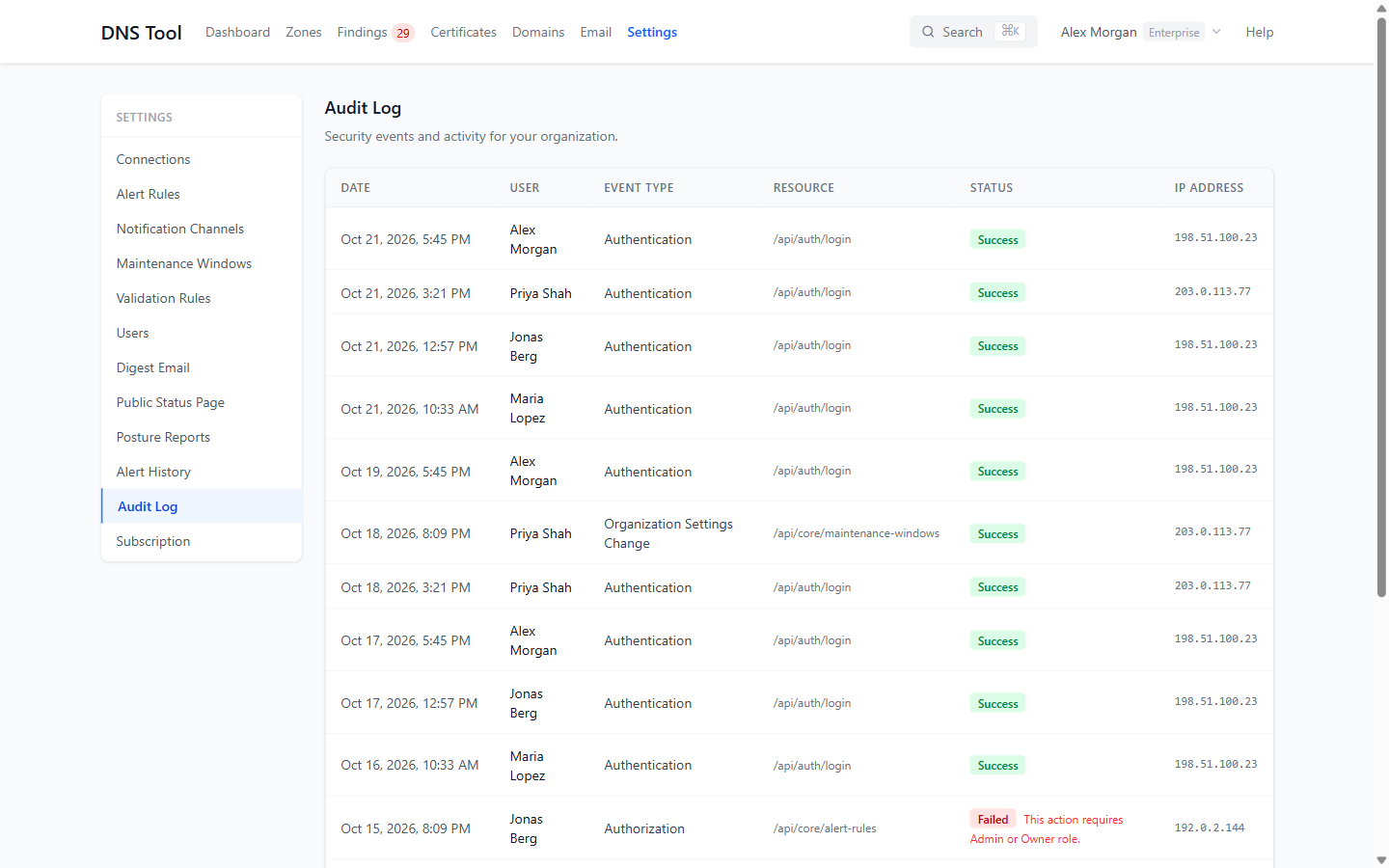
Settings → Audit Log shows the last 200 security events in your organization: sign-ins, connections added or validated, users invited and roles changed, settings changes and refused actions — who did it, when, from which IP address, and whether it succeeded. Admins and Owners can see it.
Subscription & trials
Settings → Subscription — also in the menu under your name — shows your plan and how much of it you use: subscriptions, DNS zones, users, the scan interval and how long history is kept. Manage in Azure Portal opens your Marketplace subscription, where you change plan or billing.
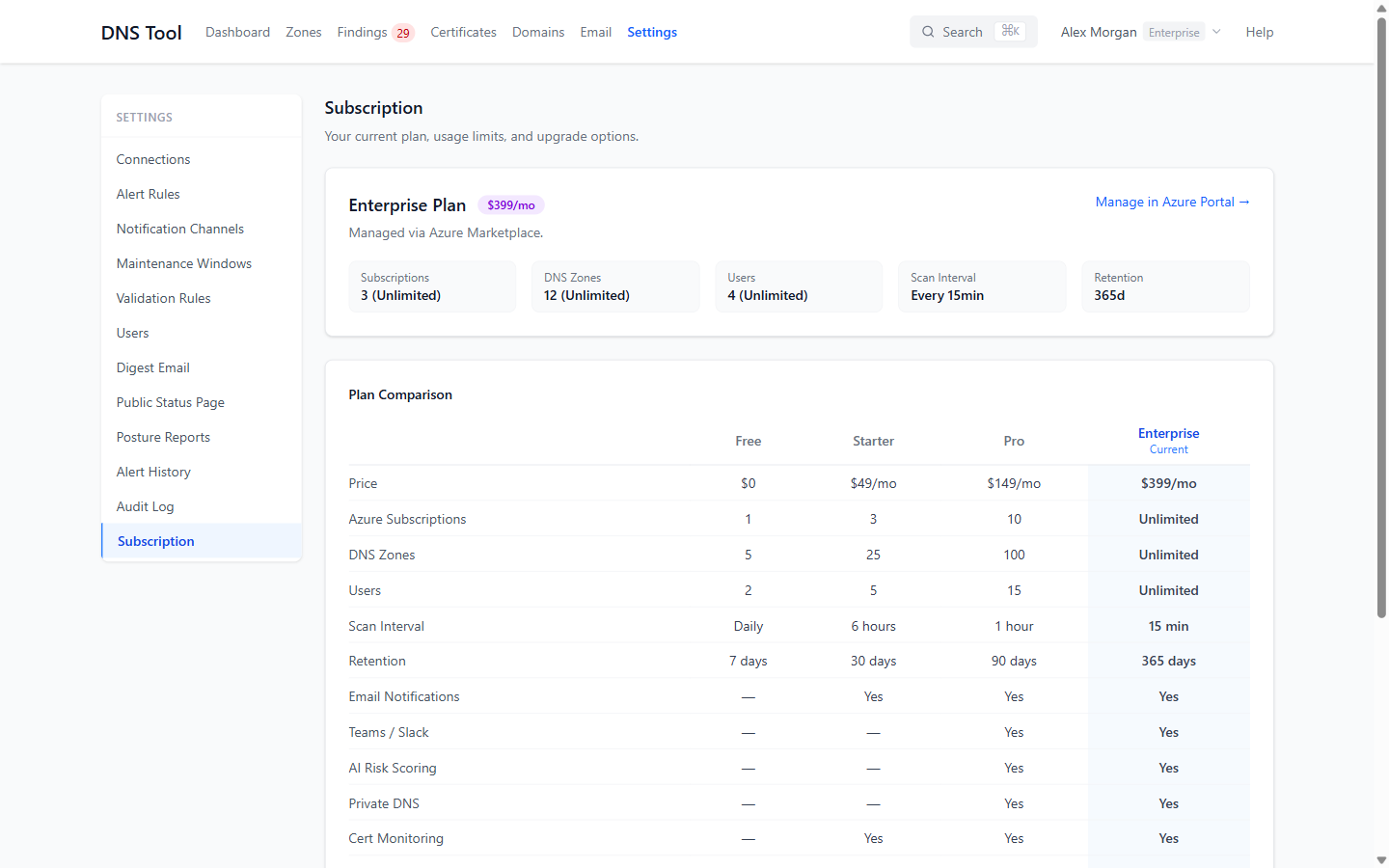
If you're over your zone limit, a notice explains the grace period; see Zone overage handling.
Under Try a Higher Plan, an Admin or Owner can start a free trial of a higher plan with your own data in place: 30 days, or 14 days for Enterprise from Free or Starter. Each plan can be trialled once per organization, one at a time. While a trial runs, the page shows which plan you're trying and how many days are left. See Trials.