Getting started with DNS Tool
Getting from subscription to your first health score takes a few minutes. You need:
- A Microsoft work account to sign in.
- Someone who can grant tenant-wide admin consent in Entra ID — a Global Administrator, Privileged Role Administrator or Cloud Application Administrator.
- Someone who can assign roles on the subscriptions (or management group) you want monitored — Owner or User Access Administrator.
These can be the same person.
Subscribe on Azure Marketplace
Find DNS Tool for Azure on the Azure Marketplace, choose a plan — the Free plan needs no credit card — and complete the purchase. Then choose Configure account now.
You're taken to DNS Tool, asked to sign in with Microsoft, and your subscription is activated. DNS Tool creates an organization for it and makes you its Owner. You can change plans later in the Azure portal; see Plans & Pricing.
Sign in
Open DNS Tool and choose Sign in with Microsoft.
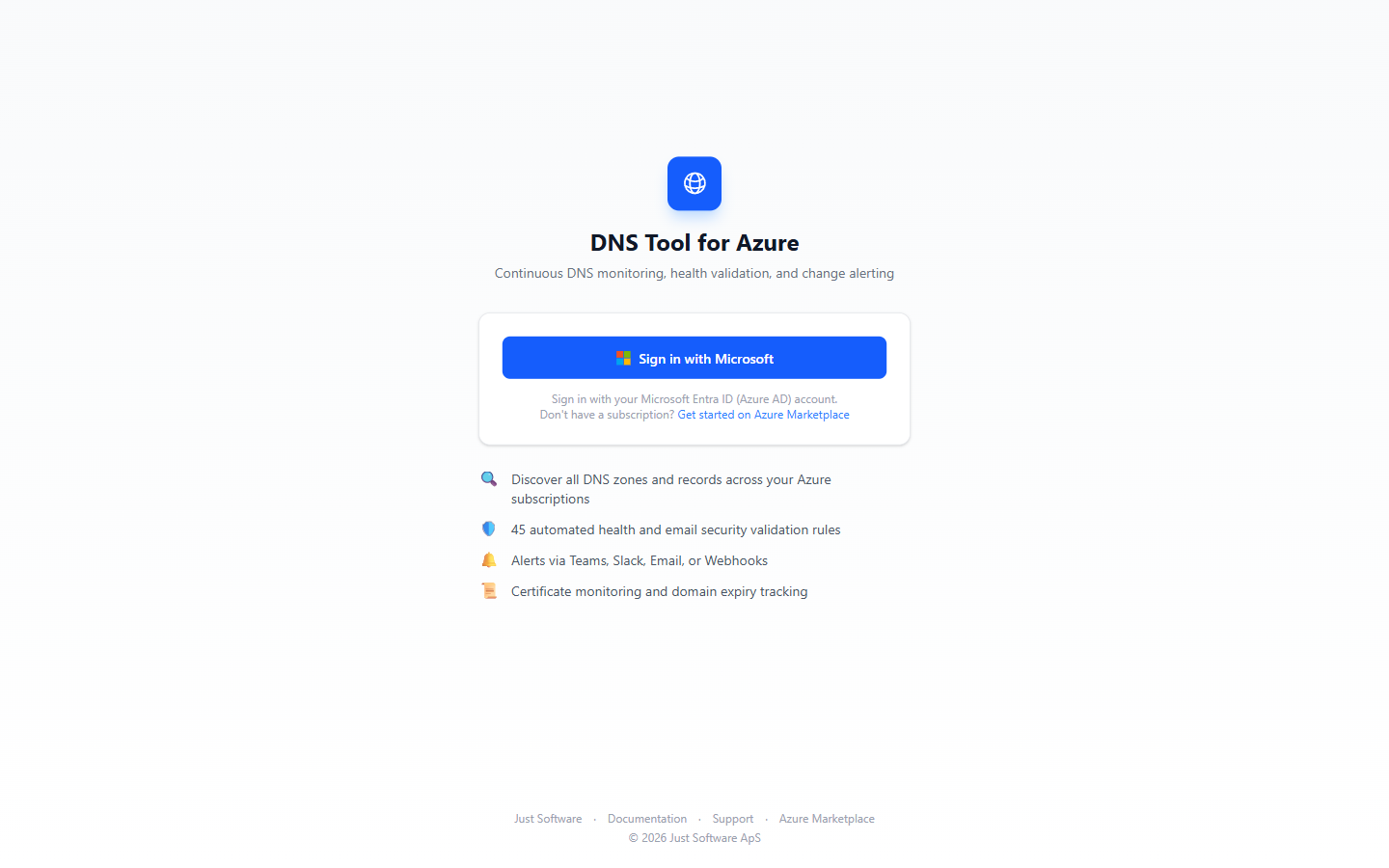
Colleagues from the same Entra tenant join your organization automatically the first time they sign in, as Members. You can change their role under Settings → Users; see Users & roles.
If you belong to more than one DNS Tool organization, pick one after signing in and switch between them from the menu under your name.
Note: If you see No Active Subscription after signing in, your Entra tenant has no DNS Tool organization yet. Subscribe on the Azure Marketplace first, or — if a colleague already has — make sure they completed the setup from the Marketplace confirmation email.
Connect your Azure tenant
The first time you sign in, DNS Tool opens the setup wizard. It has four steps: Welcome, Connect, Consent and Scan. You can leave it with Skip setup and come back later from Settings → Connections.
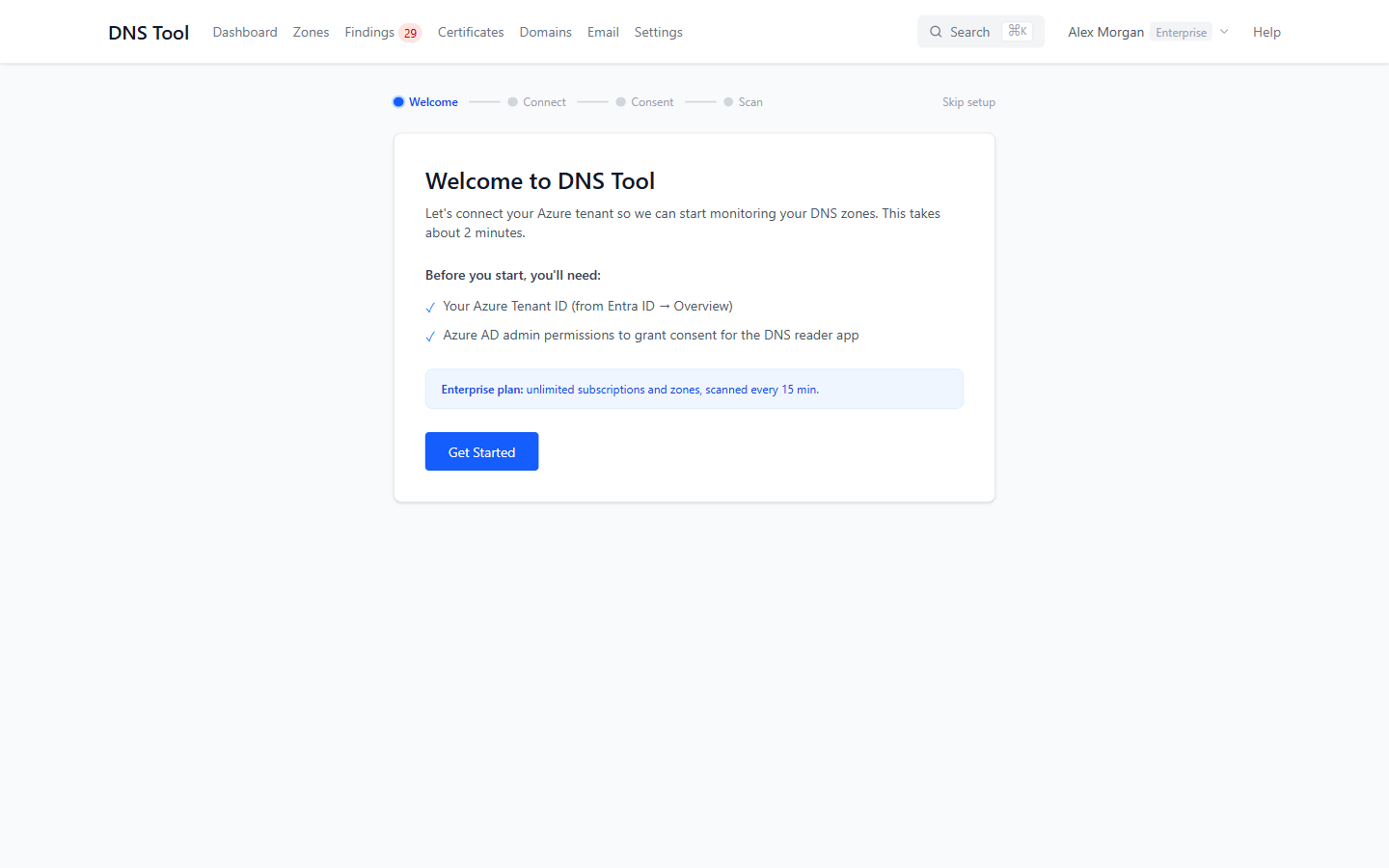
Step 1 — Welcome
Lists what you need and your plan's limits. Choose Get Started.
Step 2 — Connect
Give the connection a name, such as Production tenant, and enter your Azure Tenant ID. You'll find it in the Azure portal under Microsoft Entra ID → Overview → Tenant ID. Choose Create Connection.
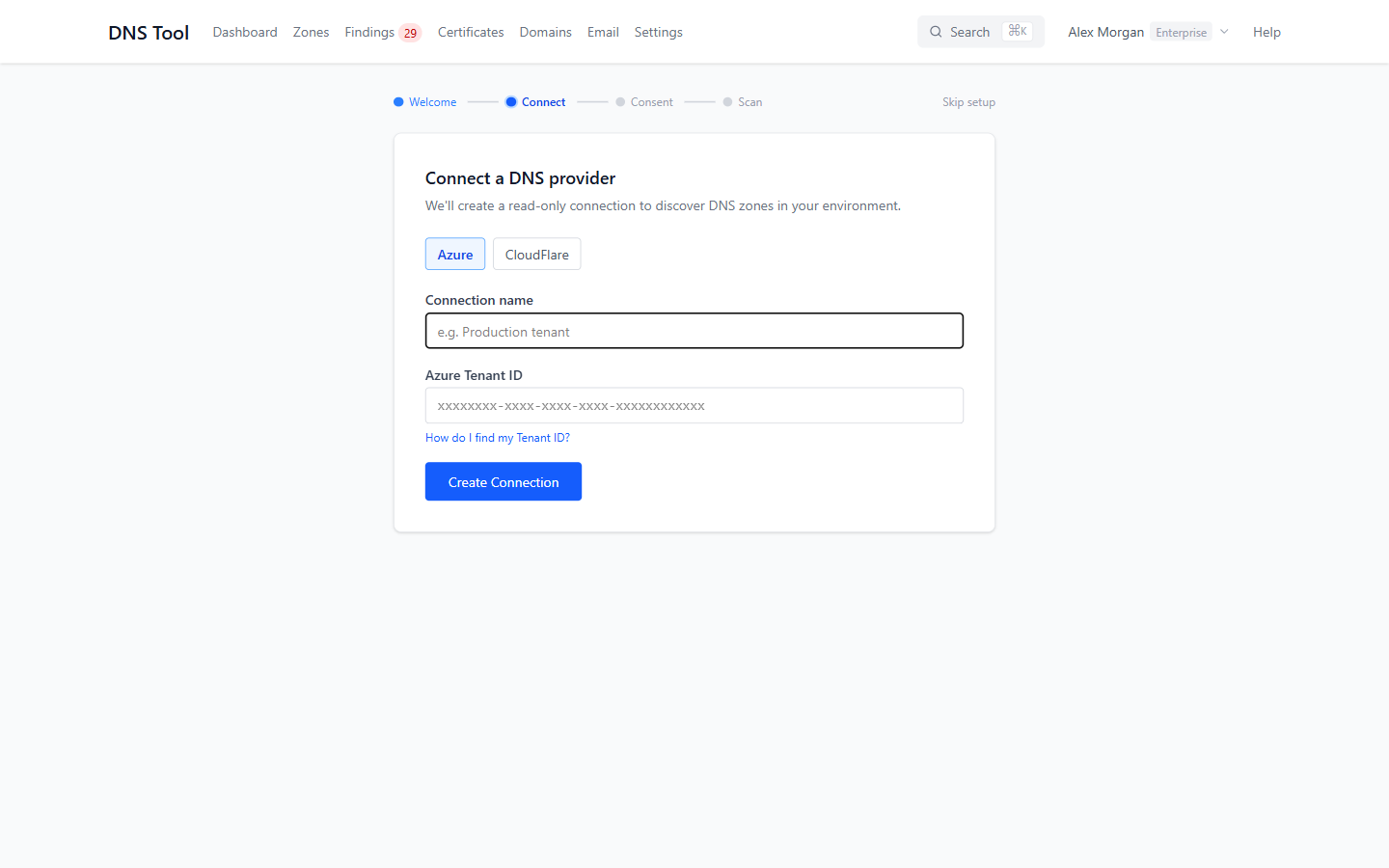
Tip: DNS Tool also reads DNS hosted at CloudFlare. Choose CloudFlare and paste an API token with Zone:Read, DNS:Read and Account:Read permissions.
Step 3 — Consent
Choose Grant Consent. Microsoft's consent page opens, asking an administrator to allow the DNS Tool for Azure Subscription Scanner app to sign in to your tenant. If you aren't an administrator yourself, choose Copy Consent Link and send it to one.
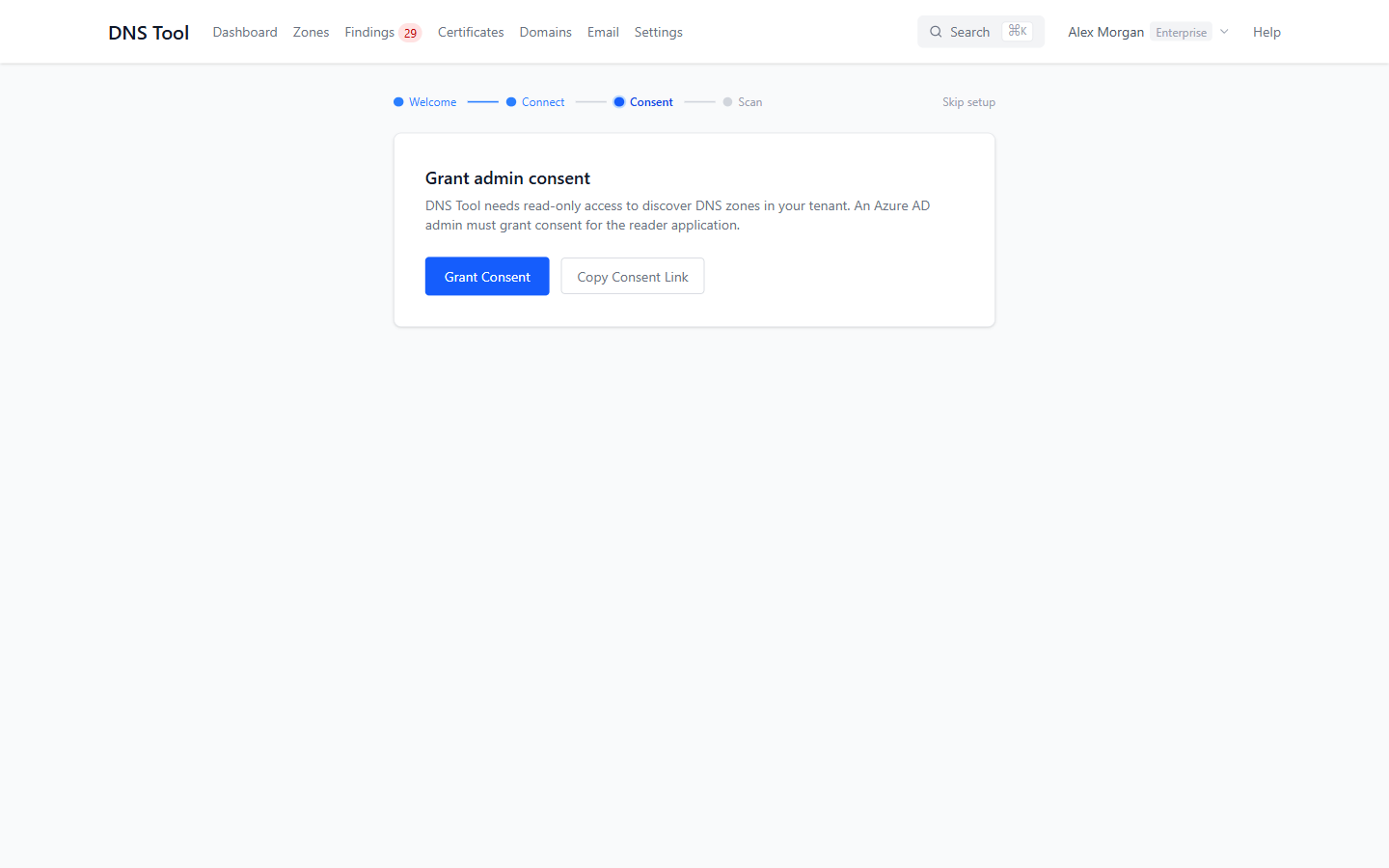
DNS Tool checks every few seconds and continues by itself once consent has been given — even if it was given in another browser.
Note: Consent creates the scanner app in your tenant. It doesn't give it access to any subscription yet — that's the Reader role below.
Assign the Reader role
Give the scanner app Azure's built-in Reader role on each subscription that holds DNS zones, or once on a management group to cover every subscription beneath it.
In the Azure portal: open the subscription (or management group) → Access control (IAM) → Add role assignment → Reader → Members: User, group, or service principal → select DNS Tool for Azure Subscription Scanner - By Just Software → Review + assign.
With the Azure CLI:
# The scanner app's service principal in your tenant (created by the admin consent above)
SP=$(az ad sp list --display-name "DNS Tool for Azure Subscription Scanner - By Just Software" --query "[0].id" -o tsv)

# One subscription …
az role assignment create --assignee-object-id "$SP" --assignee-principal-type ServicePrincipal \
  --role Reader --scope "/subscriptions/<subscription-id>"

# … or everything under a management group
az role assignment create --assignee-object-id "$SP" --assignee-principal-type ServicePrincipal \
  --role Reader --scope "/providers/Microsoft.Management/managementGroups/<management-group-id>"
Reader is read-only: it lets DNS Tool see DNS zones, records, Private Endpoints, virtual network links and public IP addresses, and nothing it can change. Role assignments can take a few minutes to take effect.
Once DNS Tool can read your subscriptions, the wizard lists them. Choose Start First Scan.
Tip: If the wizard says No subscriptions accessible, the Reader role is missing or hasn't taken effect yet. Assign it, wait a minute, and choose Validate under Settings → Connections.
Step 4 — Scan
The first scan starts immediately, on every plan. The wizard shows its progress — connecting to Azure, discovering zones, inventorying records, running health checks — and then what it found: how many issues across how many zones, the most serious one, and your overall health score. From there, go to your findings or to the dashboard.
Choose what is monitored
DNS Tool scans every subscription the scanner app can read, up to your plan's subscription limit. Under Settings → Connections, expand a connection to see its subscriptions and switch any of them off. Individual zones can be hidden from health scores and notifications; see Hide a zone.
Scans
- After the first scan, every subscription is scanned on a schedule that depends on your plan: daily (Free), every 6 hours (Starter), hourly (Pro) or every 15 minutes (Enterprise).
- On Pro and Enterprise, Rescan now on a zone, or Rescan on a connection, starts a scan immediately.
- After each scan, DNS Tool records what changed, re-runs every validation rule, updates the health scores and sends the alerts your rules ask for.
- Certificates and domains are checked on their own schedule: a live TLS scan of your hostnames every 6 hours, and Certificate Transparency logs and domain registrations once a day.
Sample data
Some organizations — demo and evaluation setups — start with a fictional company, Contoso, so every page has something to show before your own zones are scanned. It appears as the connection Contoso (sample data), with a Sample data badge and a notice on Settings → Connections. It is never scanned, and nothing in it is real.
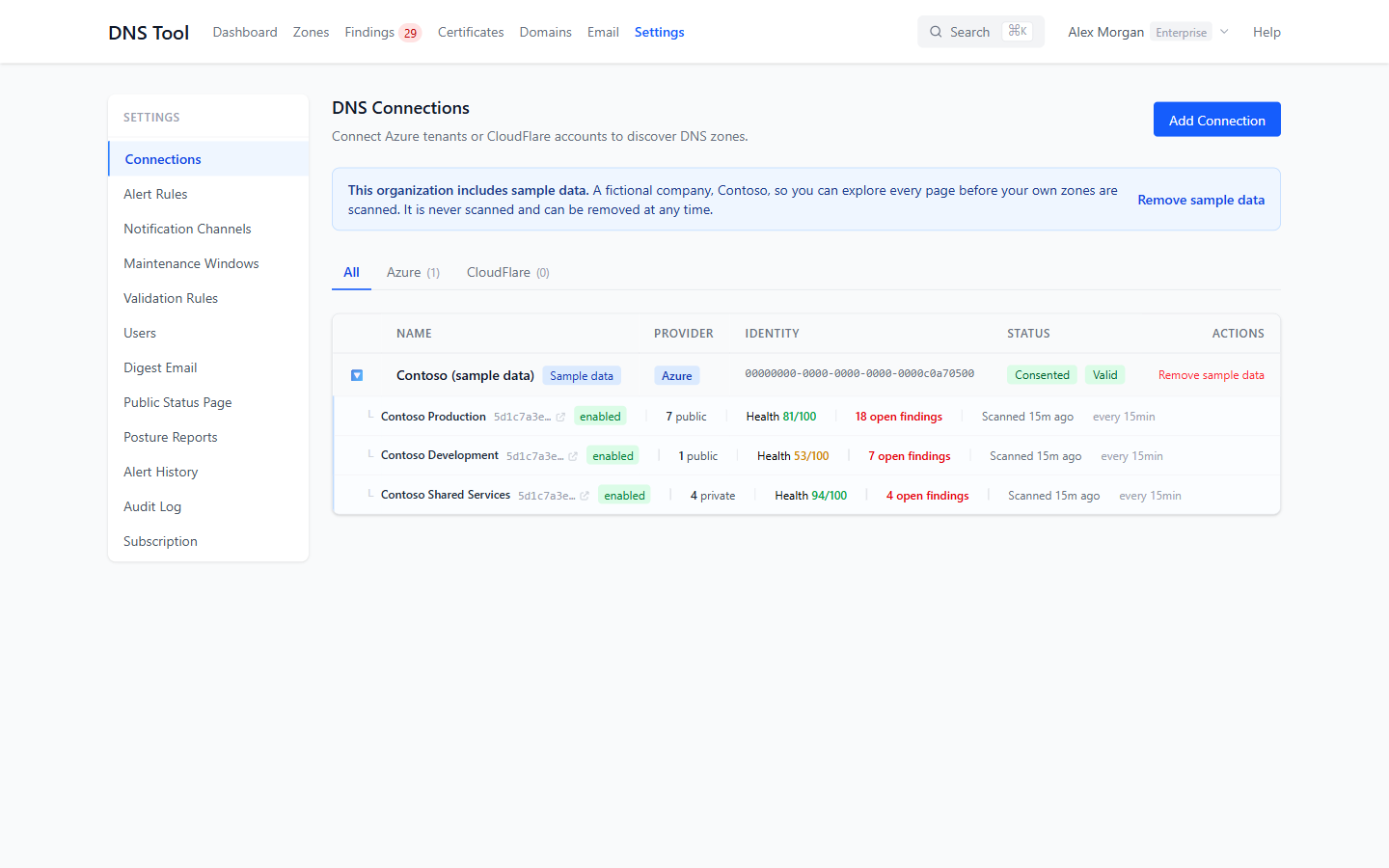
An Admin or Owner can remove it at any time with Remove sample data. This deletes the sample connection and everything that came with it — zones, records, findings, change history, certificates and domains. Your own connections and data are not affected.
Invite your team
Colleagues from your Entra tenant join by signing in. To add someone in advance, or with a different role, use Settings → Users → Invite User. See Users & roles.