Findings & health score
A finding is one validation rule that failed on one zone or record — a CNAME pointing at an Azure app that no longer exists, an SPF record that needs too many DNS lookups, a private endpoint whose A record is missing. DNS Tool re-runs every rule after each scan: new problems become findings, and findings whose cause has gone are resolved automatically.
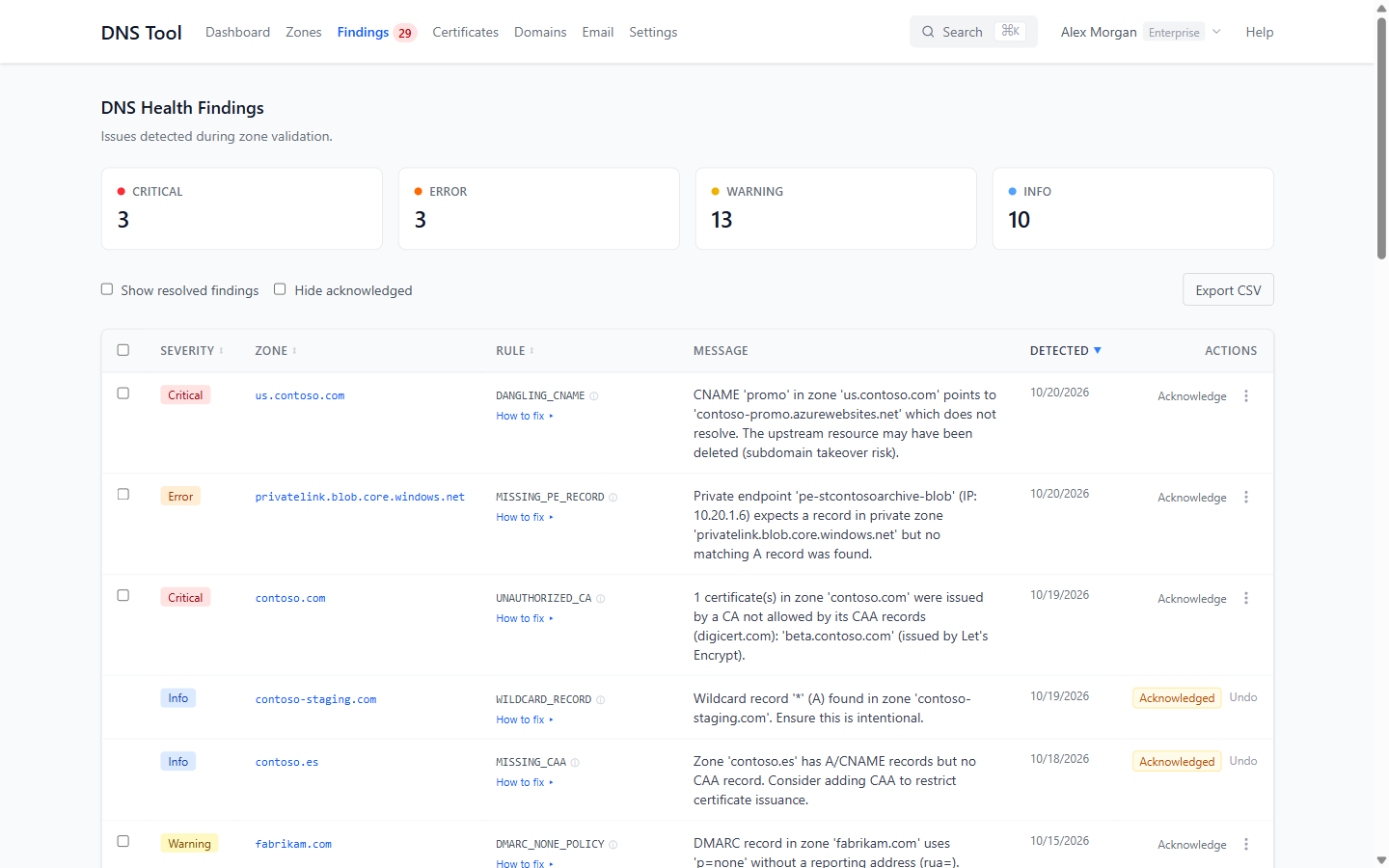
The findings list
Findings in the top bar lists every open finding across your zones, newest first.
- The four cards — Critical, Error, Warning, Info — count findings by severity. Click one to show only those; click it again to clear.
- Show resolved findings switches to findings a later scan no longer saw.
- Hide acknowledged leaves out findings someone has already reviewed.
- Sort by severity, zone, rule or detection date.
- Export CSV downloads the findings of the last 30 days. Select rows to Export Selected or Bulk Acknowledge them.
Each row shows the severity, the zone (click it to open the zone), the rule, the message with the specifics, and when it was first detected. Hover over the ⓘ next to a rule for a summary of what it checks.
Severity
| Severity | Meaning |
|---|---|
| Critical | Immediate action required — a security or availability risk, such as a subdomain takeover. |
| Error | A configuration error that causes failures. |
| Warning | A suboptimal configuration that may cause issues. |
| Info | A best-practice recommendation. |
How to fix
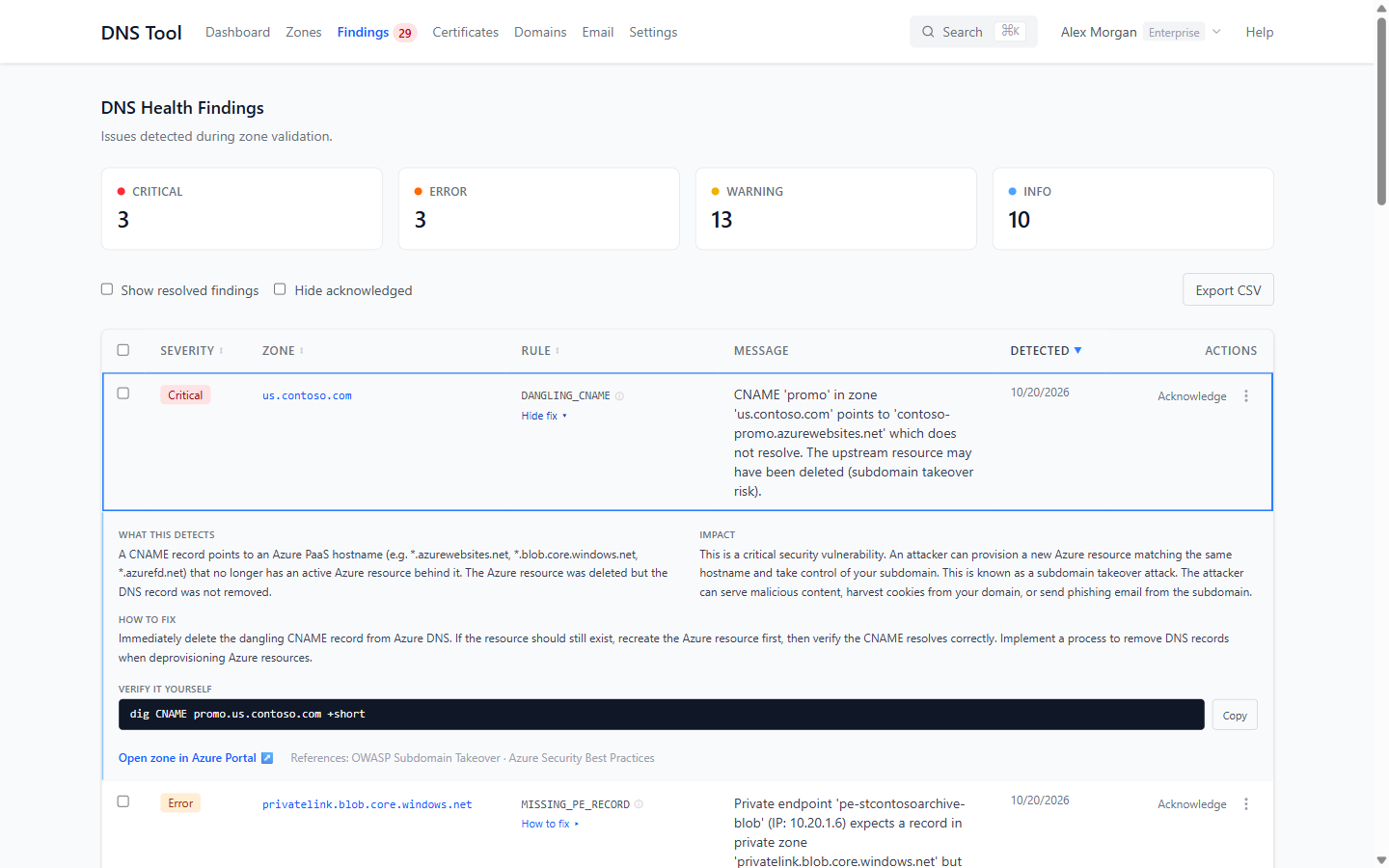
Click How to fix under a rule for the full guidance:
- What this detects and the Impact.
- How to fix — the concrete steps.
- Suggested record value — for rules where a safe starting point exists, such as a DMARC or CAA record, with your zone filled in and a Copy button.
- Verify it yourself — a
digcommand to check the record from your own machine. - Open zone in Azure Portal and references to the relevant standards.
A finding resolves on its own when the next scan no longer sees the problem — there's nothing to close by hand. On Pro and Enterprise you can Rescan now on the zone to confirm a fix straight away.
Acknowledge
Acknowledge records that someone has reviewed a finding and decided what to do, with an optional note — for example "Intentional: catch-all for preview environments". The finding stays open and visible, marked Acknowledged; hover over the badge to see who acknowledged it, when, and the note. Undo removes the acknowledgement.
Acknowledged findings no longer count against the zone's health score, so the score reflects what still needs deciding. If you never want a check to run, switch the rule off instead; see Validation rules.
How the health score works
Every zone starts at 100. Each open finding that hasn't been acknowledged deducts points by severity:
| Severity | Points |
|---|---|
| Critical | 30 |
| Error | 15 |
| Warning | 5 |
| Info | 1 |
The score can't go below 0. A zone that hasn't been validated yet shows Not yet validated. The overall health score on the dashboard is the average of your zones' scores, leaving out hidden zones.
| Score | Shown as |
|---|---|
| 80–100 | Healthy (green) |
| 50–79 | Needs attention (yellow) |
| 0–49 | At risk (red) |
Which rules run
DNS Tool runs 45 rules in four groups — Record Health, Email Security, Network & Delegation, and Certificate & Domain Monitoring. The validation rules reference lists them all with their default severity. Admins can switch rules off or set warning periods under Settings → Validation Rules.