EasyScep administration portal
Everything about a running EasyScep instance is managed in the administration portal at https://portal.just-software.com. Open Manage subscriptions and choose your EasyScep subscription.
What you can do depends on your role: Readers can look, Contributors can also issue and revoke certificates, and Owners also manage settings and access.
Dashboard
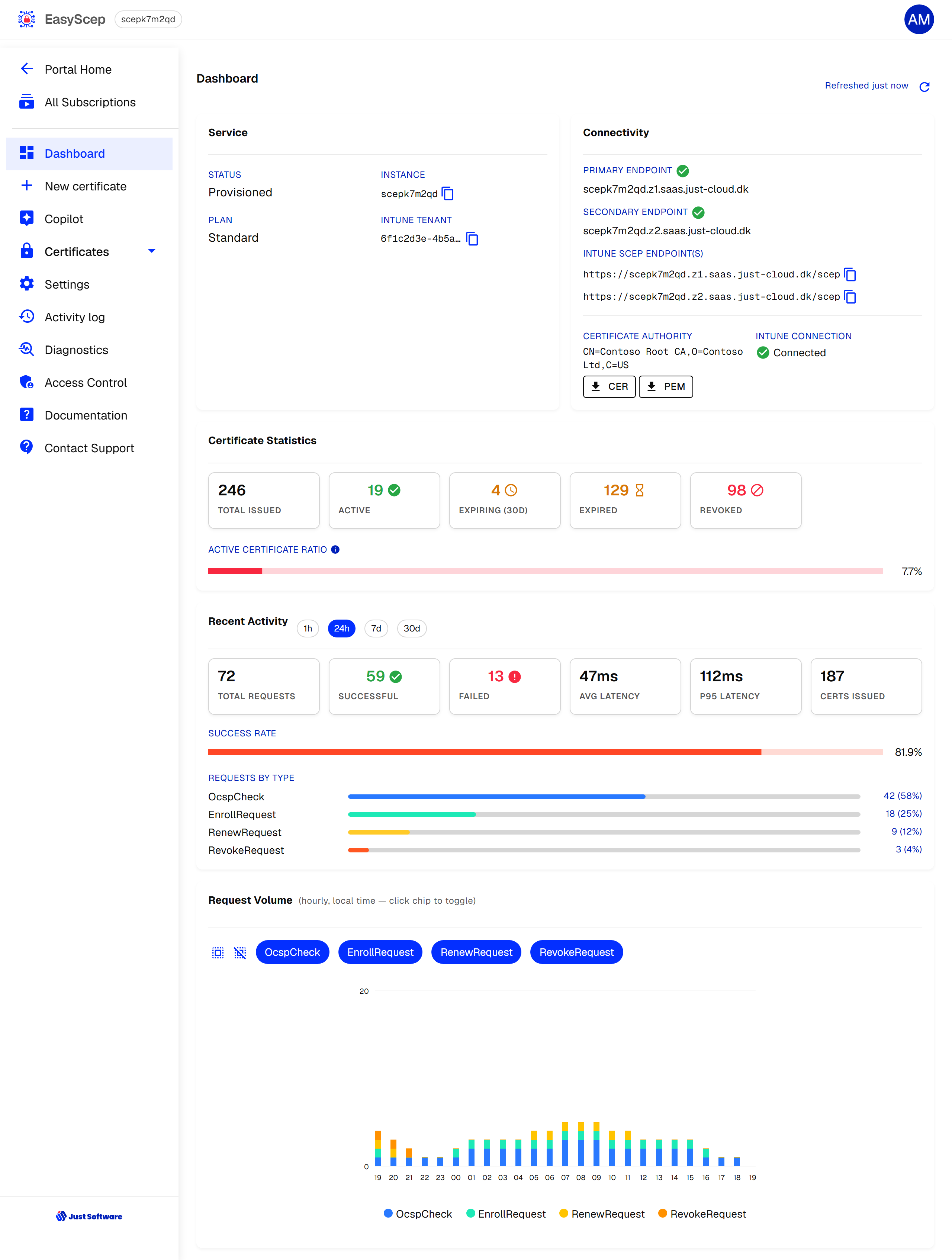
- Service — status, plan, the Intune tenant EasyScep validates requests against, and a link to the EasyRadius instance if one is linked.
- Connectivity — the health of your endpoint(s); the Intune SCEP endpoint URL(s) to enter in your Intune SCEP profiles; your certificate authority, with CER and PEM downloads of the root certificate for your trusted-certificate profiles; and the Intune connection status.
- Certificate Statistics — how many certificates have been issued, and how many are active, expiring within 30 days, expired and revoked.
- Recent Activity and Request Volume — requests, successes, failures, response times and certificates issued over the last hour, day, week or month.
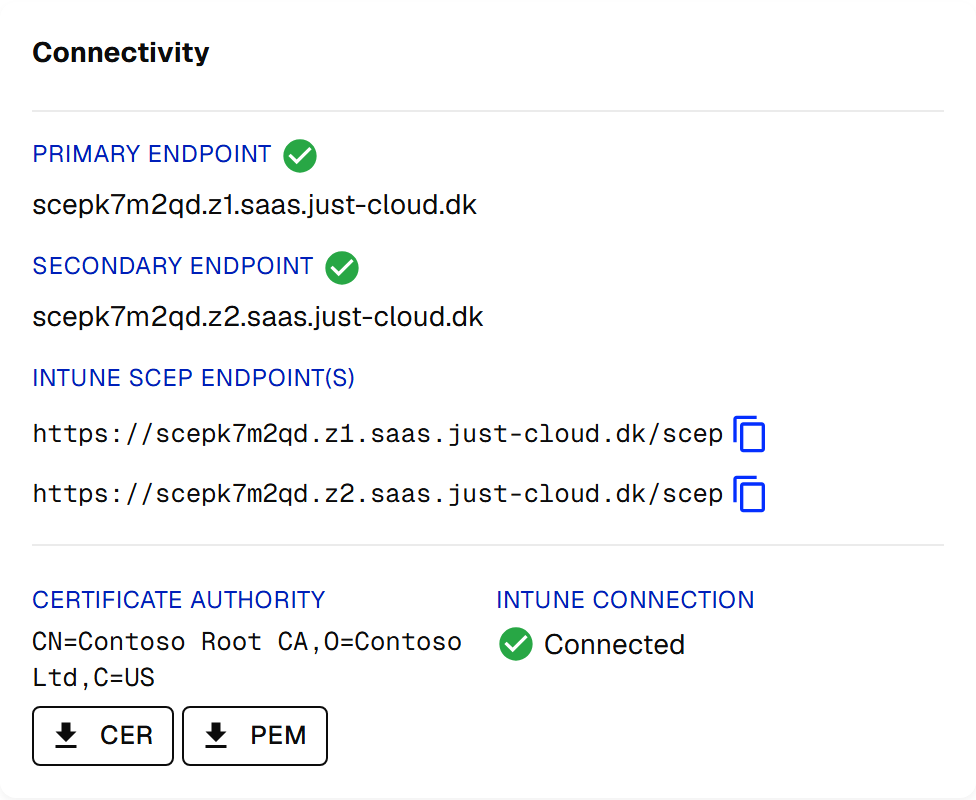
Your root certificate authority uses an RSA 4096-bit key and is valid for 20 years. The OCSP and CRL addresses devices use to check revocation are written into every certificate EasyScep issues, so there is nothing to configure for them — but devices and RADIUS servers must be able to reach your endpoints over HTTP to use them.
Certificates
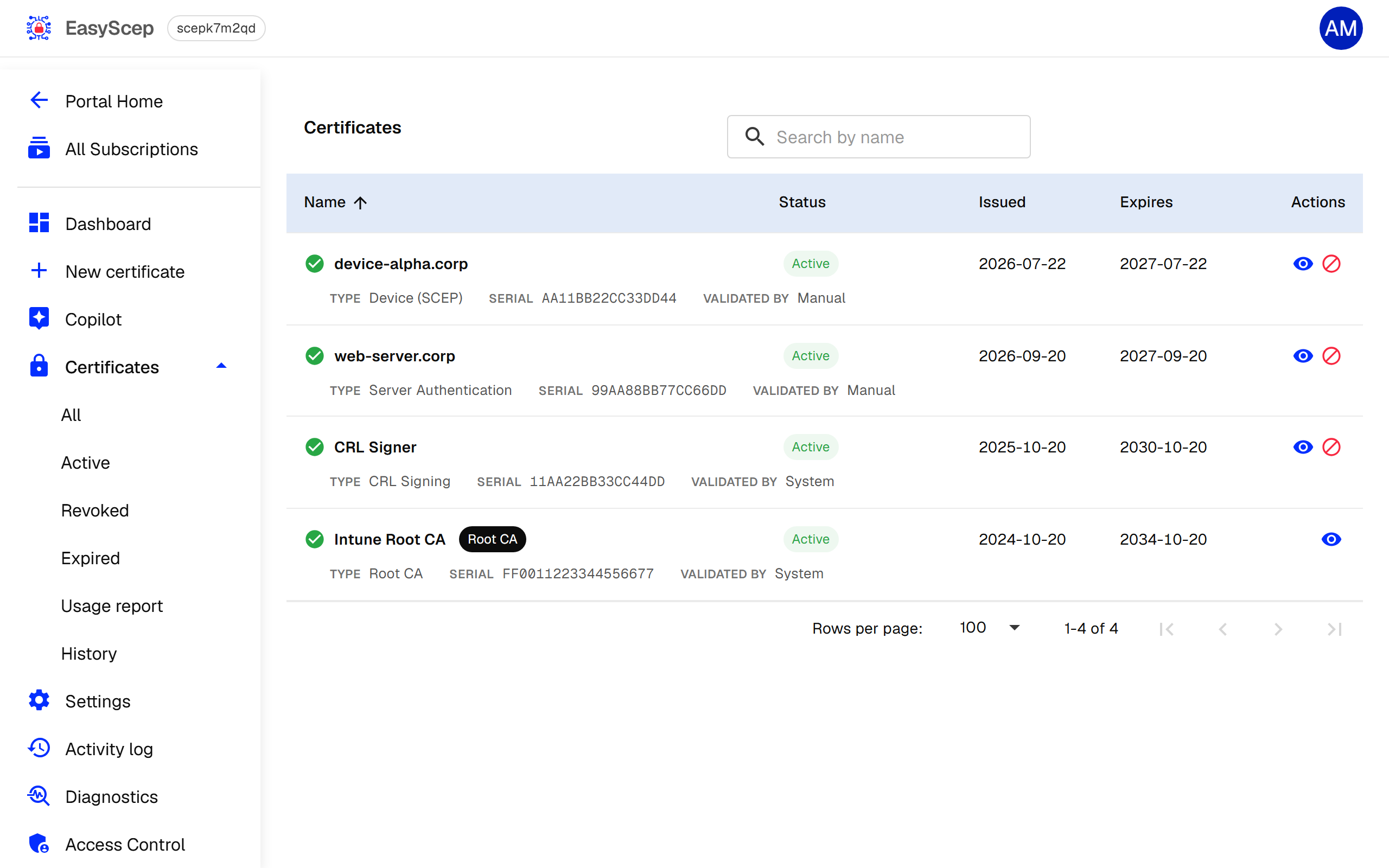
Certificates lists the certificates EasyScep has issued. Use the menu to show All, Active, Revoked or Expired certificates, and search by name (common name). Expand a row to see the type, serial number, how the request was validated, and — for revoked certificates — when and why. The information icon opens the full details: subject, alternative names, key usage and extended key usage.
Revoking a certificate
Contributors and Owners can revoke an active certificate from its row. Revocation cannot be undone.
- A revocation is visible through OCSP immediately.
- The CRL is updated within seconds, but devices may keep using a cached copy for up to 1 hour, and are allowed to keep one until it expires after up to 2 hours. A device that only checks the CRL can therefore take up to 2 hours to see the revocation.
- When Intune asks for a certificate to be revoked, EasyScep picks the request up within about 5 minutes and revokes it the same way.
Creating a certificate manually
New certificate lets Contributors and Owners issue a certificate outside Intune — for example a server certificate for a RADIUS server, or a client certificate for a device that cannot use SCEP.
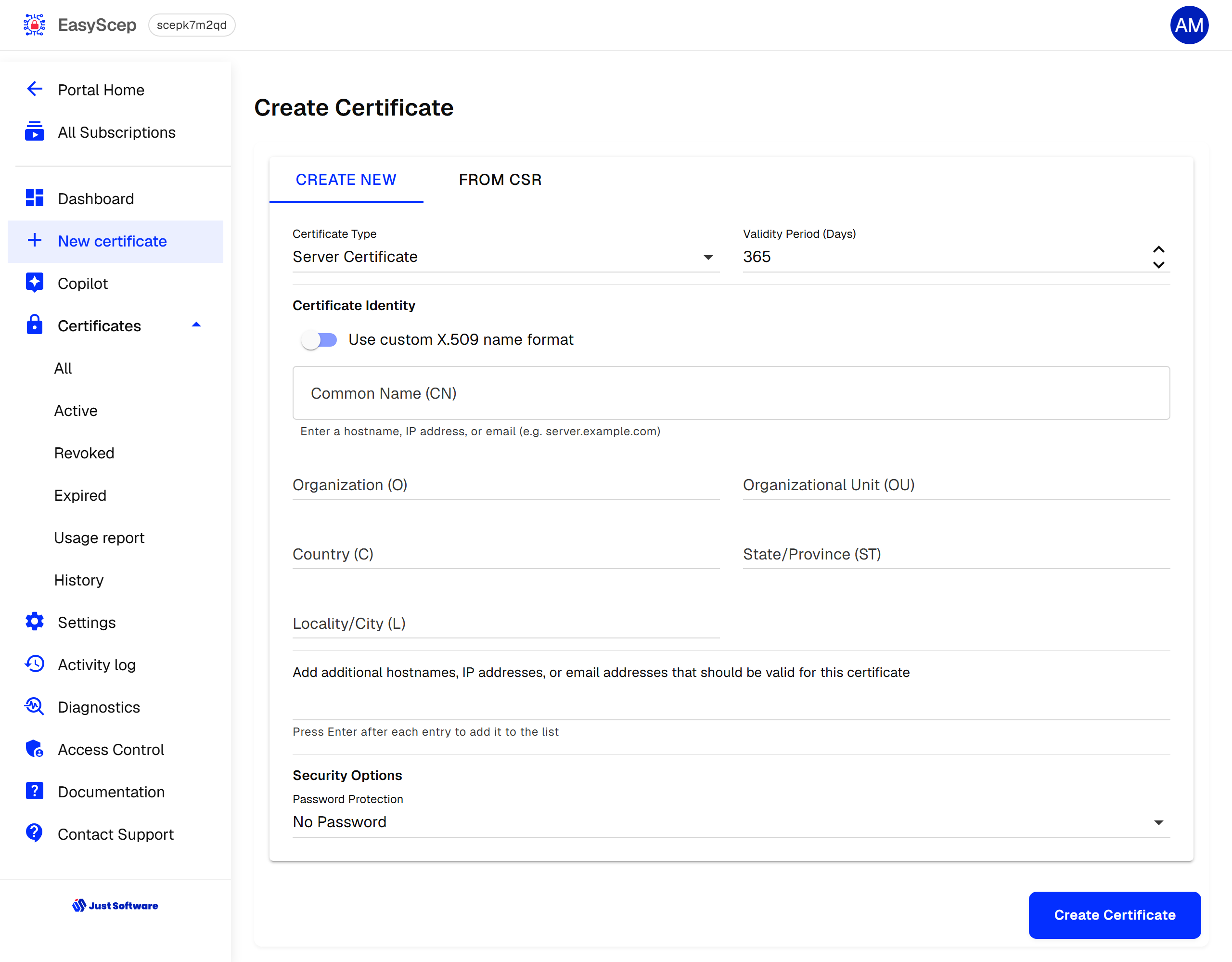
- Create New — choose Server Certificate or Client Certificate, the validity in days (up to 3650), the common name (a name, hostname, IP address or email), the other subject fields and any subject alternative names. You download a PFX file containing the certificate and its private key, protected by a password you choose, a generated password (shown once), or no password.
- From CSR — paste a PEM certificate signing request generated on the device. The page shows what the request contains before you sign it, and you download the signed certificate as a .cer file. The private key never leaves the device.
Settings
Settings can be changed by Owners; Contributors can change the technical contact email. Saving a change to request validation or the Intune tenant restarts your EasyScep instance, which takes a moment.
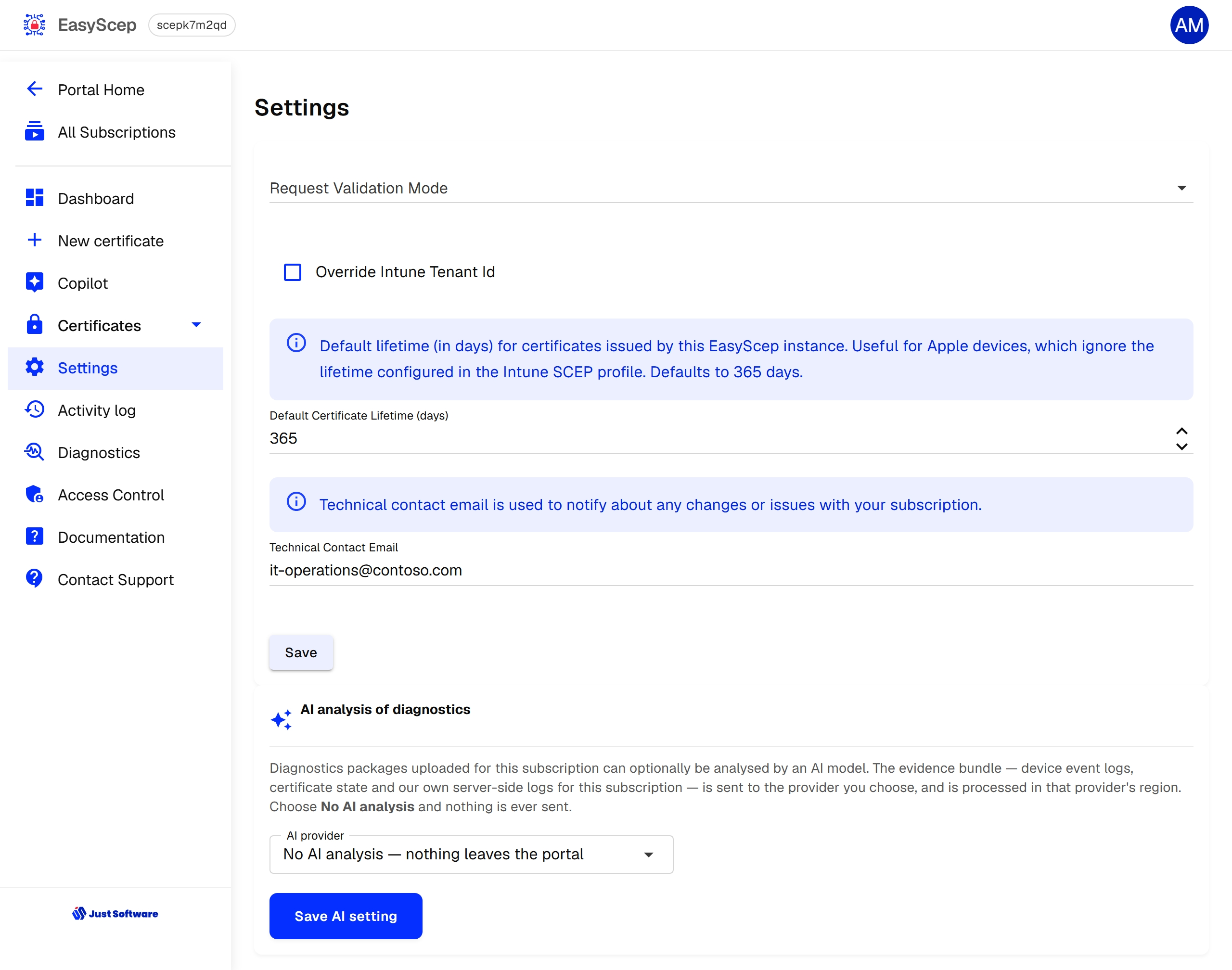
Request validation and generic SCEP
Request Validation Mode decides which certificate requests EasyScep accepts:
| Mode | Accepts |
|---|---|
| Intune (default) | Requests Intune has authorised. Every request is checked with Intune. |
| SharedSecret | Requests whose SCEP challenge password matches the Shared Secret. |
| Any | Either of the above. |
| None | Every request. Anyone who knows your endpoint URL can obtain certificates — do not use this in production. |
Use SharedSecret or Any for devices that are not managed by Intune but have a SCEP client — network equipment, printers, or another MDM. Configure the client with your SCEP URL from the dashboard and the shared secret as its challenge password. Only Owners can see the shared secret.
Intune tenant
By default EasyScep validates requests against the tenant the subscription was purchased in. If your devices are enrolled in a different tenant, tick Override Intune Tenant Id, enter that tenant's ID, and grant access again from the dashboard.
Technical contact email
The address we notify about changes or issues with your subscription.
AI analysis of diagnostics
Decides whether diagnostics packages you upload may be analysed by an AI provider: No AI analysis (nothing leaves the portal — the default), Mistral (processed in the EU) or Anthropic (processed in the US). An EasyRadius instance linked to this subscription uses the same choice.
Activity log
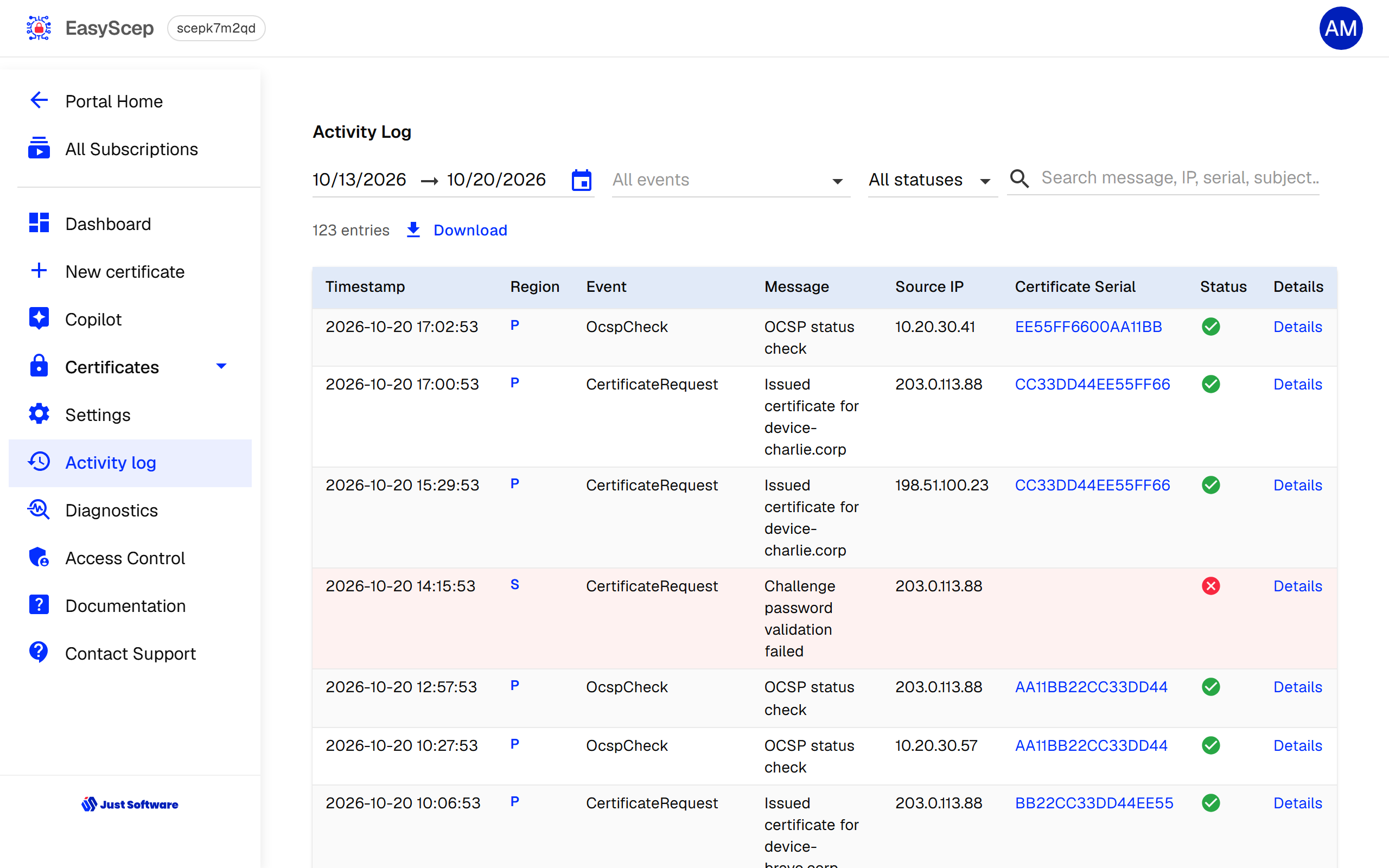
Activity log shows every request your endpoints handled — certificate requests, OCSP checks, CA certificate downloads and revocations — for up to the last 30 days (the last 7 by default). Filter by event type and outcome, search by message, source IP address, serial number or subject, and Download the result as CSV. Click a serial number to open that certificate. A failed request shows why it failed, for example a challenge password that did not validate.
Usage report
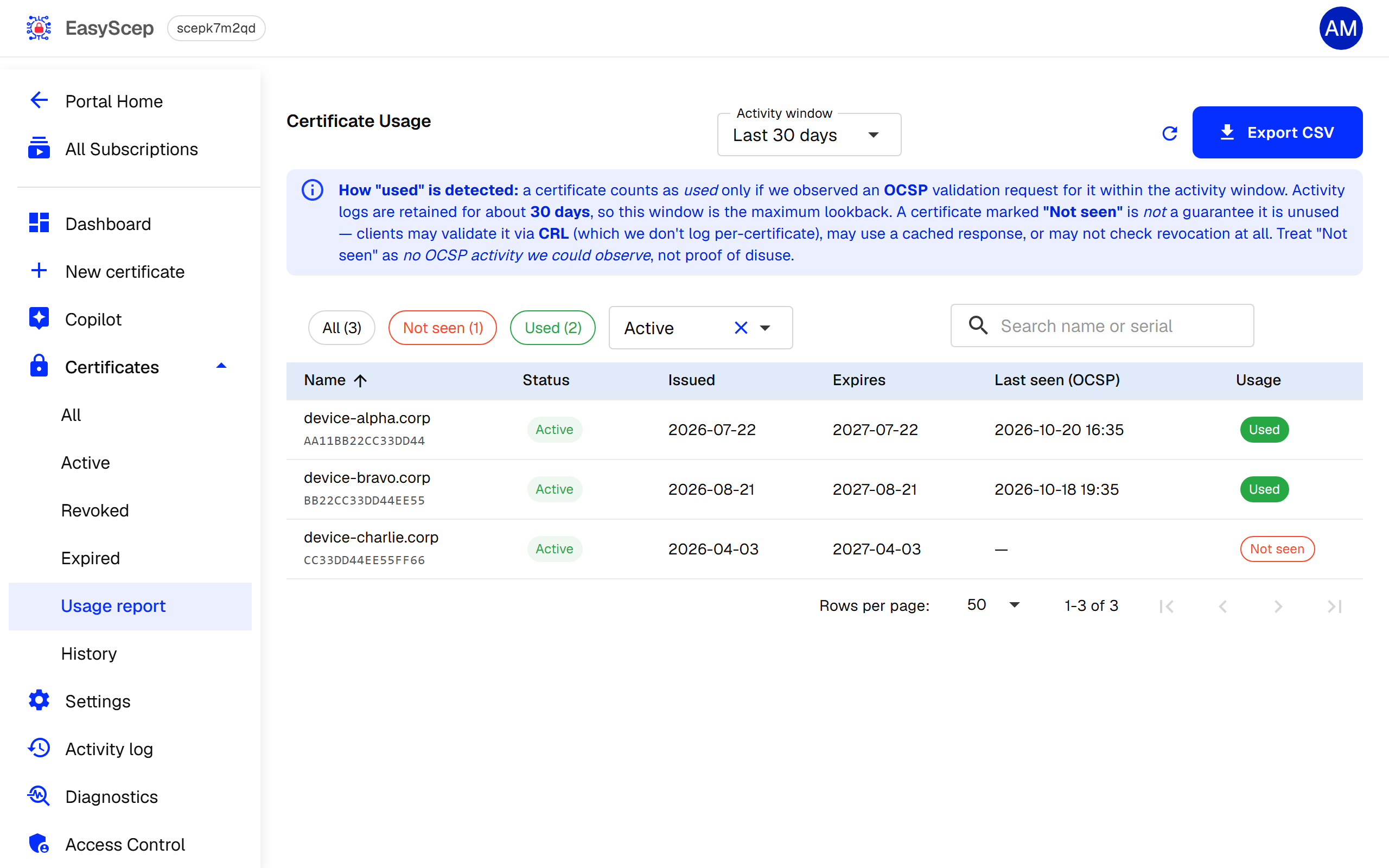
Certificates → Usage report helps you find certificates that are no longer used — for example devices that have been retired without their certificates being revoked. A certificate counts as Used when a device or RADIUS server checked it through OCSP during the last 7 or 30 days. Not seen does not prove that a certificate is unused: checks made through the CRL are not recorded per certificate. Export the list as CSV.
Diagnostics
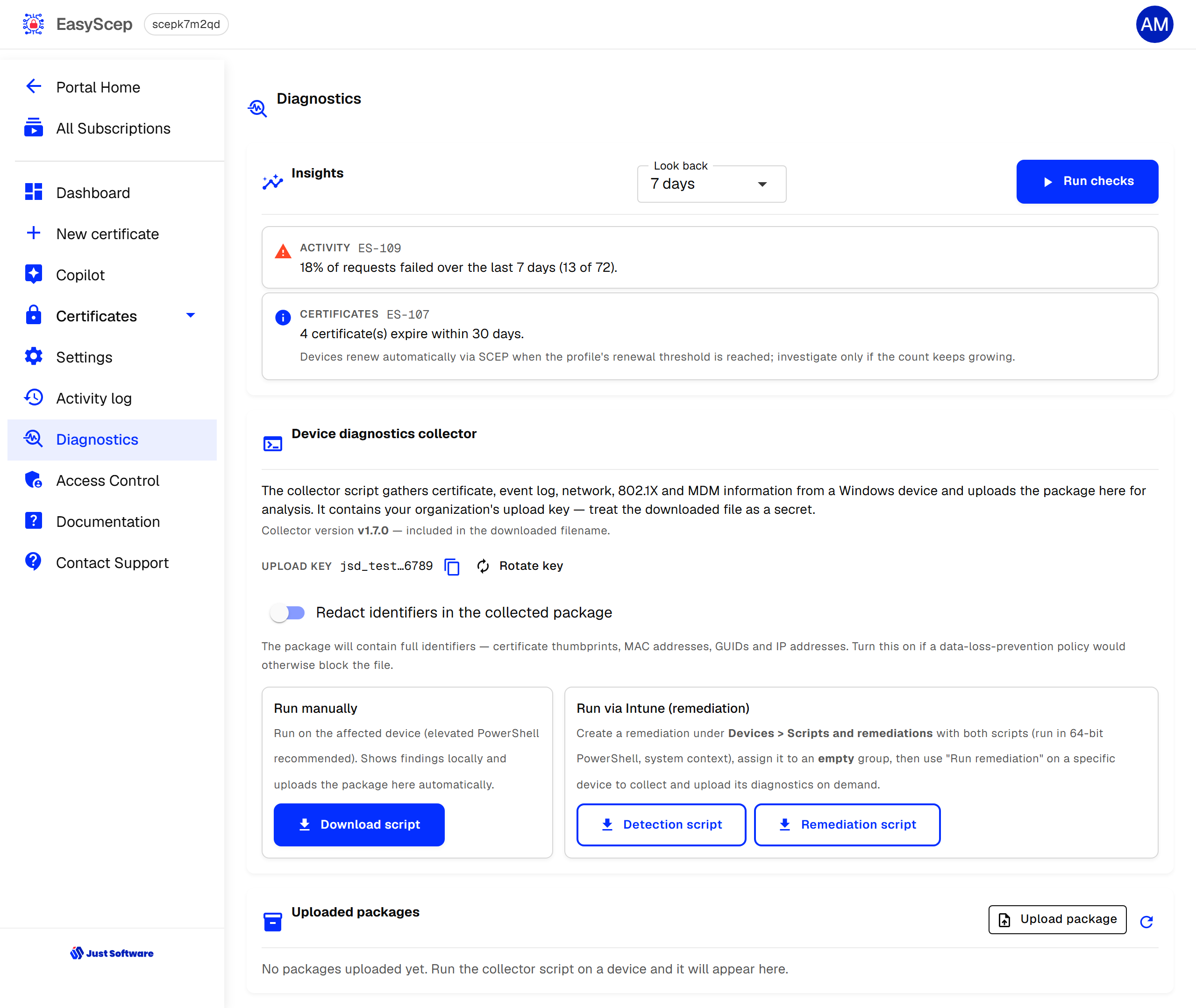
Diagnostics runs checks over the last 7, 14 or 30 days and lists what needs attention — for example requests Intune could not validate, which usually means the Intune connection or its consent needs attention.
The device diagnostics collector is a PowerShell script for Windows devices that do not receive their certificate. Run it manually, or deploy it as an Intune remediation, and it uploads a diagnostics package you and our support can examine. You can choose to redact identifiers in the package.
Access control
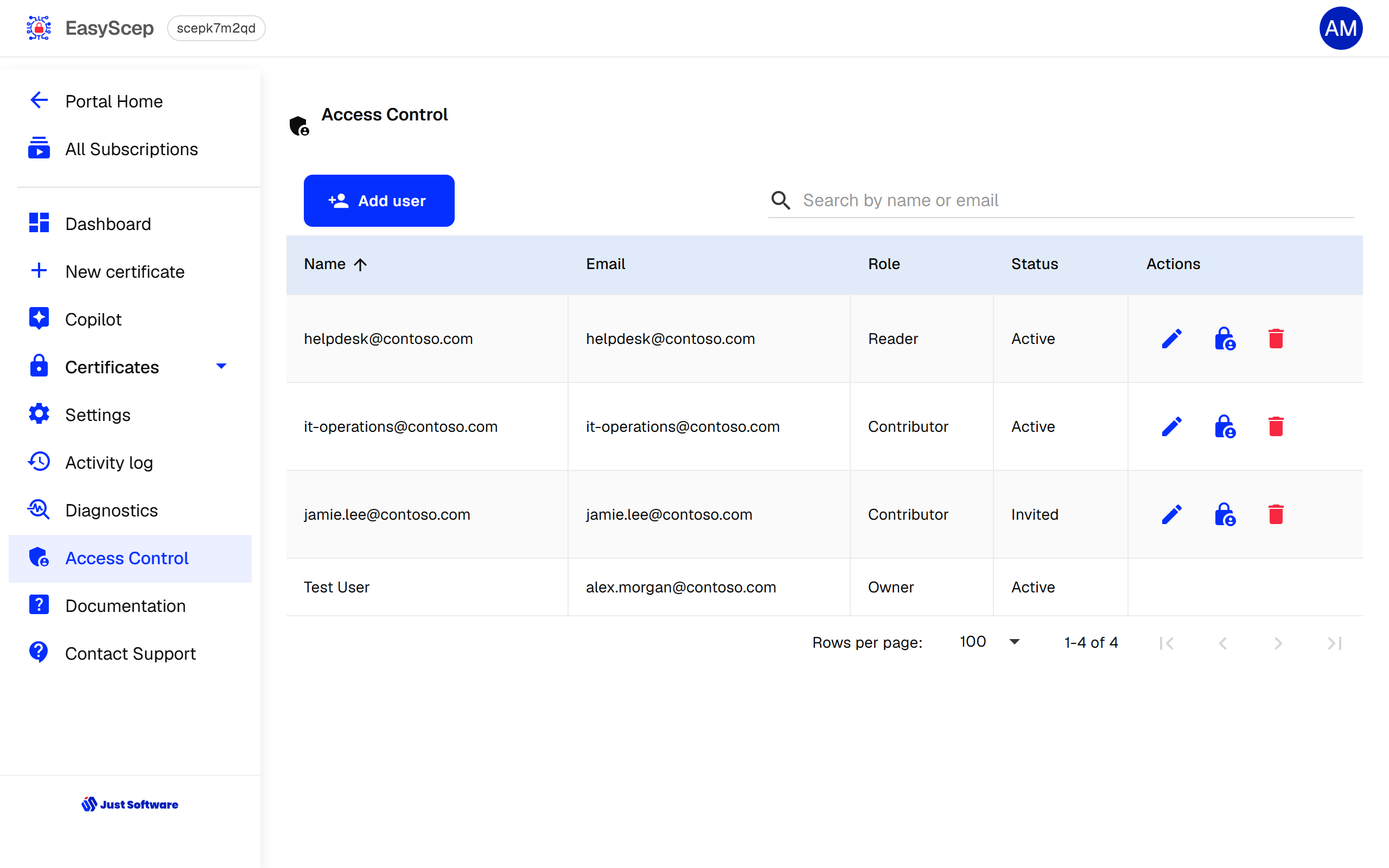
Access Control is available to Owners. Click Add user, enter the person's Microsoft Entra ID sign-in email and choose a role. Optionally, the portal emails them an invitation. Users show as Invited until they first sign in, and can be disabled or removed at any time.
| Role | Can |
|---|---|
| Reader | View the dashboard, certificates and logs |
| Contributor | Also issue and revoke certificates, and change the technical contact email |
| Owner | Also change settings, see the shared secret, and manage access control |