Configuring HPE InstantOn AP22 for WPA-Enterprise with EasyRadius
Prerequisites
Before you begin, make sure you have the following in place:
| Requirement | Details |
|---|---|
| HPE Instant On AP22 | Installed, powered on, and reachable on the network. Running the latest firmware. |
| EasyRadius instance | Provisioned and active. |
| Administrator access | Admin credentials for both the HPE Instant On portal and the EasyRadius administration portal. |
Collect your EasyRadius endpoint details
You'll need the IP address and port of both RADIUS endpoints later in this guide.
- Sign in to the EasyRadius administration portal.
- Open the Dashboard.
- Under Endpoints, note the values for the primary and secondary(If it exists) endpoints:
| Endpoint | IP address | Port |
|---|---|---|
| Primary | __________ |
____ |
| Secondary | __________ |
____ |
Tip: Keep these values at hand. Having them ready before you start avoids switching between portals during the configuration.
Step 1: Sign in to the HPE Instant On portal
- Open your browser and go to the HPE Instant On portal: https://portal.instant-on.hpe.com
- Choose one of the following:
- Already have an account? Click Sign in and enter your credentials.
- New to HPE Instant On? Click Create an account and follow the on-screen instructions.
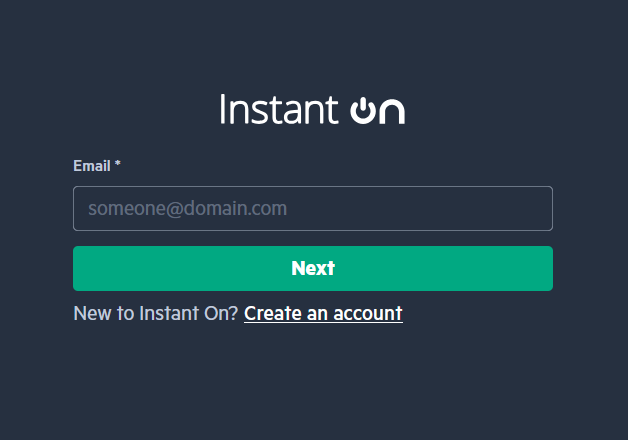
Figure 1: The HPE Instant On portal sign-in page.
Step 2: Create a site and add the access point
2.1 Start creating a site
After signing in, you'll be prompted to create a Site. Proceed with the setup.
 Figure 2: The prompt to create a new site.
2.2 Name the site and set its location
Enter a Site name and a Location for your site.
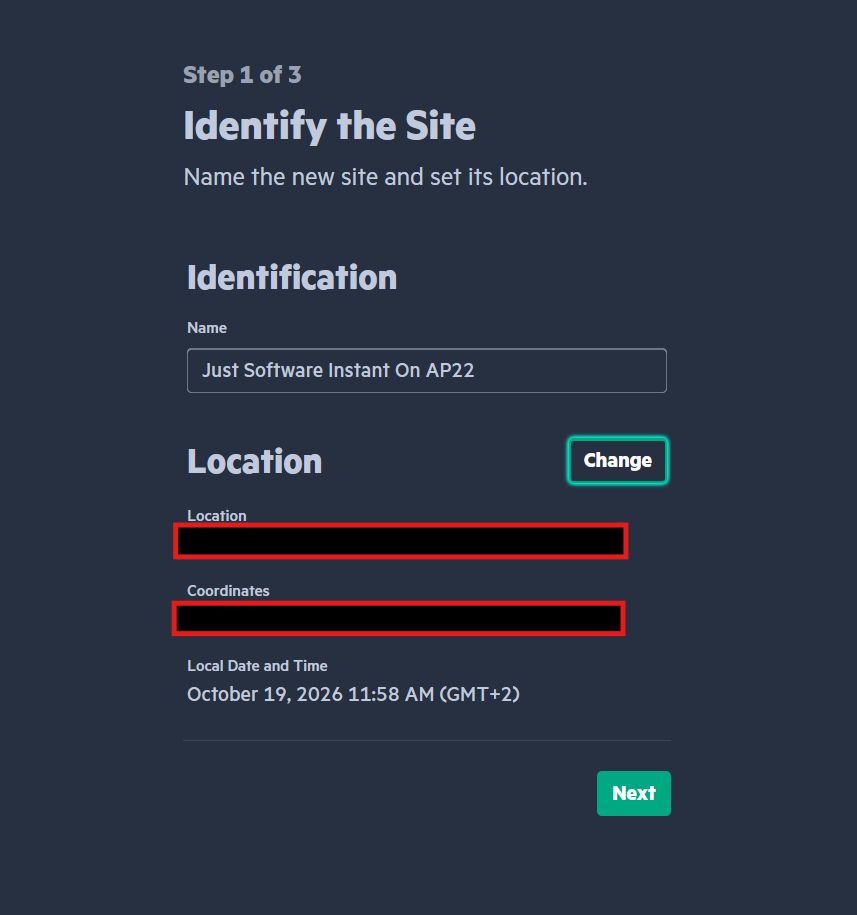 Figure 3: Entering the site name and location.
2.3 Search for your access point
On the Search for devices page, enter the serial number of your AP22.
Note: You can find the serial number on the sticker on top of the access point or on the product box.
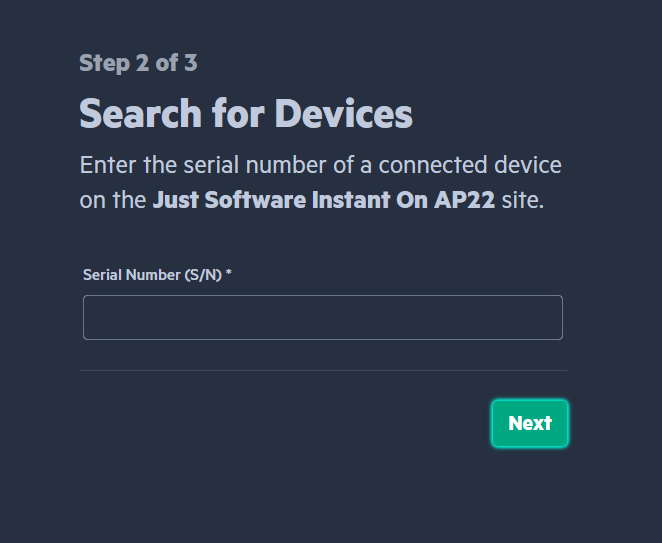
Figure 4: Entering the AP22 serial number on the Search for devices page.
2.4 Review and create the site
If the access point is found, it will appear on the Review discovered devices page. Confirm the device and click to create your site.
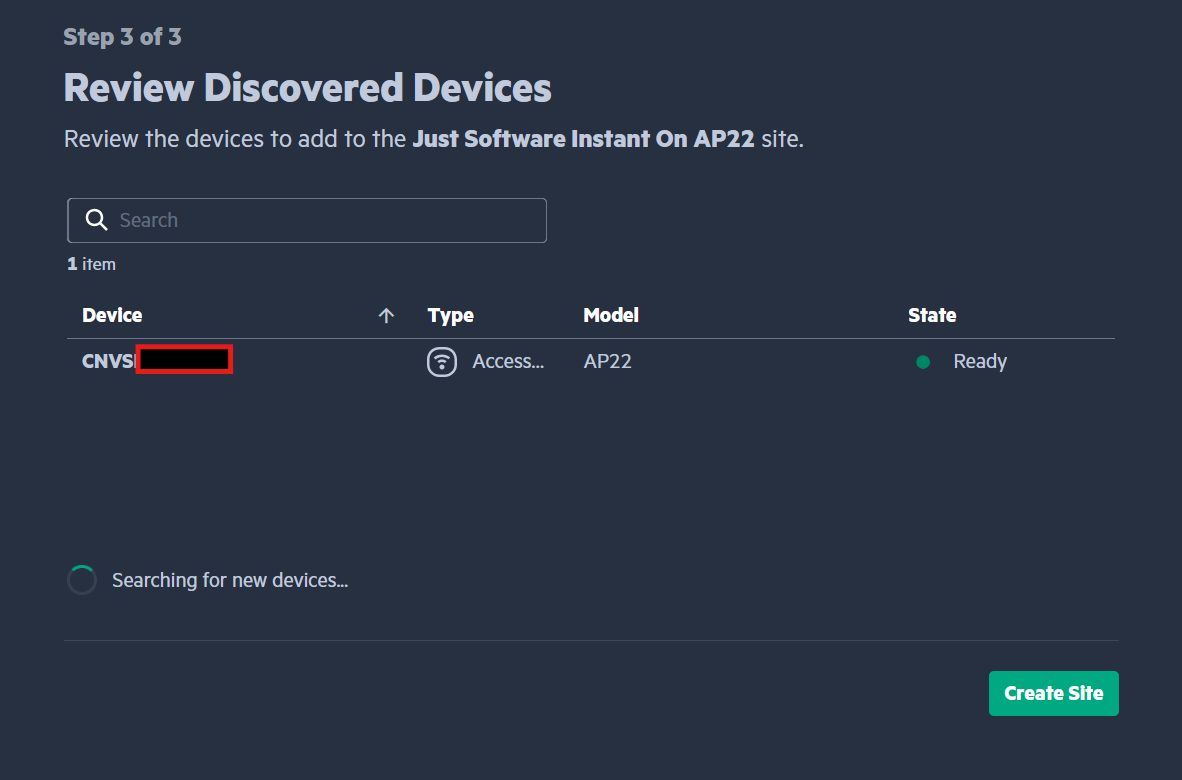 Figure 5: The discovered AP22 ready to be added to the site.
Once the site has been created, you're ready to set up your network.
Step 3: Create the wireless network
After the site is created, you'll most likely land on the Dashboard. From here you can click on "Networks" on the left sidebar, to start configuring your network.
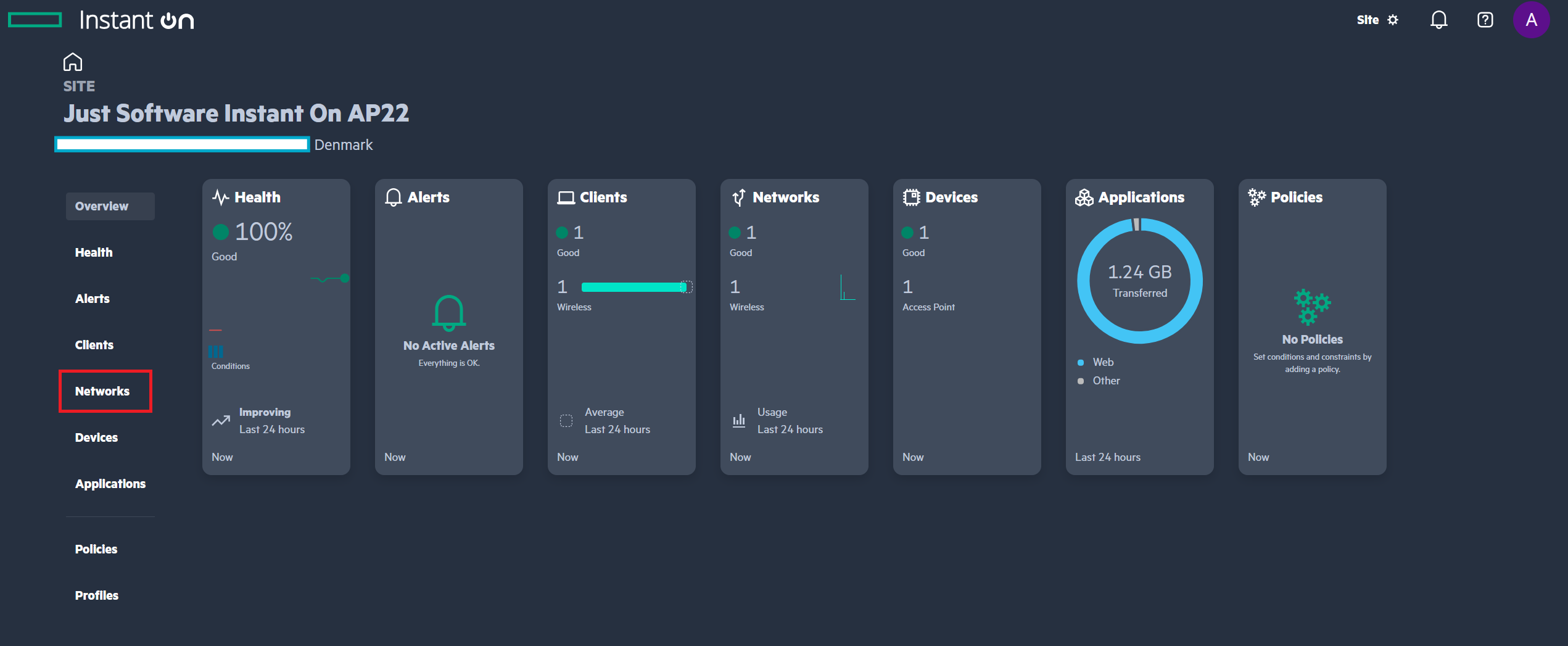 Figure 6: The HPE Instant On dashboard after site creation.
3.1 Start a new network
Click Create Network.
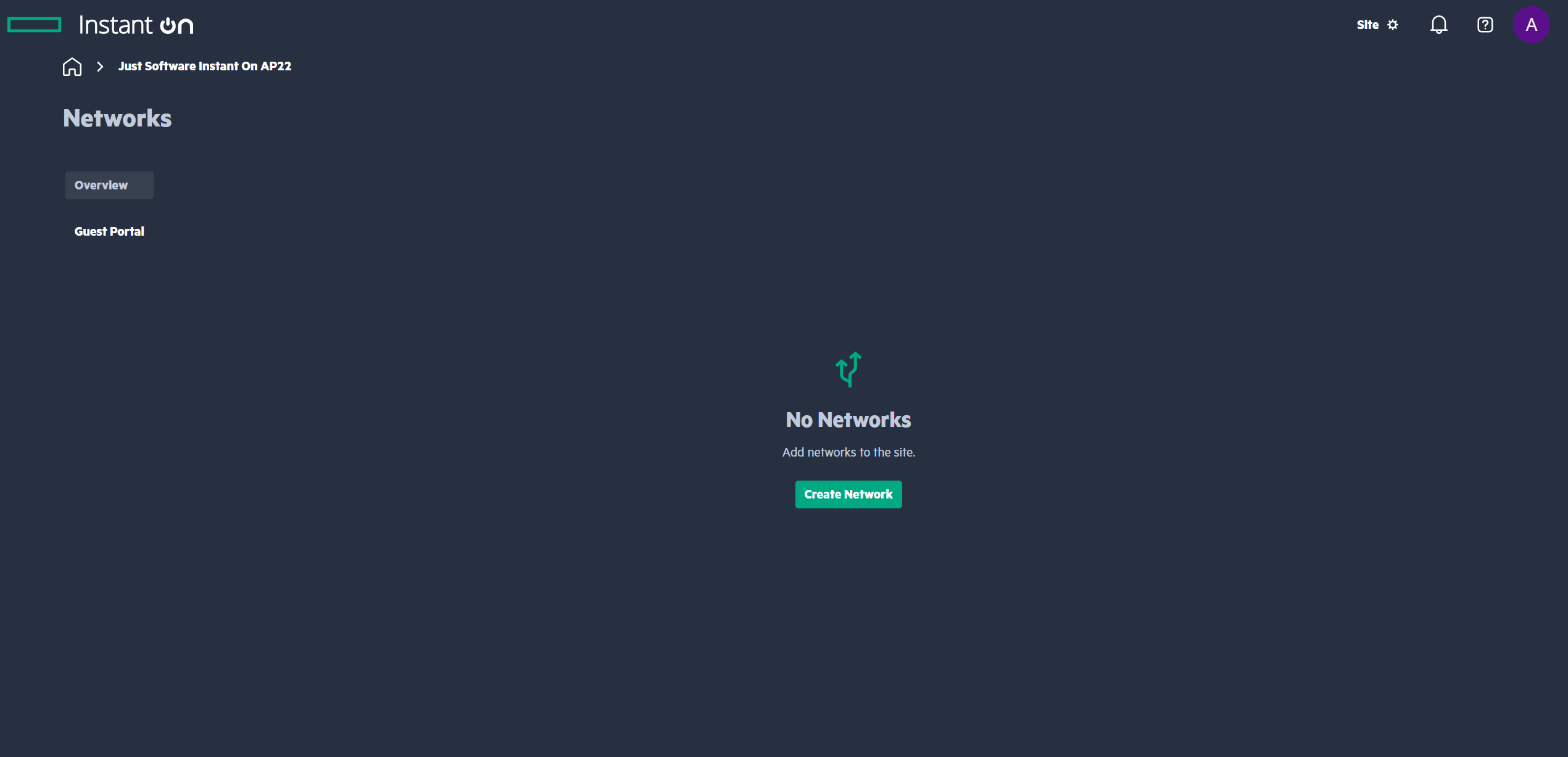 Figure 7: The Create Network button.
3.2 Name the network
Enter a Network name.
Important: The network name must exactly match the SSID (Wi-Fi name) in your Intune Wi-Fi configuration profile. If they differ, devices managed by Intune won't connect.
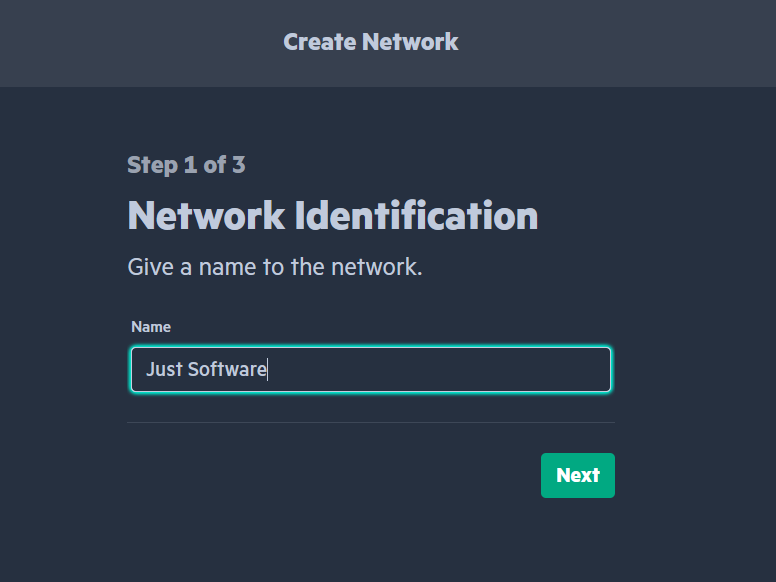 Figure 8: Entering the network name.
3.3 Configure the network properties
Fill out the network properties so they match your Intune Wi-Fi configuration.
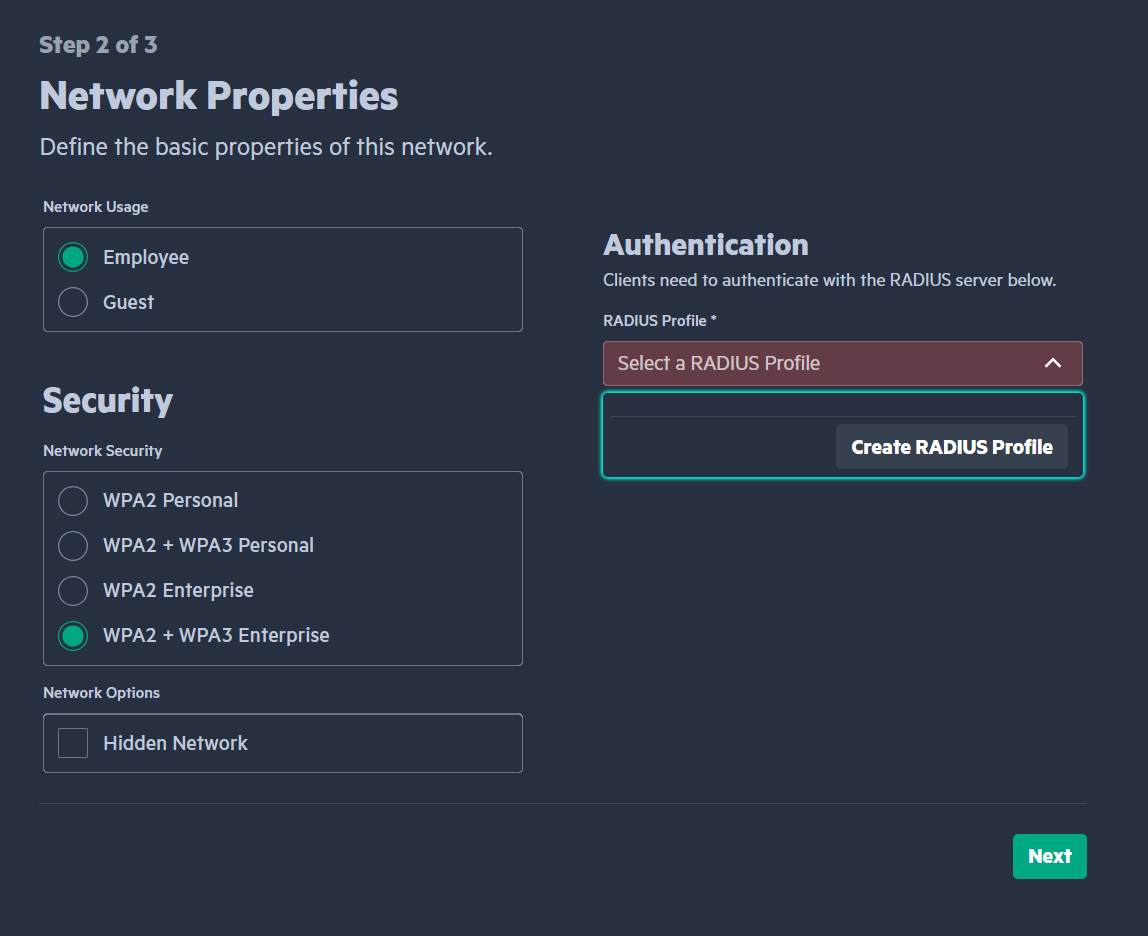 Figure 9: Configuring the network properties.
3.4 Create a RADIUS profile
Click Select a RADIUS Profile, then choose Create RADIUS Profile.
➡️ Continue with Step 4 to set up the RADIUS profile.
Step 4: Configure the RADIUS profile
4.1 Name the profile
Enter a Profile name. This name is only used inside HPE Instant On, so you can choose anything descriptive (e.g. EasyRadius).
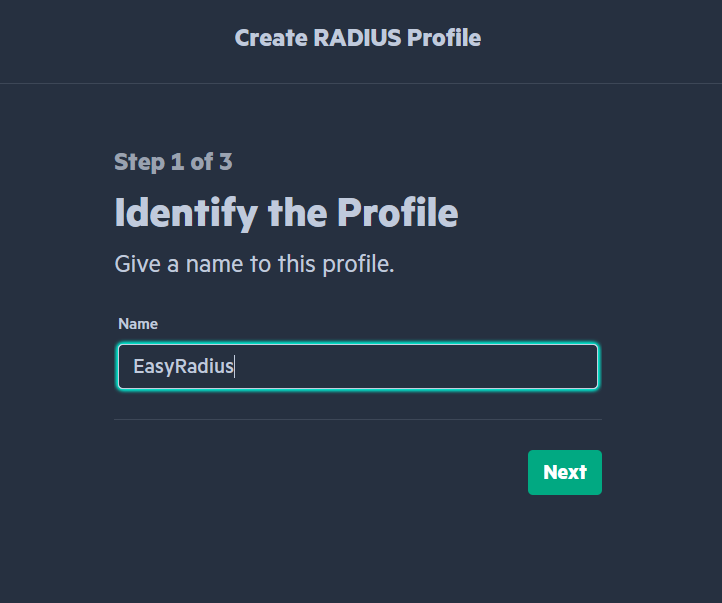 Figure 10: Naming the RADIUS profile.
4.2 Enter the server details
- Under Primary RADIUS Server, enter the primary endpoint's IP address and Authentication port from your EasyRadius Dashboard (under Endpoints). These are the values you noted in the Prerequisites.
- If your instance has a secondary endpoint, tick Secondary RADIUS Server under RADIUS Options. Then enter the secondary endpoint's IP address and authentication port in the fields that appear.
Note: Adding the secondary endpoint is what gives you failover between the two regions. Instant On uses the secondary server when the primary does not answer. If only the primary is configured, there is nothing to fail over to. See What happens if one region is unavailable?
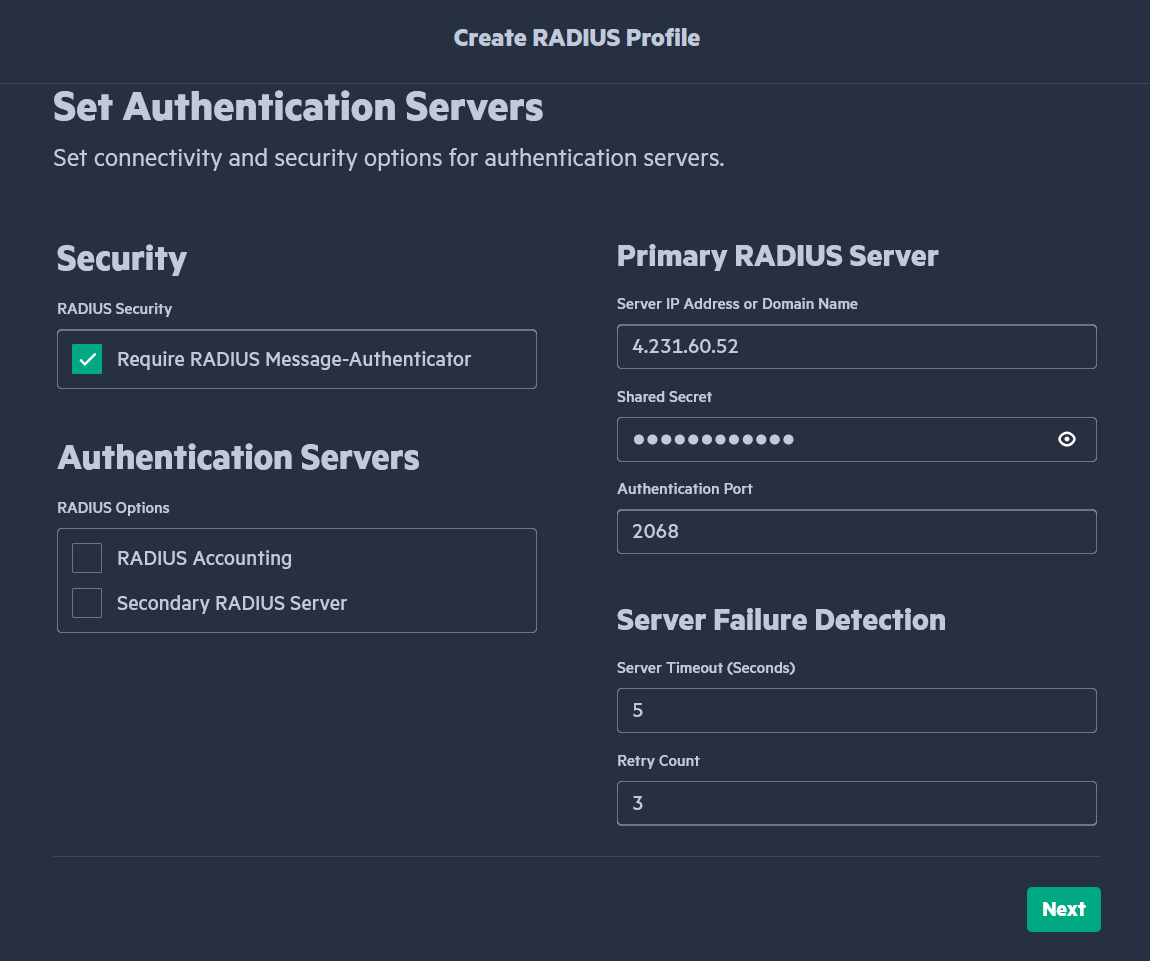 Figure 11: Entering the primary EasyRadius endpoint. Tick Secondary RADIUS Server to add the secondary endpoint.
4.3 Create the shared secret in EasyRadius
The shared secret is created in EasyRadius and then entered in HPE Instant On.
- In the EasyRadius administration portal, go to Settings → Radius Clients.
- Click Add Client.
- Fill out the client information:
- IP address: Enter the public IP address of the network your access point connects from.
- Shared secret: Create a shared secret.
- Save the client.
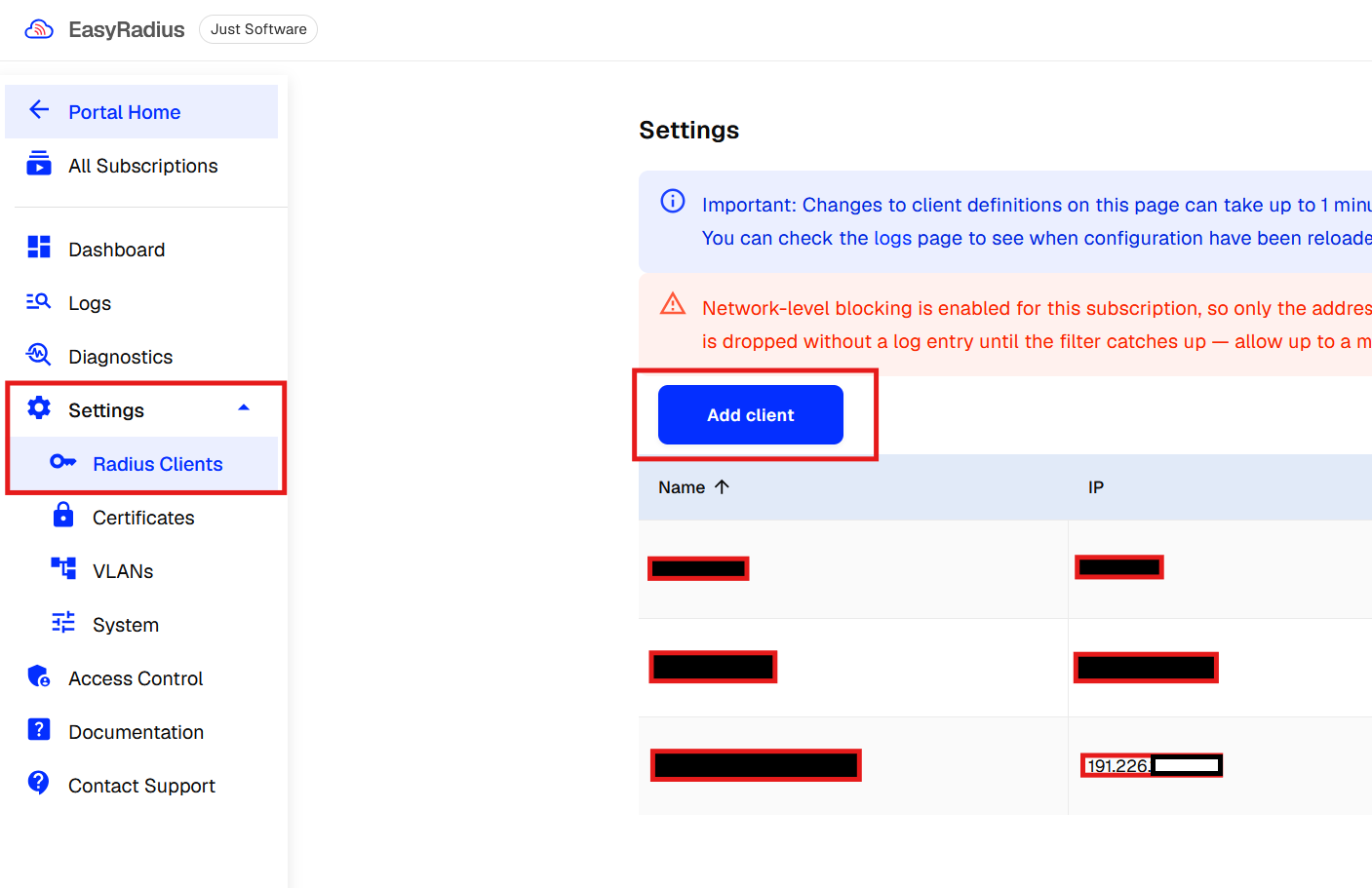 Figure 12: Adding a RADIUS client and shared secret in EasyRadius.
Tip: Use a long, random shared secret and store it somewhere safe, such as a password manager. You'll need it in the next step.
4.4 Enter the shared secret in HPE Instant On
Return to the RADIUS profile in HPE Instant On and enter the same shared secret you created in EasyRadius in the Shared Secret field. If you added a secondary RADIUS server, enter the same shared secret for it as well.
Important: The shared secret must be identical in both portals. A mismatch will cause authentication to fail.
Step 5: Verify and connect
5.1 Check the access point status
Wait until both lights on the AP22 are solid green. This means the network is configured correctly and running.
Note: This can take a few minutes after saving the configuration. If the lights are blinking or a different color, the access point is still applying the settings.
5.2 Connect to the network
- On your device, open the list of available Wi-Fi networks.
- Select your network (same name as "connection name" from Intune).
- Click Connect.
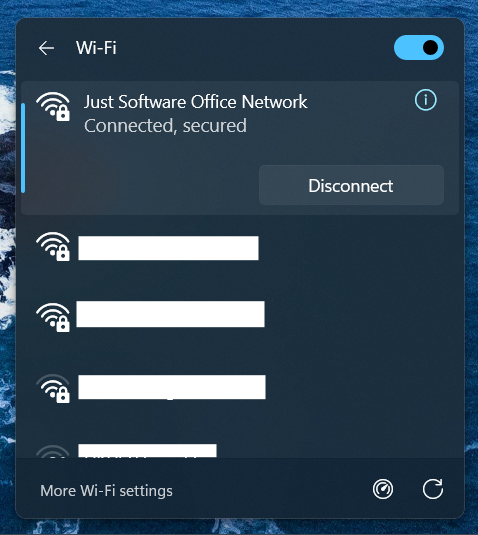
🎉 You're all set! Your device is now connected through the HPE Instant On AP22 with EasyRadius authentication.
🛠️ Troubleshooting
Use this section if something isn't working after completing the setup. Find your symptom in the table below and jump to the matching check.
| Symptom | Check |
|---|---|
| AP22 lights are blinking or not solid green | A. AP22 status lights |
| Device can't authenticate or keeps asking for credentials | B. Certificate on the computer |
| Network is visible, but authentication fails | C. Public IP of the RADIUS client |
| Network is visible, but authentication fails | D. RADIUS IP address and port |
| Authentication fails even though all settings look correct | E. EasyRadius protocol setting |
A. AP22 status lights
Symptom: The lights on the AP22 aren't both solid green (see Step 5.1).
The AP22 has two lights: System and Radio. Use the table below to find out what they're telling you.
| Light | State | Meaning | What to do |
|---|---|---|---|
| System | Off | No power | Check the PoE switch port or power adapter. |
| System | Flashing green | Starting up or upgrading firmware | Wait. This can take up to 8 minutes. |
| System | Alternating green and amber | Ready to be set up | Add the AP to a site (Step 2). |
| System | Solid green | Ready and working normally | Nothing to do. |
| System | Solid amber | A problem was detected | Check the AP in the Instant On portal, usually the uplink or internet connection. |
| System | Rapidly flashing amber | Not enough power | Use a PoE port that supports 802.3af/at, or the HPE power adapter. |
| System | Solid red | Serious error | Power cycle once. If it stays red, contact HPE support. |
| Radio | Off | Wi-Fi isn't ready | Check that the network is enabled in the portal (Step 3). |
| Radio | Solid green | Wi-Fi is ready | Nothing to do. |
Note: For the full LED reference, see the official HPE Instant On AP22 Installation Guide.
B. Certificate on the computer
Symptom: The device can see the network but fails to connect, or prompts for credentials or a certificate.
Likely cause: The certificate deployed through Intune is missing from the computer.
Fix (Windows):
- Press Win + R, type
certmgr.msc, and press Enter. - Go to Personal → Certificates and confirm the client certificate is listed and not expired.
- Go to Trusted Root Certification Authorities → Certificates and confirm the root certificate is listed.
If a certificate is missing, force an Intune sync: Settings → Accounts → Access work or school → select the account → Info → Sync. Then check again after a few minutes.
C. Public IP of the RADIUS client
Symptom: Authentication fails, and EasyRadius shows no requests from your network.
Likely cause: The IP address entered for the RADIUS client in Step 4.3 is a private IP, or your public IP has changed.
Fix:
- From a device on the same network as the AP22, find your public IP by running:
powershell
   (Invoke-RestMethod ifconfig.me)
Or visit a site such as ifconfig.me in a browser. - Compare the result with the client IP in EasyRadius (Settings → Radius Clients).
- If they differ, update the client IP in EasyRadius.
Warning: These ranges are private and will not work as the client IP:
10.x.x.x·172.16.x.x–172.31.x.x·192.168.x.xAn address in the
100.64.x.x–100.127.x.xrange means your ISP uses shared addressing (CGNAT). Contact your ISP for a dedicated public IP.
D. RADIUS IP address and port
Symptom: Authentication fails or times out.
Likely cause: The server IP or authentication port in the Instant On RADIUS profile doesn't match EasyRadius.
Fix:
- Open the EasyRadius Dashboard and check the values under Endpoints (see Prerequisites).
- In HPE Instant On, open the RADIUS profile and compare the IP address and Authentication port of the primary server, and of the secondary server if you added one (Step 4.2). The primary server must use the primary endpoint's values, and the secondary server the secondary endpoint's.
- Correct any mismatch and save.
E. EasyRadius protocol setting
Symptom: Authentication fails even though the IP, port, shared secret, and certificate are all correct.
Likely cause: EasyRadius is set to accept RadSec only. The AP22 only supports UDP, so its requests are rejected.
Fix: Set the protocol to Both.
- Sign in to the EasyRadius administration portal.
- Go to Settings → System.
- Change the protocol setting to Both.
- Save the changes.
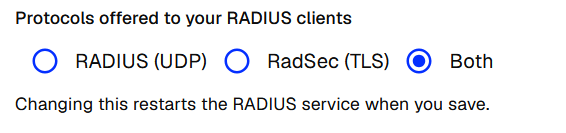
Note: Why Both instead of UDP? The AP22 only uses UDP, so selecting UDP alone would also work for it. Selecting Both keeps UDP available for the AP22 while also allowing other devices that support RadSec (RADIUS over TLS) to connect to the same EasyRadius instance.