Solutions
Azure organizes resources by subscription and resource group, while your organization runs solutions: the webshop, the data platform, the order system. One solution often spans several subscriptions, and one shared subscription often holds several solutions.
In Praefic, Solutions sits between the whole estate and a single resource group. Each solution brings together its resources, spend, findings and maturity, with one accountable owner. A solution can be split into services (Storefront, Batch), and every resource also belongs to an environment (Production, Test, Development).
How resources are mapped
You rarely need to assign resources by hand. Praefic reads what your estate already says, in this order:
- Rules you create, for example "resource group rg-payments-prod belongs to Payments". A rule can also exclude shared infrastructure, such as a hub network.
- Tags on the resource, such as
app,application,solution,workloadorproduct. A service comes fromcomponent,serviceortier, and an environment fromenv,environmentorstage. - Inherited tags. A resource without its own tag takes it from its resource group, then from its subscription. Azure itself has no tag inheritance, so Praefic uses this only for mapping, and always shows where a value came from.
- Naming conventions, for example
rg-<solution>-<env>. - Fallback rules — a rule marked as fallback only places what nothing above has claimed.
The owner of a solution comes from an owner tag (Owner, ProductOwner, ApplicationOwner, …). If the tag names a member of your organization, that member becomes the owner. Otherwise the name is recorded as written, so the report still says who answers for the solution.
Mapping runs after every Resources scan and immediately after you change a rule or a setting.
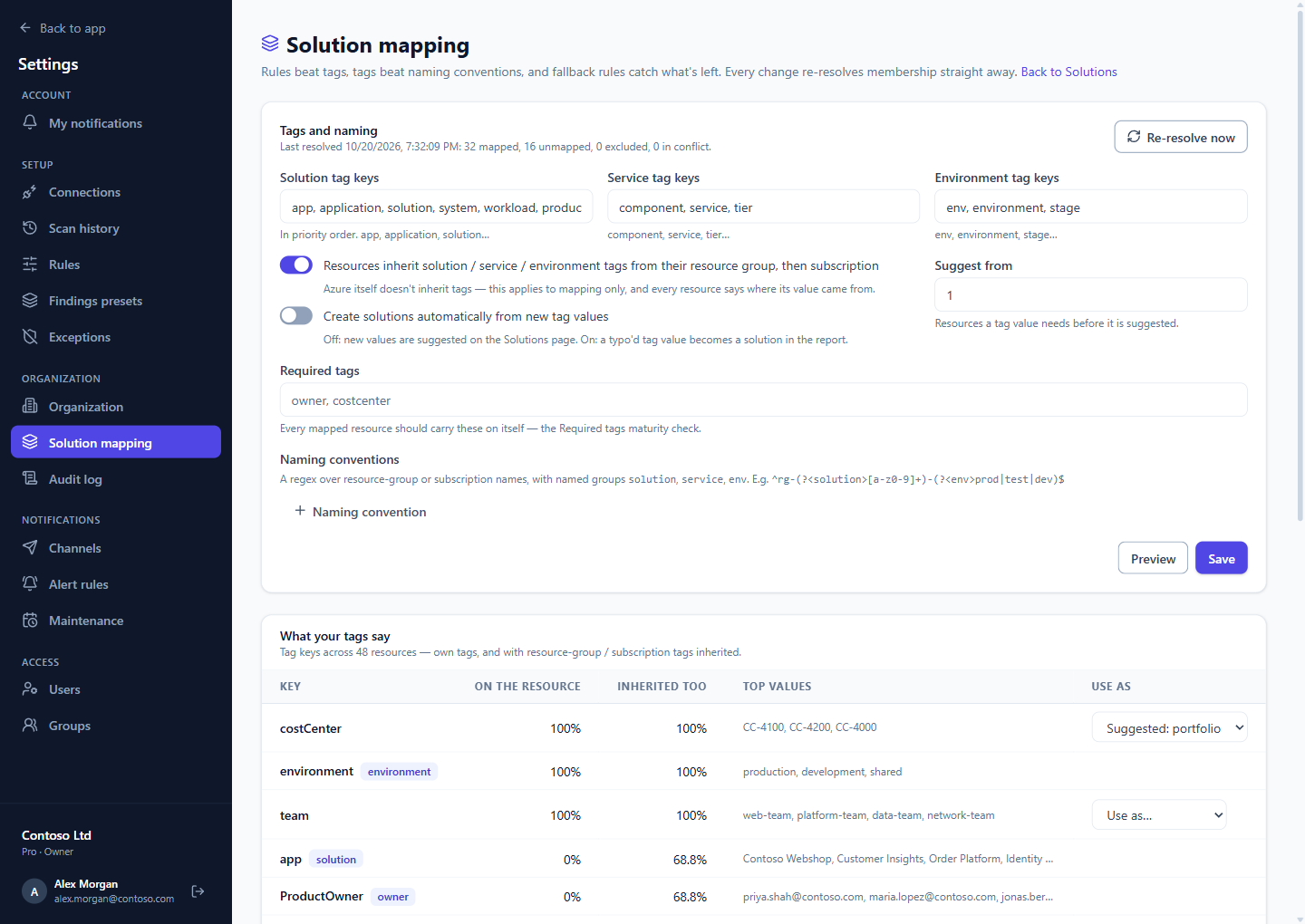
Under Settings → Solution mapping you choose which tag keys Praefic reads, turn inheritance on or off, add naming conventions and list the tags every mapped resource should carry. Preview shows what a change would do before you save it. Below the settings, What your tags say lists every tag key in your estate — how many resources carry it, on the resource or inherited, and its most common values — so you can pick the key that names your solutions.
Create solutions from your tags
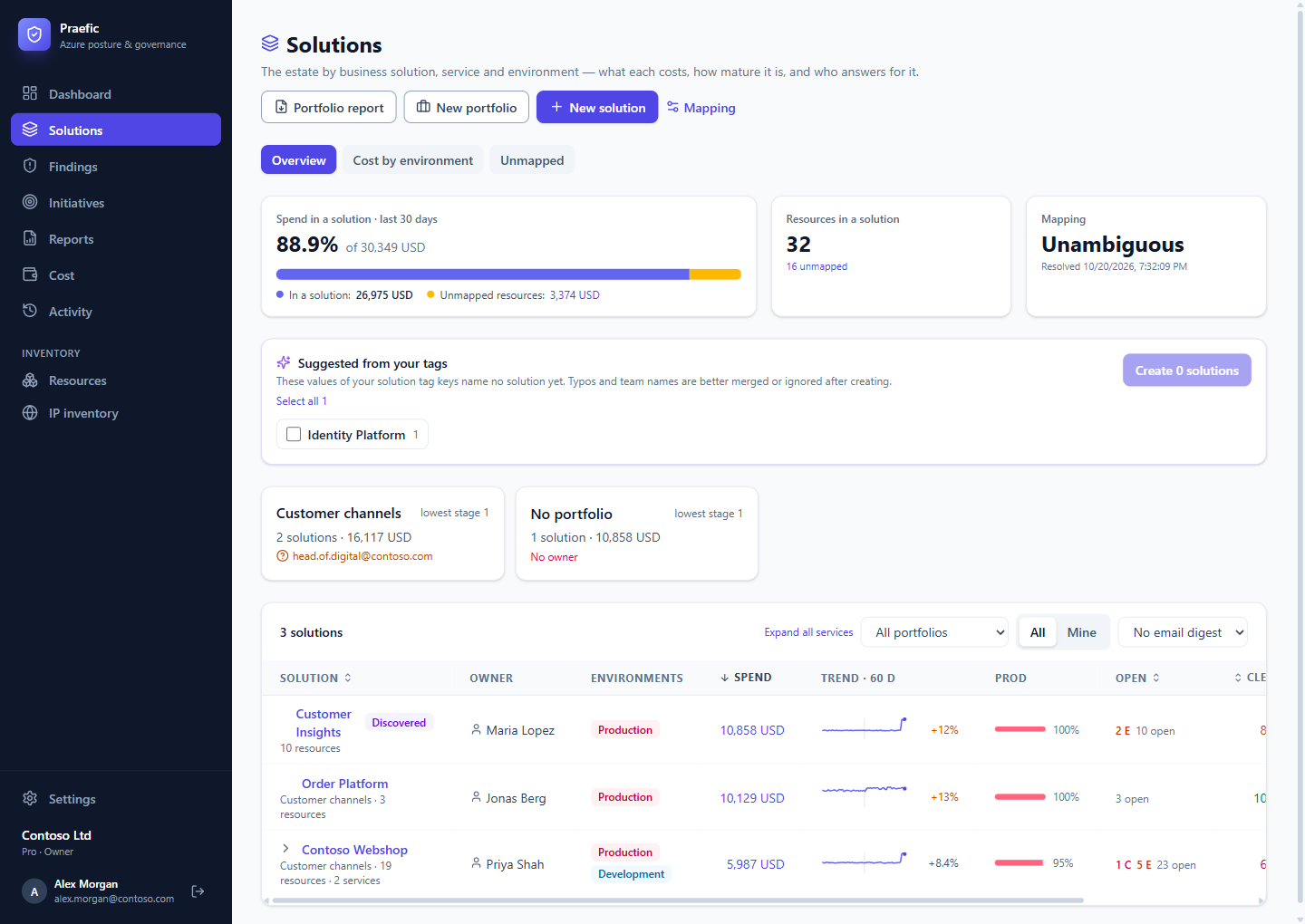
When a tag value names no solution yet, Praefic suggests it under Suggested from your tags on the Solutions overview. Select the suggestions that are real solutions and choose Create solutions. You can also start one by hand with New solution. The tag value is kept as an alias, so renaming the solution later never breaks the mapping. If two tag values mean the same thing (Recipes and Recipe), merge them.
A solution created from a suggestion carries a Discovered badge until someone reviews it, so a report never presents a guess as a decision.
The overview
Each row of the overview shows:
- Owner and Environments.
- Spend over the last 30 days, with a 60-day sparkline. The trend compares the last 30 settled days with the 30 before them; the newest days, which Azure may still revise, are drawn dashed.
- Prod — the share of its spend in production.
- Open findings by severity.
- Resources clean — the share of the solution's resources with no open critical or error finding.
- Level 1 — how much of your first maturity level is clear for this solution.
- Stage — the solution's maturity stage (see below).
Expand a row to see its services with the same columns. A No service row holds the rest, so services always add up to the solution. Mine narrows the list to solutions you, or a group you belong to, own.
The bar at the top shows how much of your spend is attributed to a solution, and names what isn't:
- Unmapped — resources no tag, rule or convention places.
- Shared subscription-level — charges with no resource, in a subscription several solutions share.
- No longer in inventory — charges for resources deleted since the last scan.
- Excluded — infrastructure you deliberately left out.
Each part links to the cost explorer, filtered to exactly those charges. The Unmapped tab groups unmapped resources by resource group, subscription, type or tag, with spend, and Map… turns a group into a rule in one step.
A solution's page
Open a solution to see its overview, cost, findings, resources, maturity and mapping. The overview lists its services with owner, spend and trend, its environments, its top risks and the subscriptions it spans. Every figure opens the list behind it. For example, Resources clean opens exactly the resources that carry a critical or error finding.
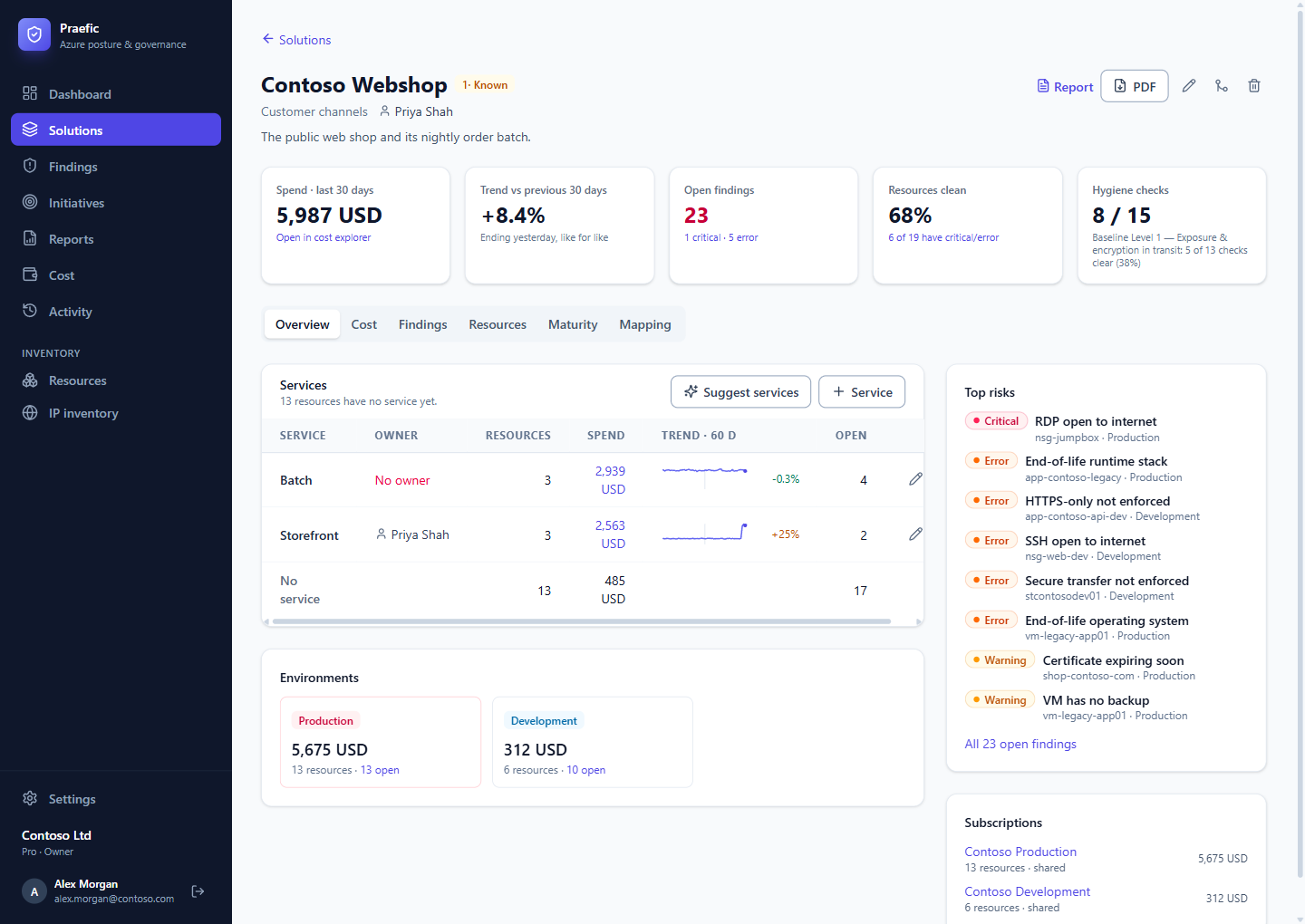
Suggest services proposes how to split the resources not yet in a service, by a tag or by resource group (with environment words such as prod stripped). You can edit the names, and one click creates the services and the rules that fill them.
Maturity stages
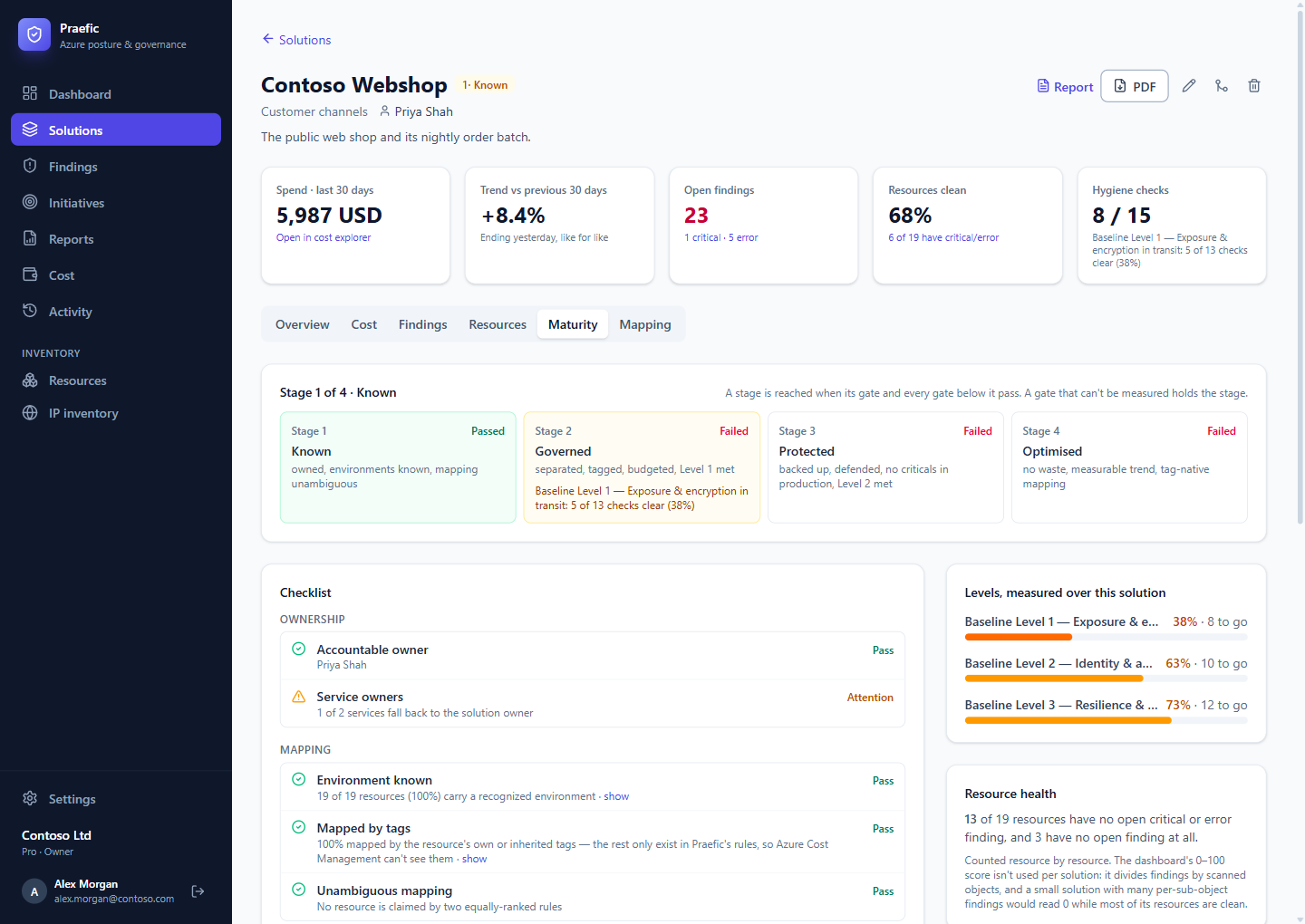
A solution starts as Unmanaged and climbs four stages. Each stage is a short checklist, and a stage is reached when its checks and those of every stage below pass:
| Stage | What it takes |
|---|---|
| 1 · Known | It has an owner, its environments are known, and its resources map to it unambiguously. |
| 2 · Governed | Production is separated, the required tags are present, its spend is covered by a budget, and your first maturity level is met. |
| 3 · Protected | Production is backed up, Defender plans are on, nothing critical is open in production, and your second maturity level is met. |
| 4 · Optimised | No spend on idle resources, a trend long enough to measure, and resources mapped by their own tags rather than by rules. |
The Maturity tab shows each stage, every check with whether it passes, and how far the solution is through your maturity levels.
The solution report
Report (or PDF) on a solution's page produces a report written for the solution's owner, not for the platform team. It is available on screen and as a PDF.
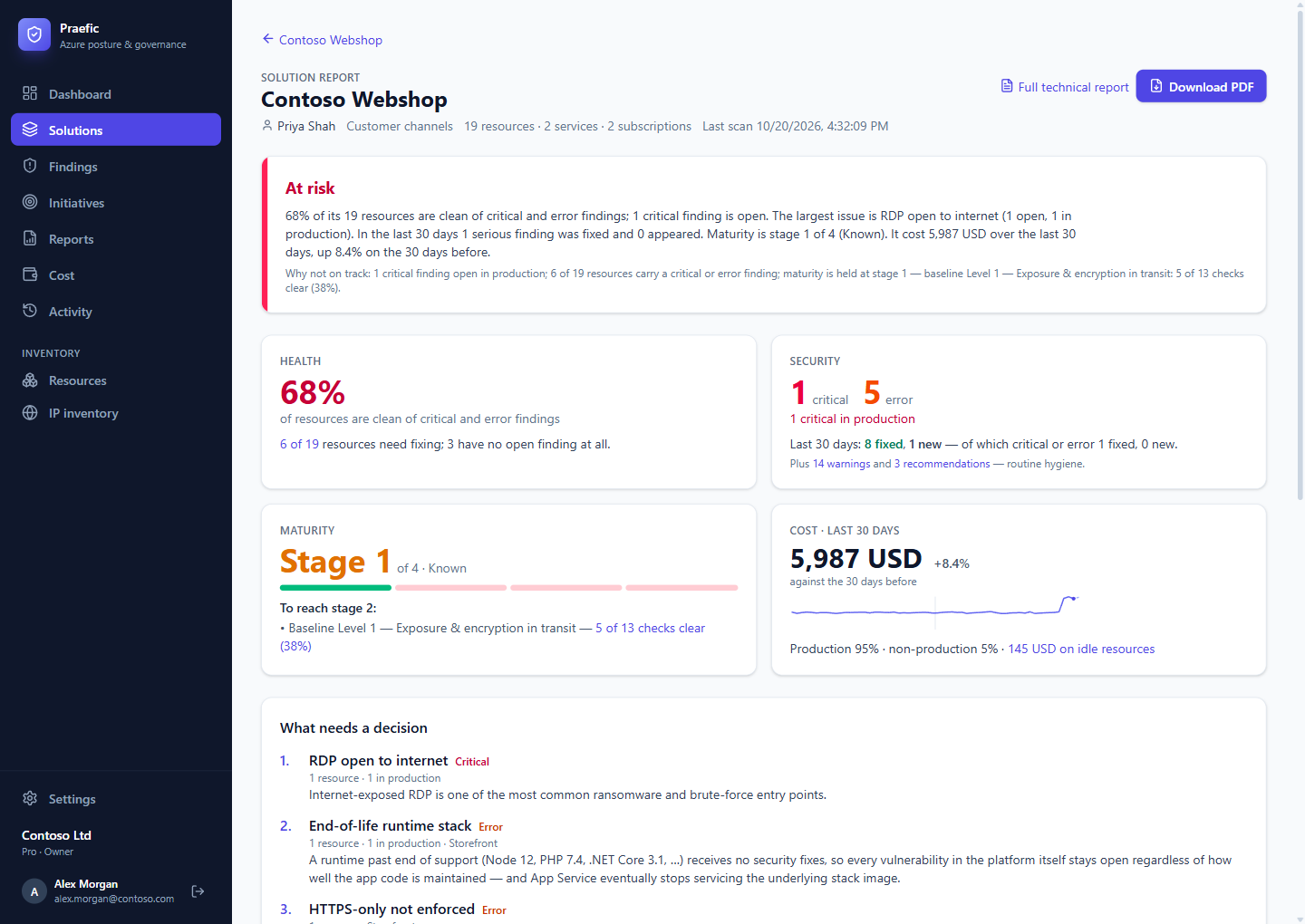
Page one answers four questions with a sentence and a number each:
- Health — resources clean.
- Security — critical and error findings open, how many are in production, and the last 30 days' movement.
- Maturity — the current stage and what holds the next one.
- Cost — 30-day spend, its trend, the share spent in production and spend on idle resources.
A verdict (On track, Needs attention or At risk) leads the page, with its reasons. What needs a decision lists the three largest problems, grouped by check and counted in resources. The second page breaks it all down by service and environment, and an appendix carries the technical detail: every problem with why it matters and how to fix it.
What counts as fixed
The 30-day movement counts a finding as fixed only when the problem was solved and the resource still exists. When a finding closes because its resource was deleted, it is reported separately as Not counted. That's typical of short-lived resources such as build agents or cluster nodes that come and go every day. Otherwise those resources would make a solution look busy while nothing was fixed.
The exception is checks where deleting the resource is the fix, such as an unattached disk, an orphaned public IP or an empty App Service plan. Cleaning those up counts as fixed.
The full technical report for a single solution (the management report scoped to it) is still available from the report as Full technical report.
Solution digest
Owners can get a weekly or monthly email about their solutions. It covers spend and its trend, open and new findings, and the maturity stage, plus what changed since that person's previous digest. It goes to whoever owns a solution, one of its services or its portfolio, directly or through a group.
Turn it on under My notifications, or with the digest picker on the Solutions overview. It is off by default.
Portfolios
Group solutions into portfolios (a business area, a department) with New portfolio, for a manager's view. Each portfolio shows its solutions, spend, owner and lowest maturity stage. Filter the overview by portfolio, or download the Portfolio report as a PDF.