Zones & records
Zones lists every DNS zone DNS Tool has discovered in the subscriptions you connected — public and private — with its record count, health score and open findings.
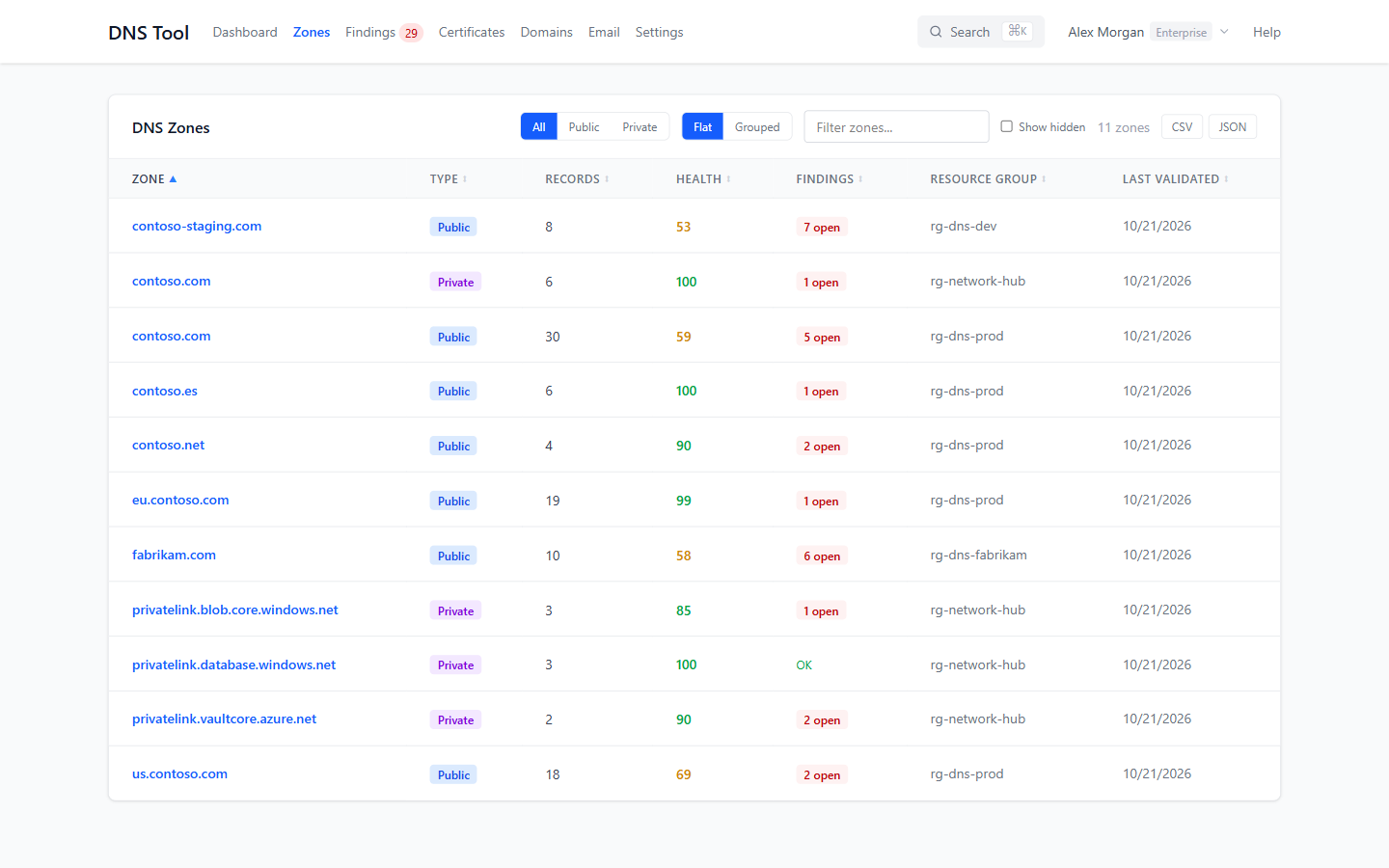
The zone list
- All / Public / Private filters by zone type.
- Flat / Grouped — Grouped nests child zones under their parent, for example
eu.contoso.comundercontoso.com. - Filter zones… narrows the list by name.
- Show hidden includes hidden zones.
- CSV and JSON export the zones with their records.
Click a column heading to sort. The Findings column shows the zone's open findings, or OK when there are none.
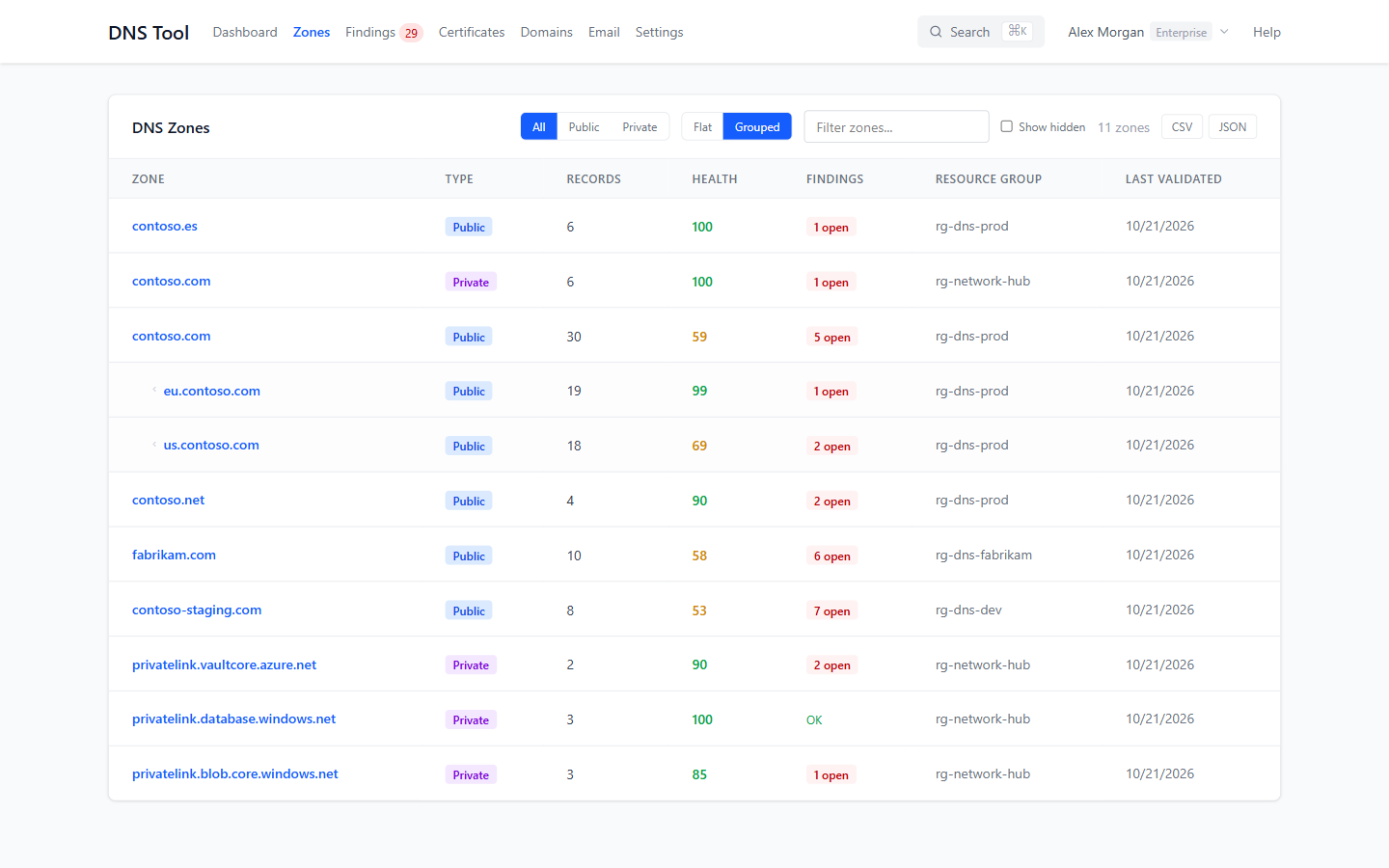
The same name can appear twice — as a public zone and as a private zone. That's split-horizon DNS, and DNS Tool flags it so you can confirm it's intentional (see Split-Brain Zone in the validation rules).
Zone details
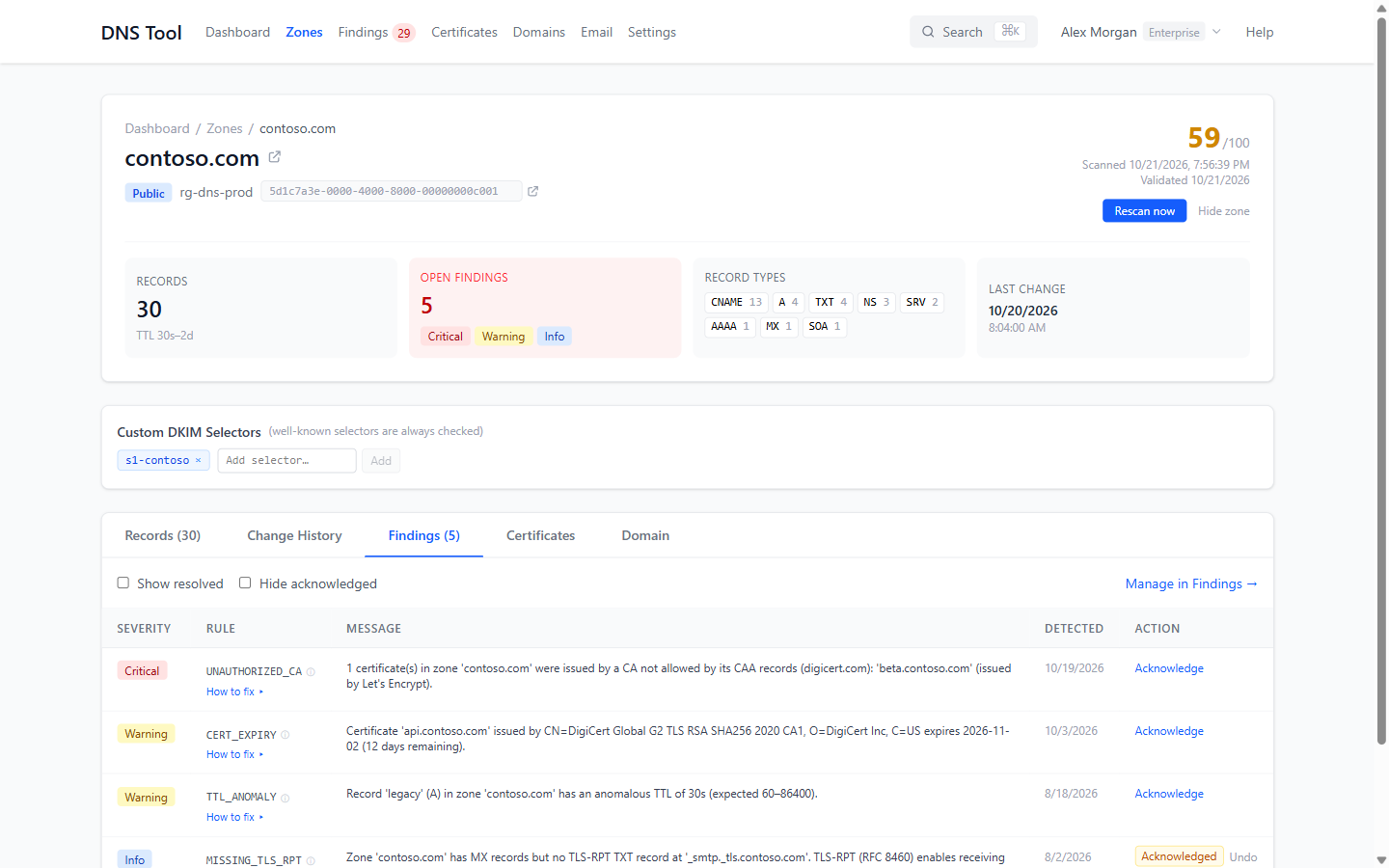
Click a zone to open it. The header shows the zone's type, resource group and subscription, with links to both in the Azure portal, and on the right its health score and when it was last scanned and validated.
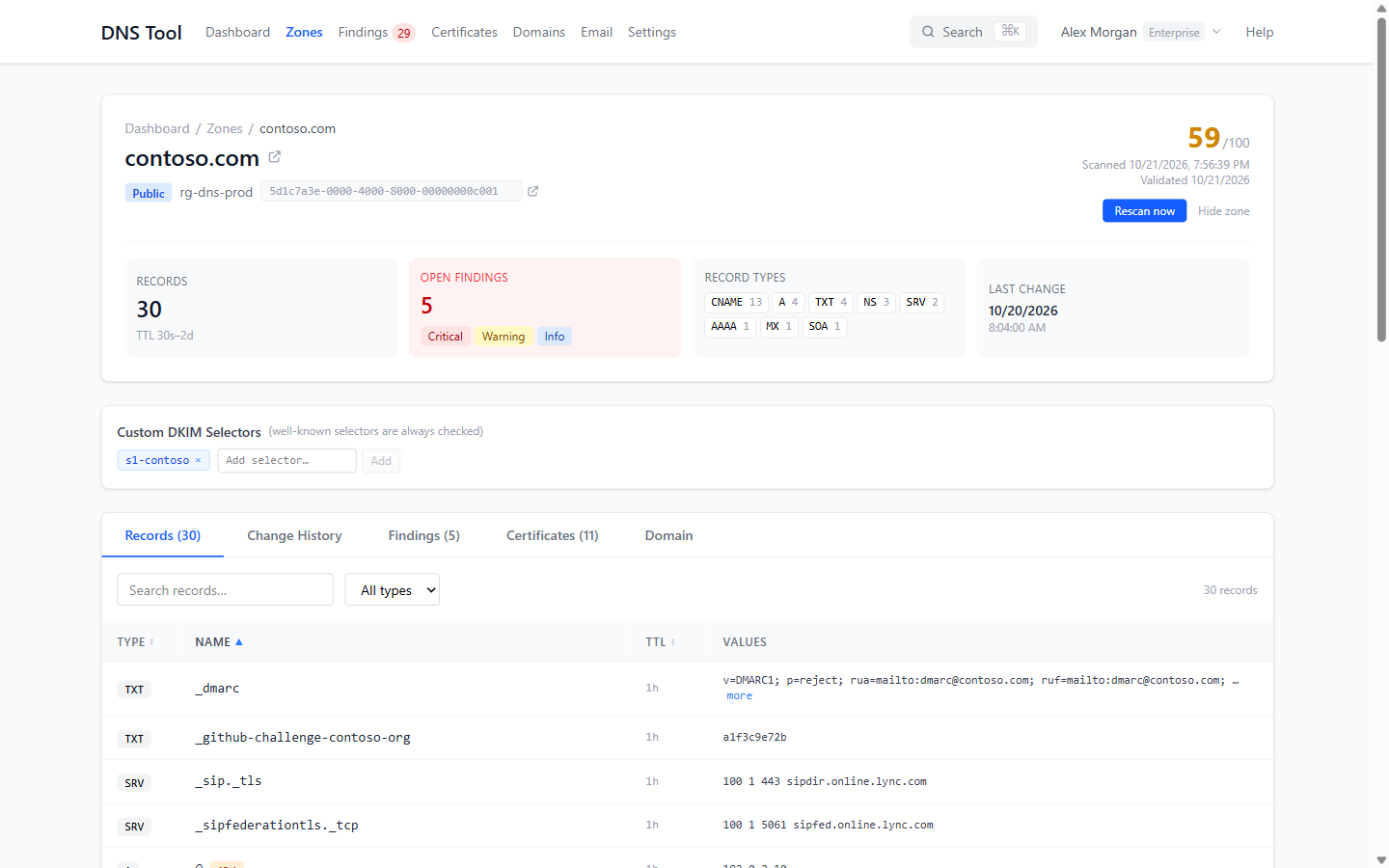
The summary cards show:
- Records — the number of records and their TTL range.
- Open Findings — how many, and of which severities.
- Record Types — how many of each type. Click one to filter the records.
- Last Change — when a record in the zone last changed.
Records
Every record with its type, name (@ is the zone apex), TTL and values. Search by name, filter by type, and sort by any column. Long values such as DKIM keys can be expanded with more.
For A, AAAA and CNAME records that serve HTTPS, a coloured badge shows how many days the certificate has left. Hover over an IP address to see who owns it: location, network operator and ASN.
Change History
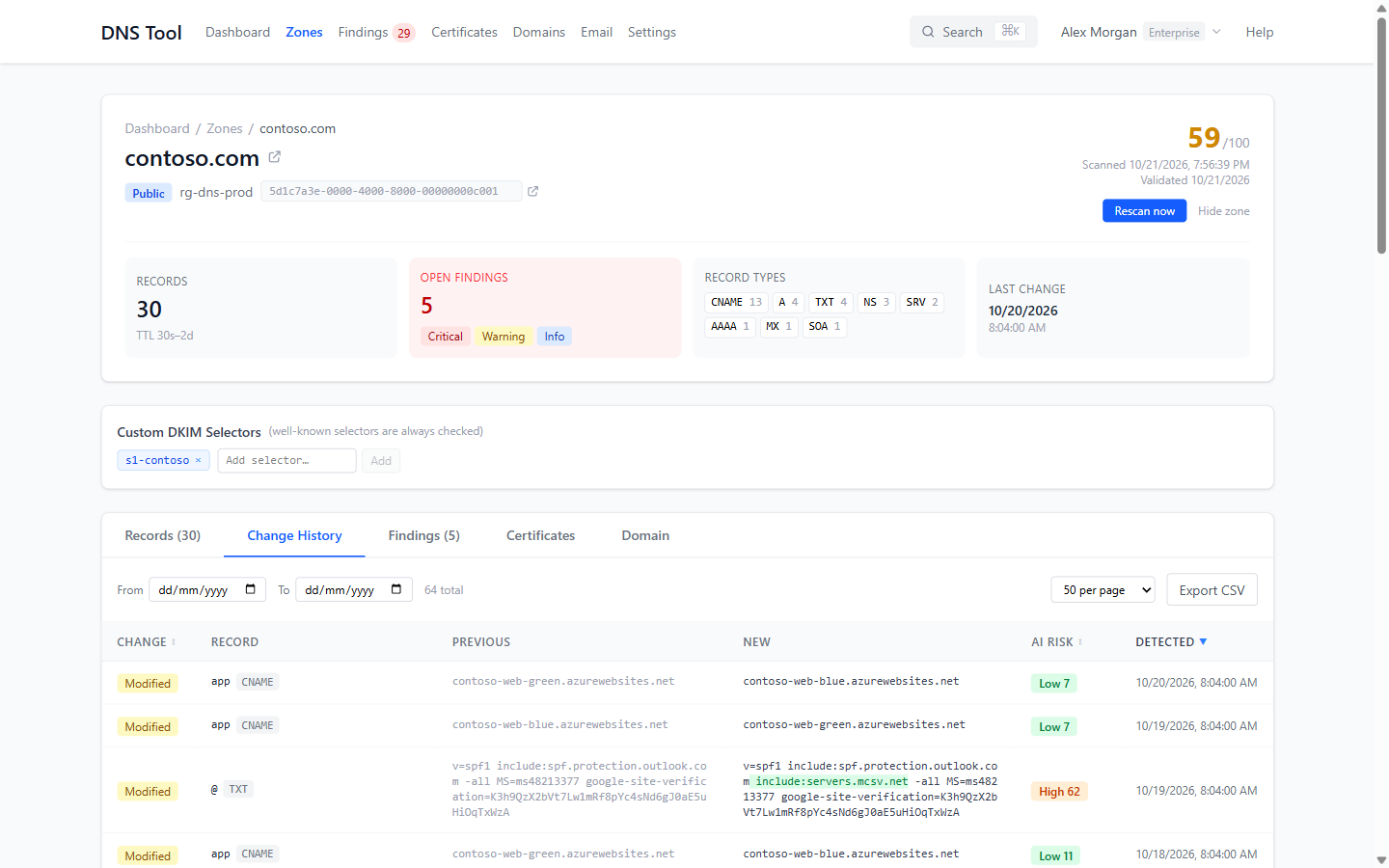
Every change DNS Tool has seen in this zone, newest first: whether a record was added, modified or removed, its previous and new values — with the words that changed highlighted — the AI risk score, and when it was detected. Filter by date range and export as CSV. See Change history.
Findings
The zone's findings, with the same How to fix guidance and Acknowledge action as the findings list. Manage in Findings opens the findings list.
Certificates
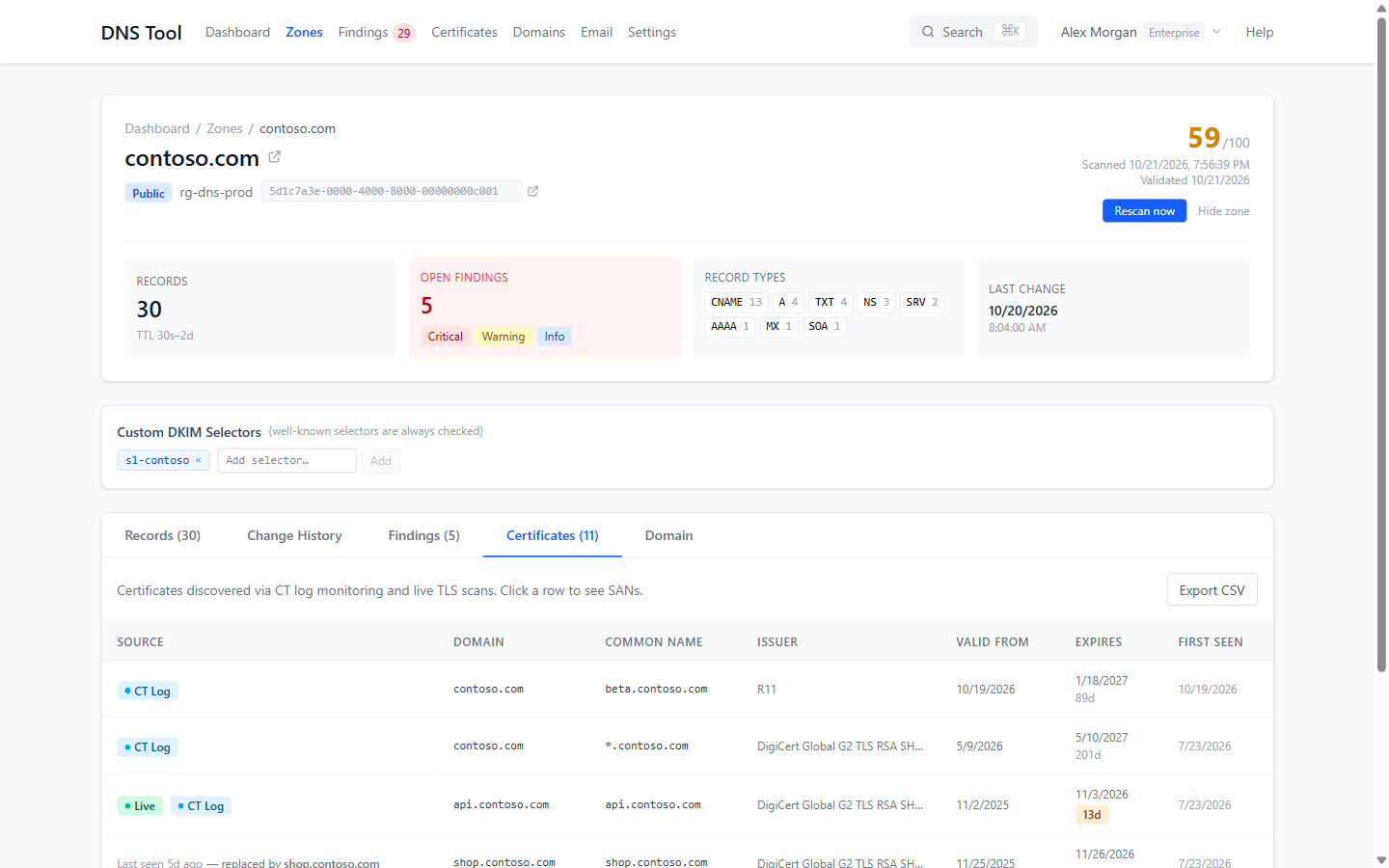
Certificates found for the zone's hostnames, by live TLS scan and in Certificate Transparency logs. Click one for its details. See Certificates & domains.
Domain
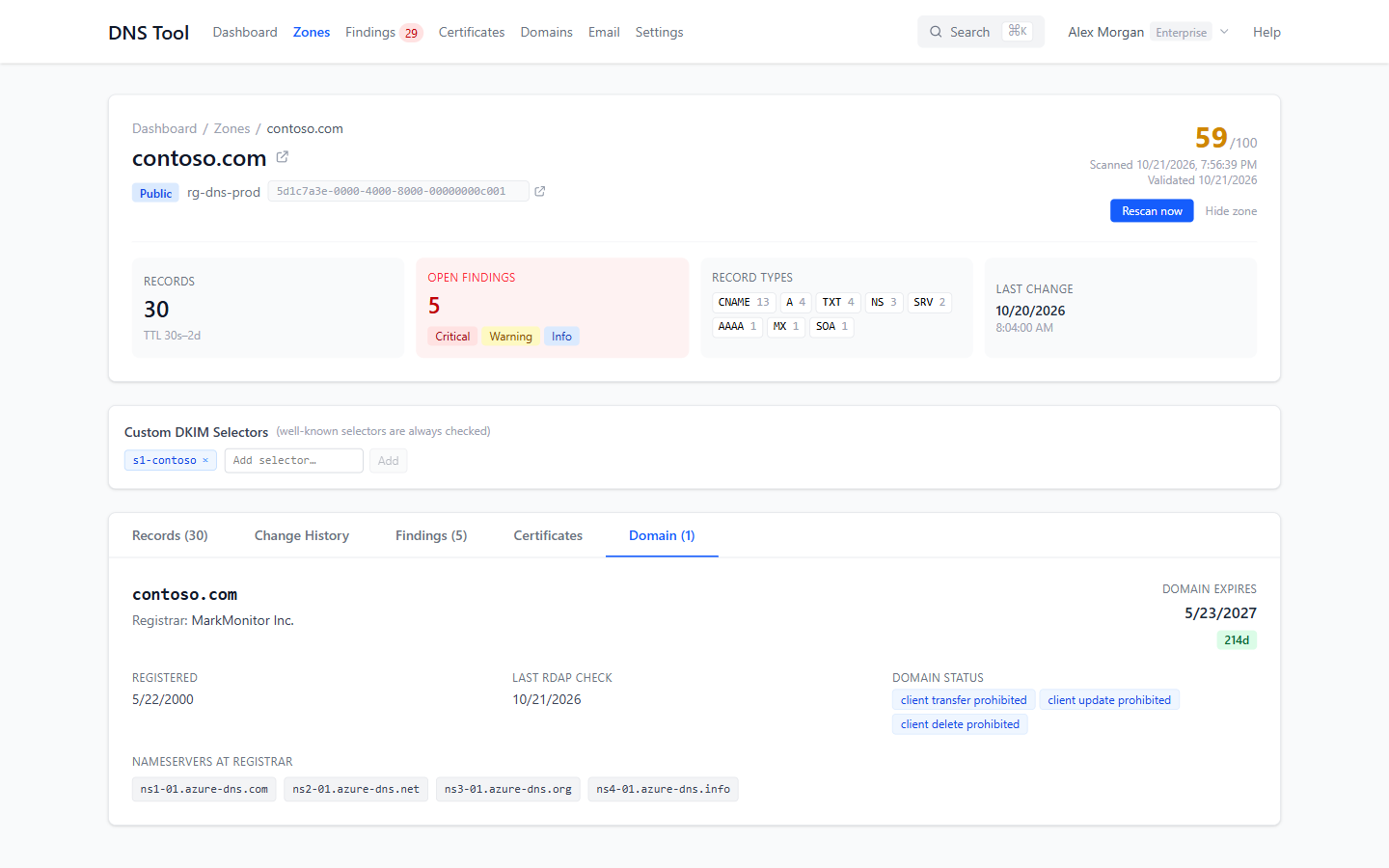
For public zones, the domain registration from RDAP: registrar, registration and expiry dates, the registrar's status flags (for example client transfer prohibited) and the nameservers registered with it. If those nameservers don't match the zone's NS records, DNS Tool reports it as a finding.
Custom DKIM selectors
DNS Tool checks the well-known DKIM selectors (Microsoft 365, Google and common mail services). If you sign mail with a selector of your own, add it under Custom DKIM Selectors so the DKIM check finds it.
Private DNS zones
For a private zone, the details page adds Private Zone Infrastructure: the virtual networks the zone is linked to, and the Private Endpoints that expect a record in it, with their sub-resource and private IP. Both link to the Azure portal.
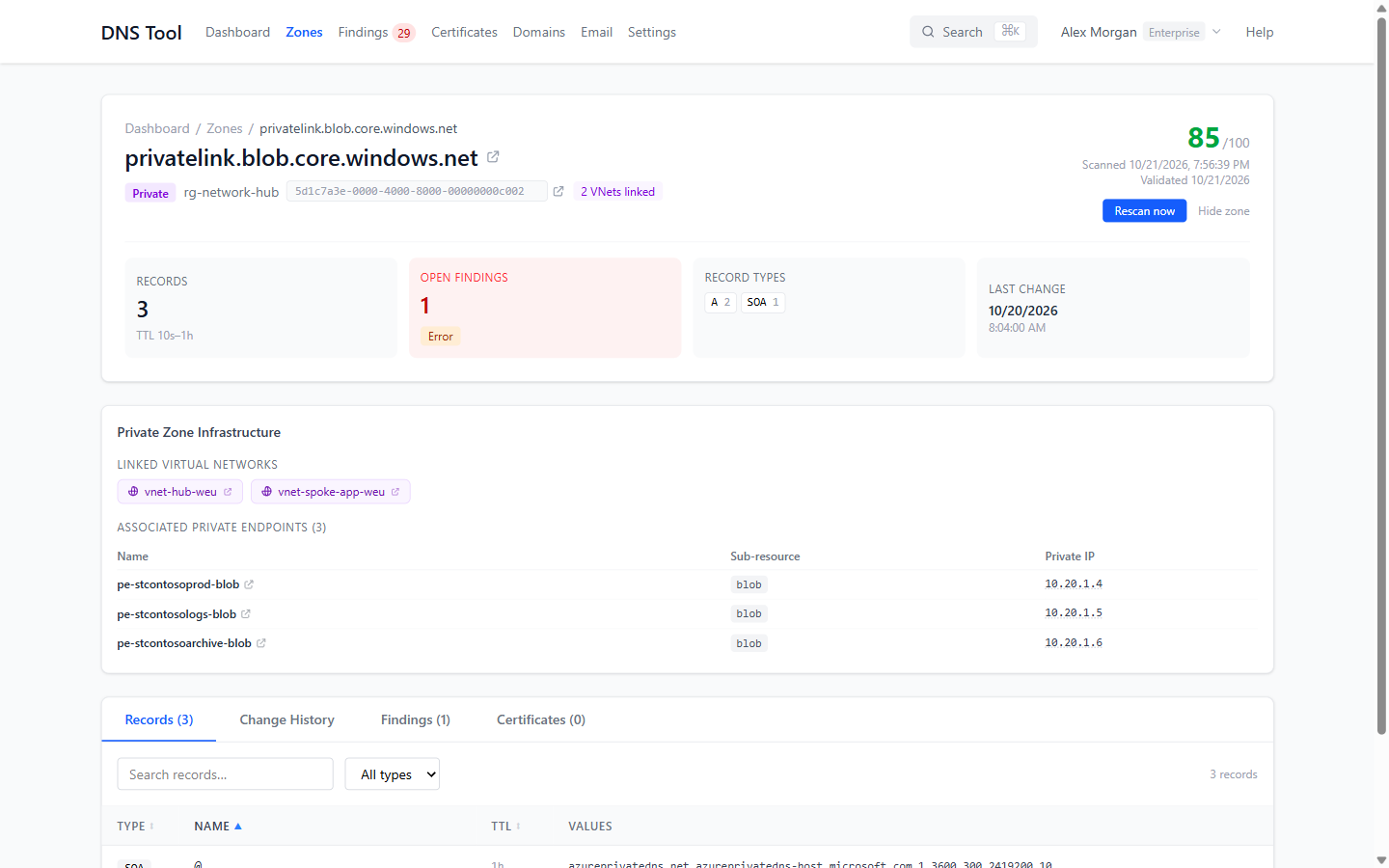
This is how DNS Tool finds the problems that break private name resolution quietly: a Private Endpoint whose A record is missing, a zone linked to no VNet, or a zone no Private Endpoint uses. See the Network & Delegation rules in the validation rules reference.
Rescan a zone
On Pro and Enterprise, Rescan now on a zone's page scans it immediately instead of waiting for the next scheduled scan. The results appear within a minute or two.
Hide a zone
Hide zone on a zone's page takes a zone out of the dashboard, health scores, the public status page and notifications — useful for test zones or zones you're decommissioning. It is still scanned and stays visible under Zones → Show hidden, marked Hidden. Unhide zone brings it back.
Compare two zones
Zone Comparison puts two zones side by side and matches their records by name and type — for example to check that eu.contoso.com and us.contoso.com are set up the same way, or that staging matches production. Open it from search (type compare) or go to /compare.
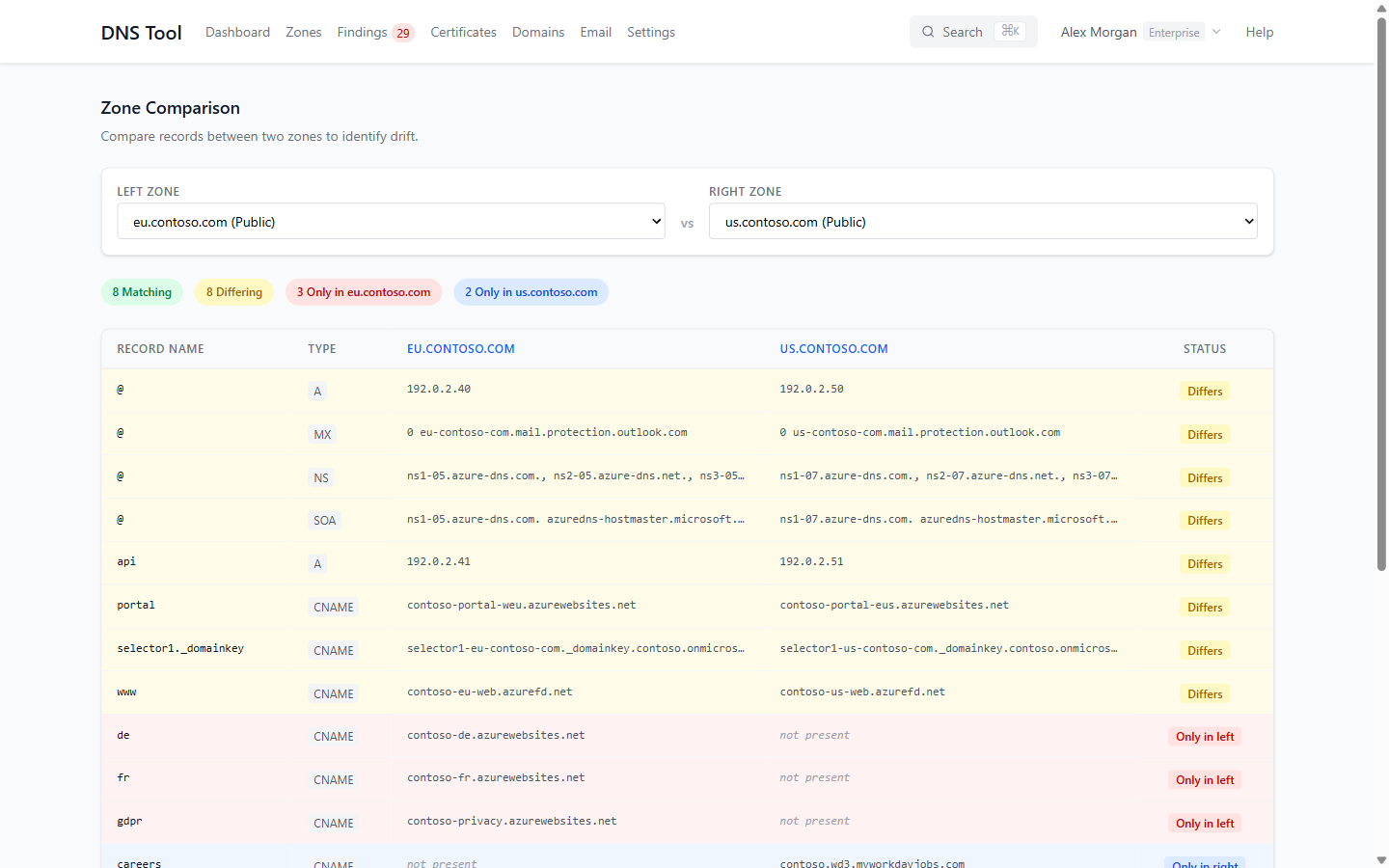
Each record is marked Match, Differs, Only in left or Only in right; differences are listed first.