Settings
Settings (bottom left) holds everything that shapes how Praefic works for your organization. This page covers each section in the order the menu shows it, and who can change what.
Roles
Every member of an organization has one of four roles. Each role can do everything the role before it can.
| Role | Can |
|---|---|
| Viewer | Read everything: findings, reports, cost, activity, solutions and settings. |
| Member | Work on findings — acknowledge, assign, suppress, set remediation status, comment — and manage initiatives, exceptions, findings presets, solutions, the IP inventory, and start a scan. |
| Admin | Everything in Settings: connections, rules, organization options, solution mapping, notification channels and alert rules, users and groups, and the audit log. |
| Owner | Grant or remove the Owner role. An organization always keeps at least one Owner. |
The person whose sign-in creates the organization becomes its Owner. Colleagues from the same Entra tenant who sign in later join as Members, and an Admin or Owner can change their role under Users.
My notifications
Your own choices — every user sets these for themselves.
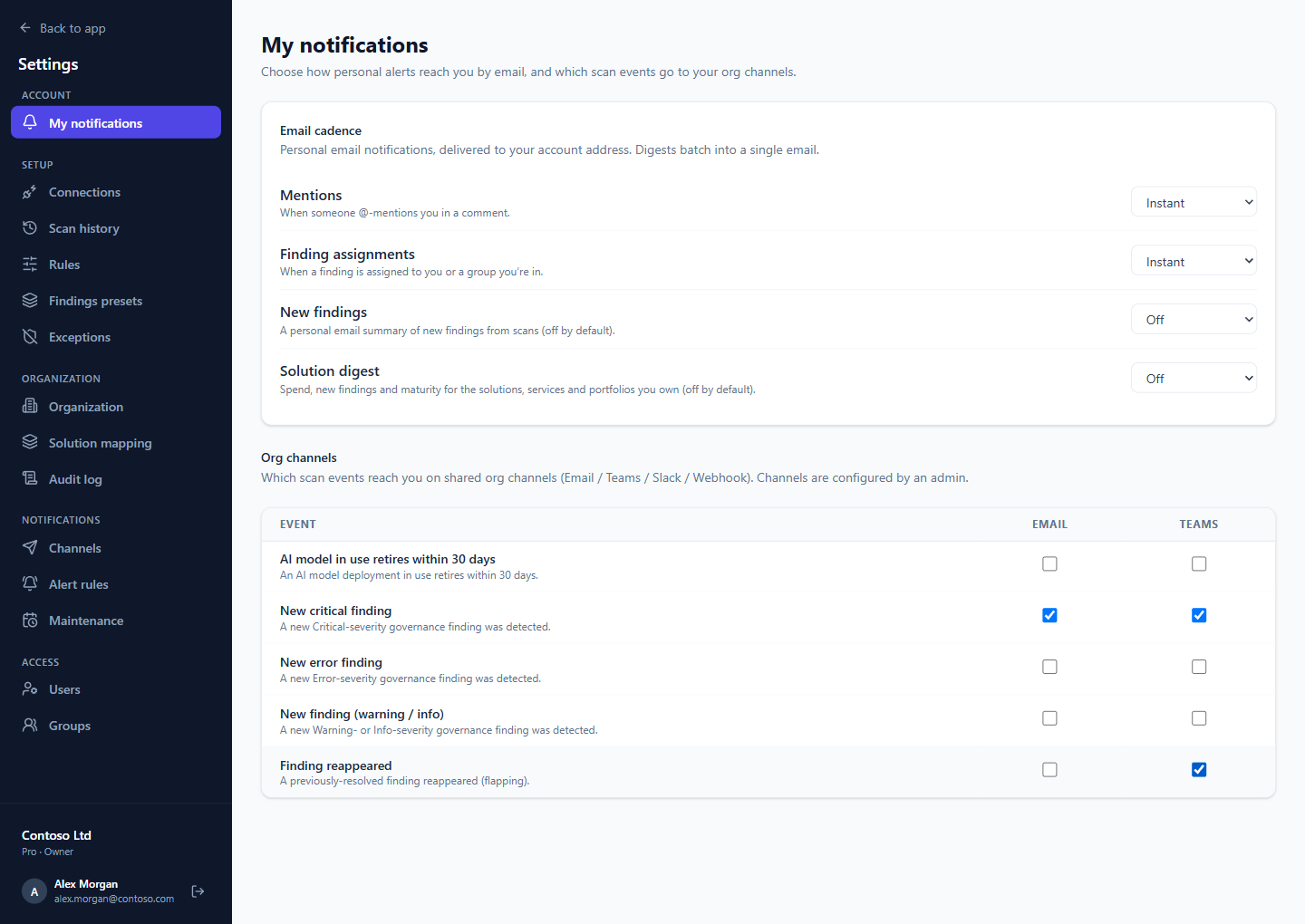
- Email cadence — for each kind of email, choose Instant, a daily, weekly or monthly digest, or Off: mentions in comments, findings assigned to you or your group, new findings from scans, and the solution digest. New findings and the solution digest are off by default.
- Org channels — tick which scan events you want on each channel your Admins have set up (see Channels), for example new critical findings in Teams.
Connections
The Azure tenants Praefic scans. Connect a tenant starts the wizard described in On-boarding. Each connection shows its consent and verification status and its subscriptions, and you can switch individual subscriptions off so they are no longer scanned.
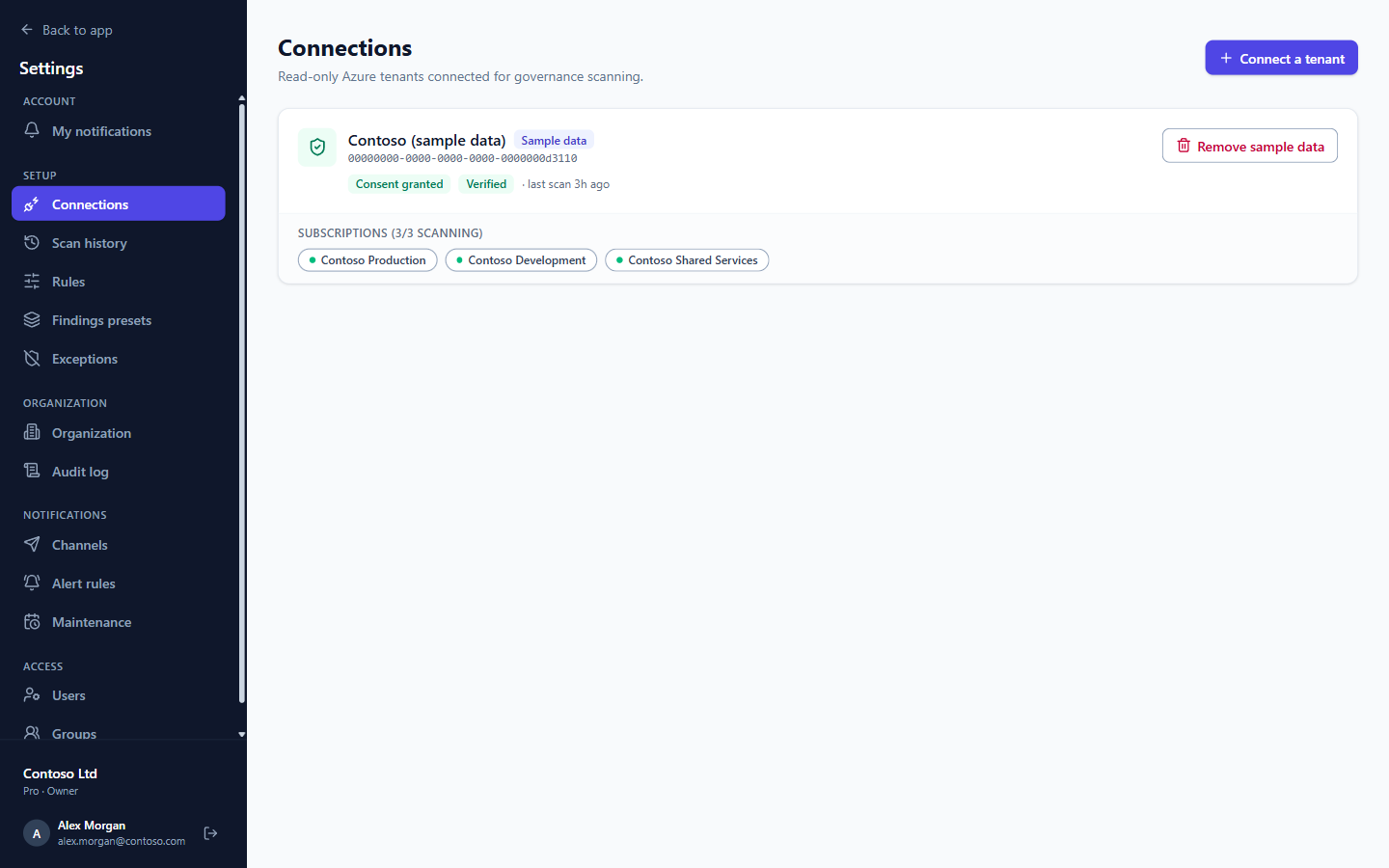
If your organization has the fictional Contoso (sample data) connection, Remove sample data deletes it and everything that came with it. See Sample data.
Scan history
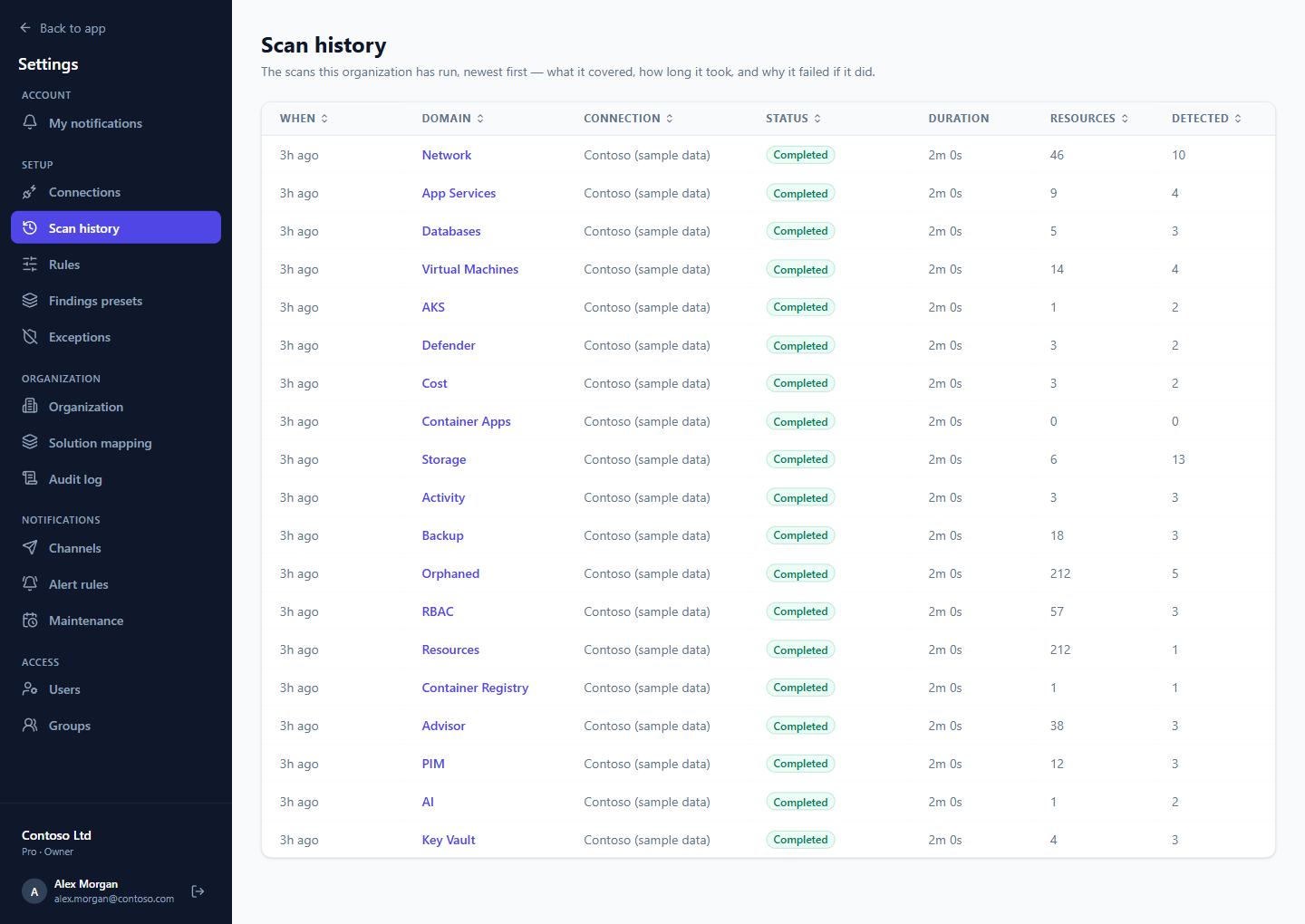
Every scan, newest first: which area, which connection, whether it completed, how long it took, how many resources it examined and how many findings it detected. A scan that Azure refused for some subscriptions says so here, with Azure's reason.
Rules
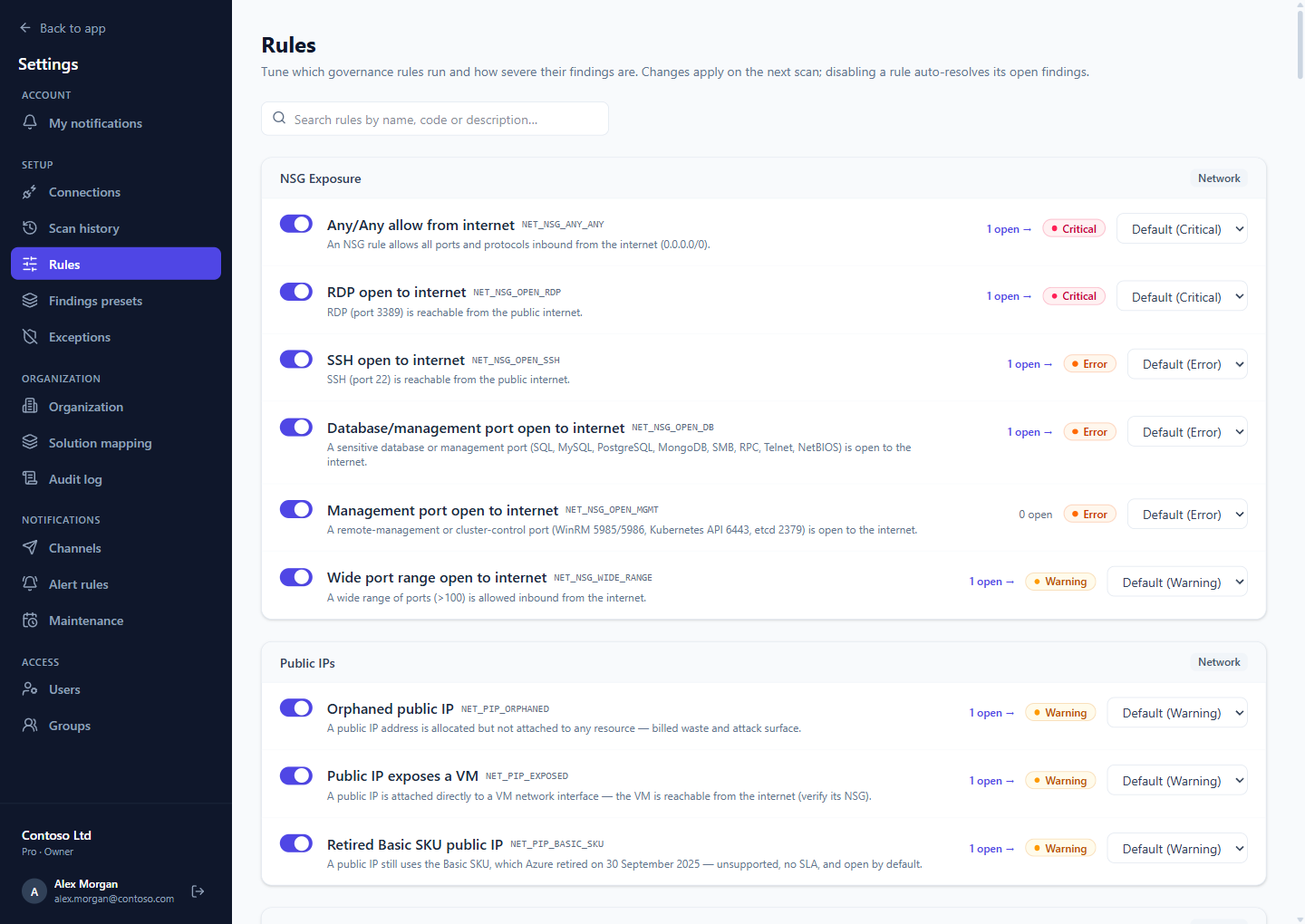
Every check Praefic runs, grouped by area. For each one you can:
- Switch it off for your organization. Its open findings resolve on the next scan.
- Change its severity, for example make a Warning an Error where your policy is stricter.
The number of open findings links to the findings themselves. Changes apply from the next scan.
Tip: To accept a deviation on particular resources rather than turn a check off everywhere, use an exception.
Findings presets
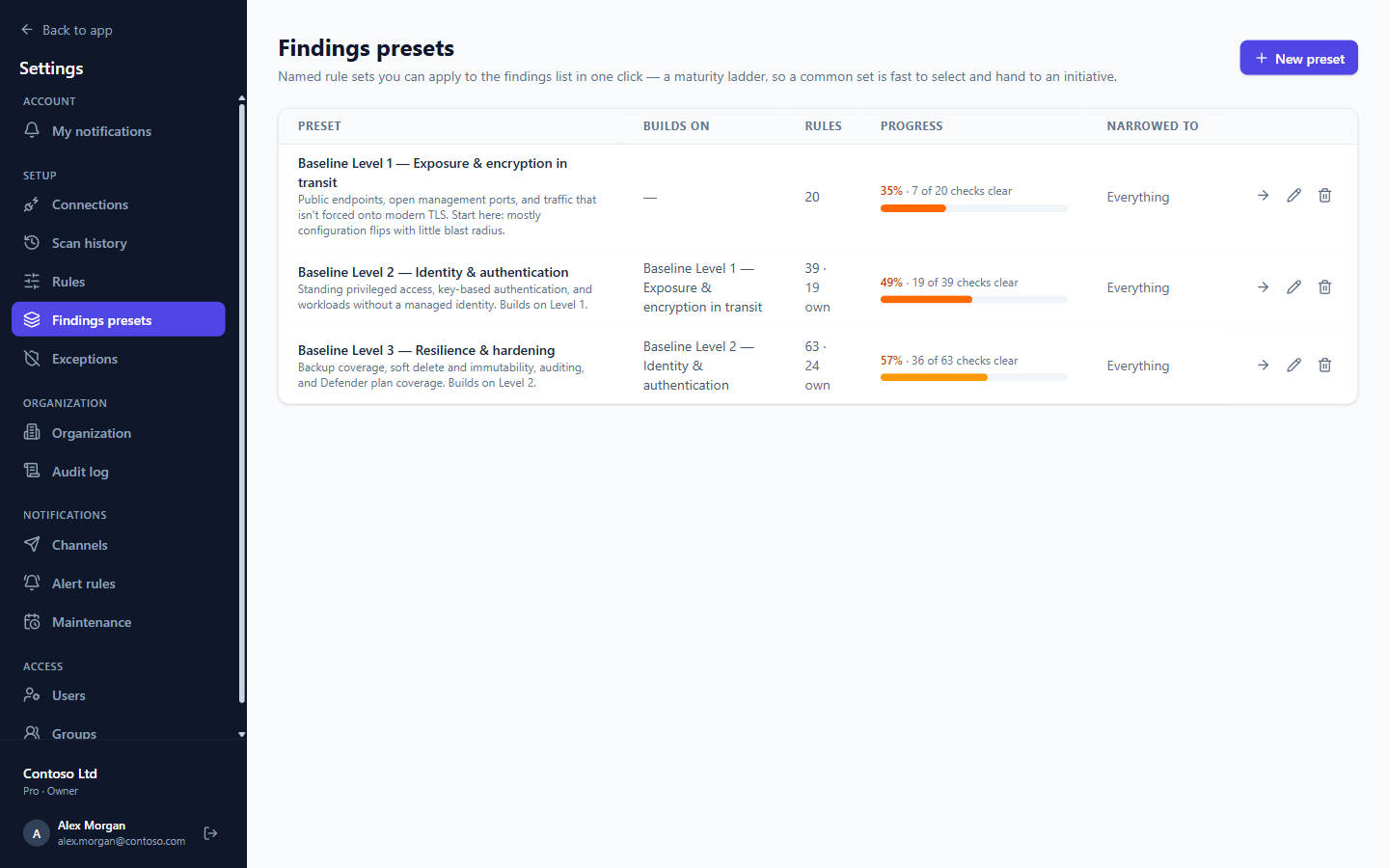
Named sets of checks — the maturity levels your organization works toward. Each preset can build on another, so Level 2 includes everything in Level 1. The list shows each preset's progress; open one to see its findings, or edit which checks it contains and which part of the estate it covers.
Exceptions
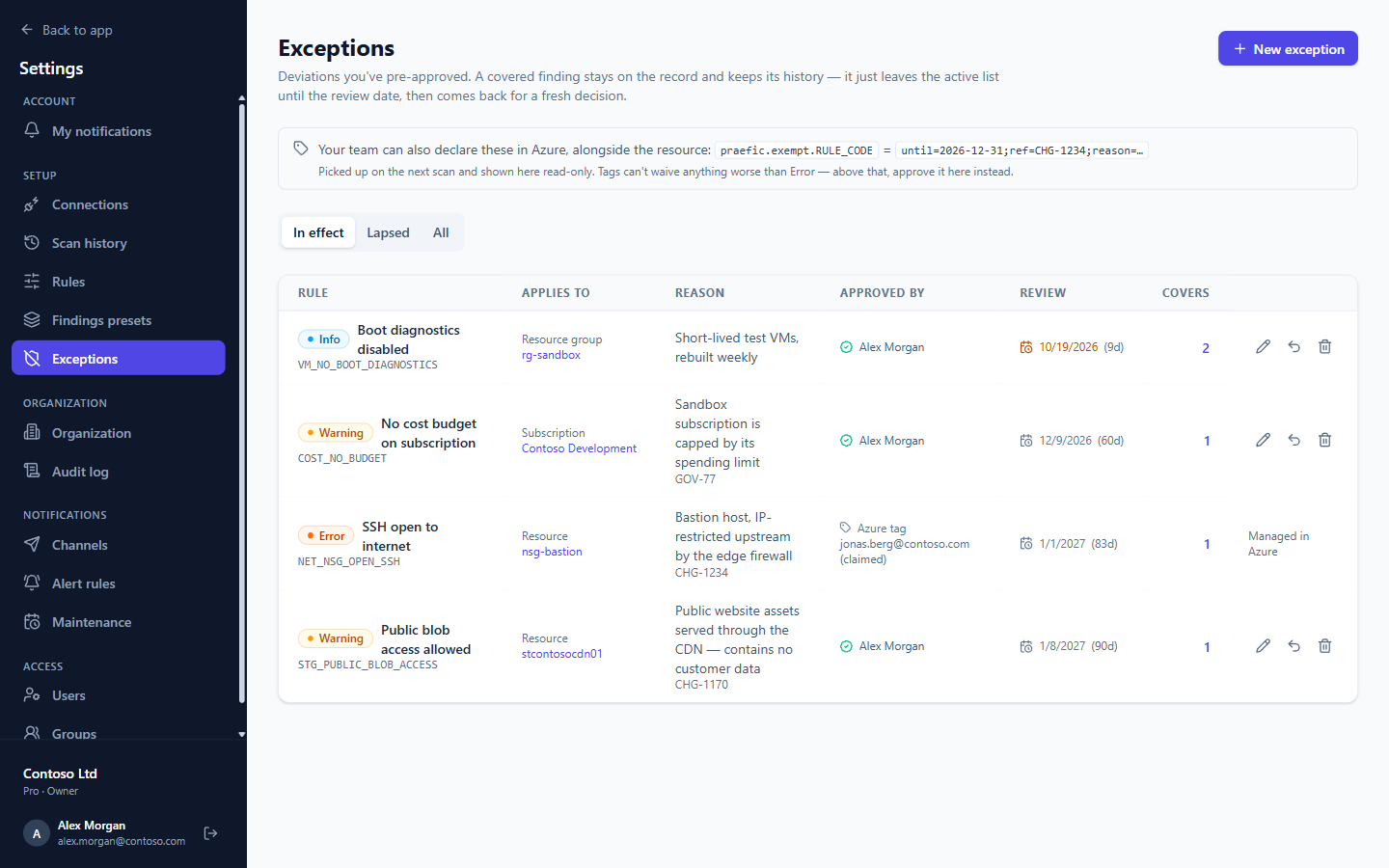
Approved deviations: what is excepted, where, why, who approved it and until when. Exceptions declared as Azure tags on the resource appear here too, read-only. See Exceptions for how both kinds work.
Organization
Options that apply to everyone in the organization.
| Option | What it does |
|---|---|
| AI narrative in management reports | Lets the management report include an AI-written executive narrative. Off by default. When on, the report's data is sent to the AI service to write the narrative; every number in the report is still computed from your scan data. |
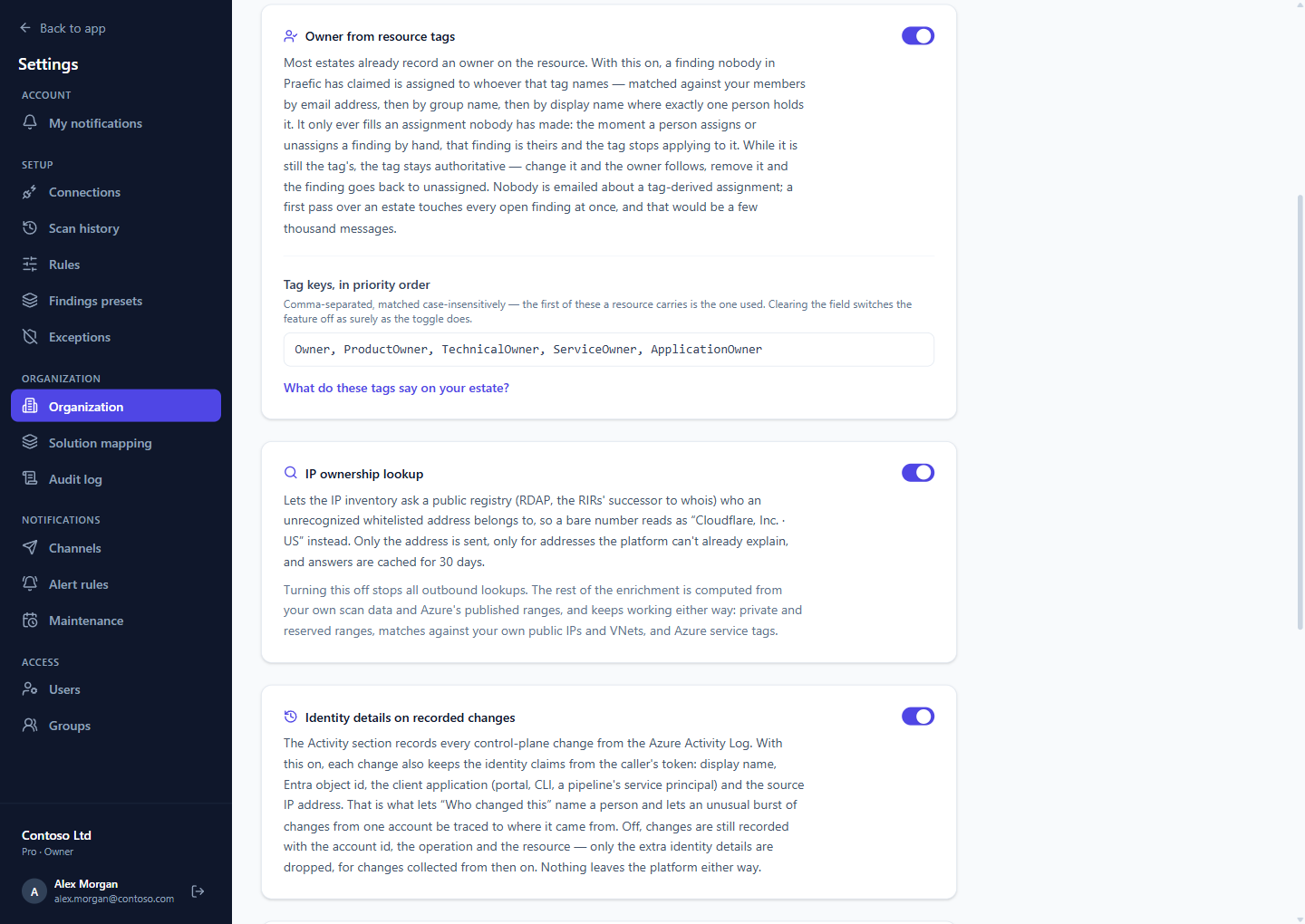
| Owner from resource tags | Assigns findings nobody has claimed to the person or group named in the resource's owner tag (Owner, ProductOwner, … — the list is editable). It never overrides an assignment made by hand, and nobody is emailed about a tag-based assignment. |
| IP ownership lookup | Lets the IP inventory ask a public registry who an unrecognized address belongs to. Only the address is sent. Turn it off to stop all outbound lookups. |
| Identity details on recorded changes | Keeps who made each Azure change and from where (name, object ID, client application, IP address). Off, changes are still recorded, without those details. |
| Exceptions | Whether exception tags in Azure are honoured, the worst severity a tag may waive, the tag prefix, and the default review period. See Exceptions. |
| Data residency | The Azure regions your resources may live in. When set, resources elsewhere are reported as findings. Leave empty if you have no residency policy. |
Solution mapping
How resources are grouped into business solutions: which tag keys name a solution, service, environment and owner, inheritance from resource groups and subscriptions, naming conventions, required tags, and the rules that place resources by hand. See Solutions.
Audit log
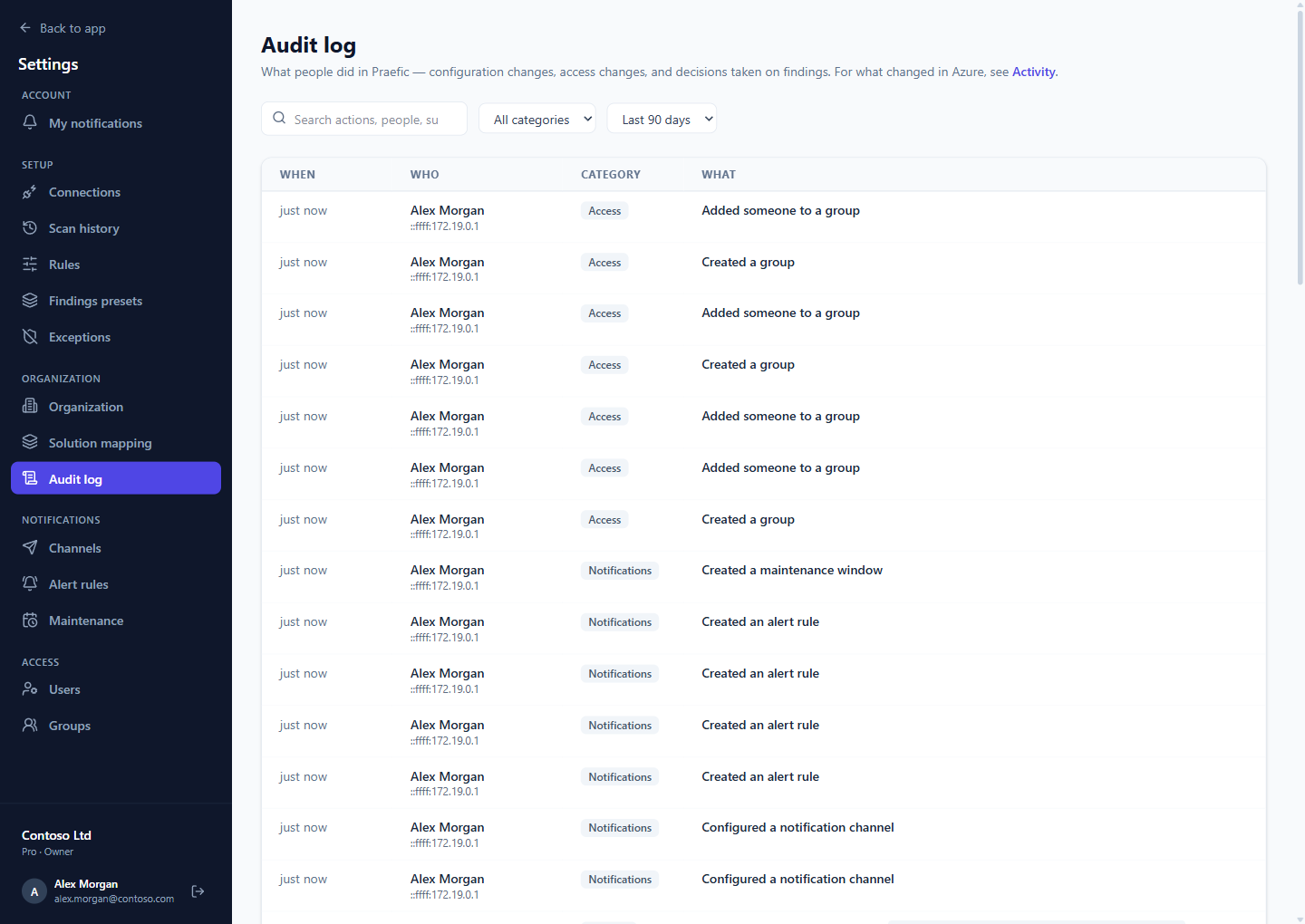
What people did in Praefic: sign-ins, configuration changes, access changes, exceptions and decisions on findings — including attempts that were refused. Filter by category and period, or search for a person or a change. For what changed in Azure, see Activity.
Channels
Where the organization's alerts are delivered: Email, Microsoft Teams, Slack or a Webhook to your own endpoint. Teams and Slack use an incoming-webhook URL. Send test checks a channel works.
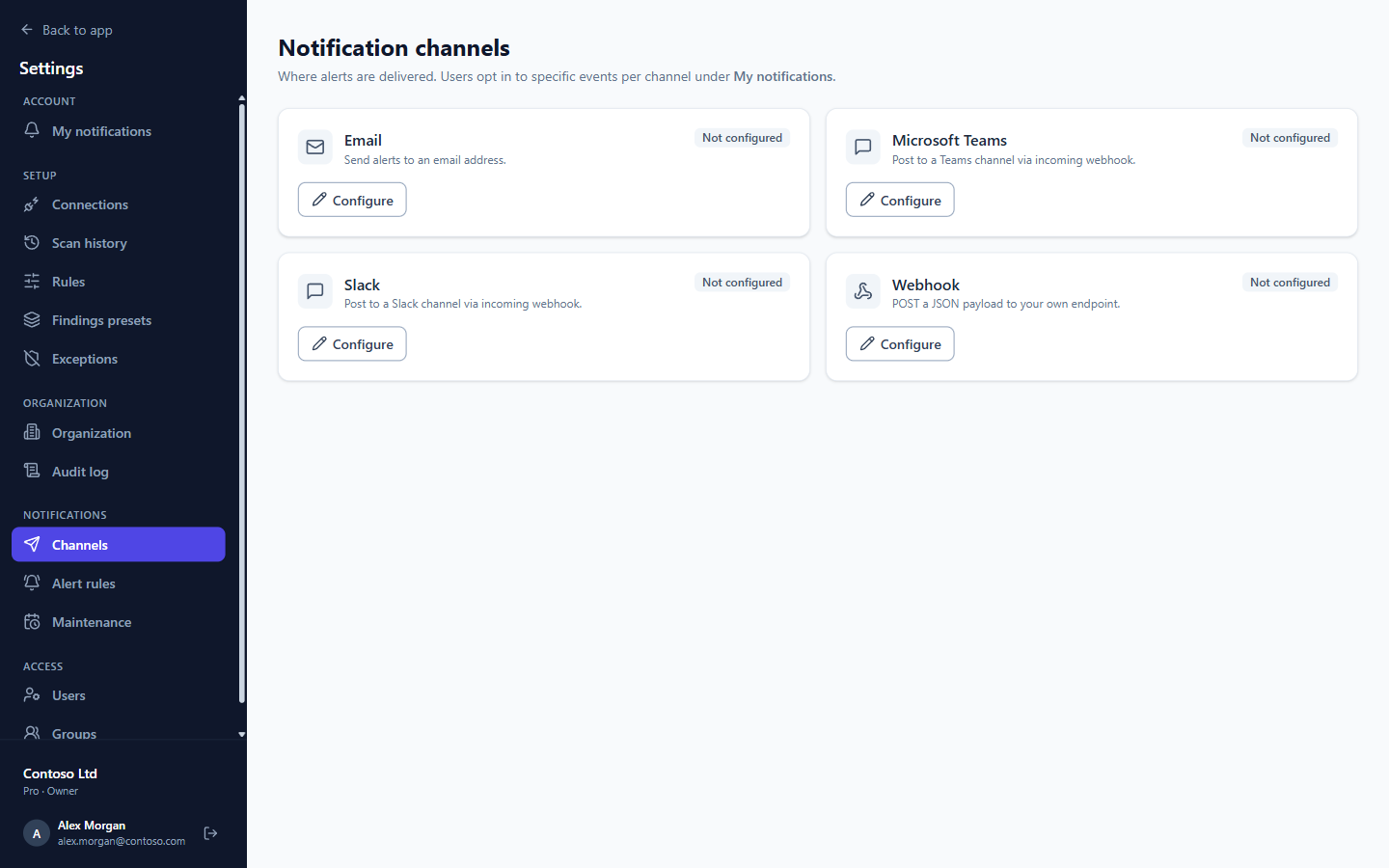
Setting up a channel doesn't send anything yet: each user chooses which events they want on it under My notifications, and alert rules decide which events fire.
Alert rules
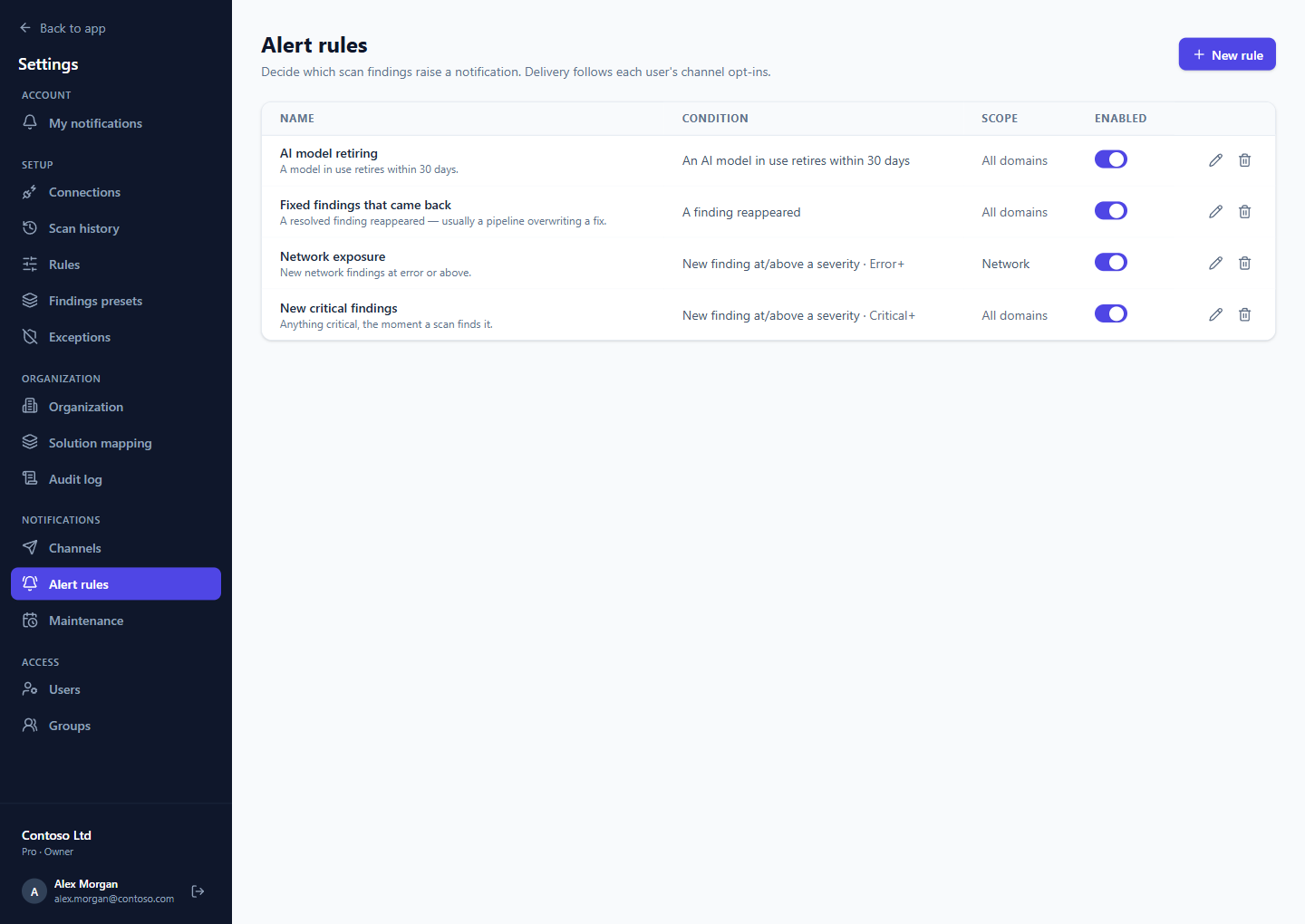
Which scan results raise an alert:
- New finding at or above a severity — for example every new Critical.
- Any new finding.
- A finding reappeared — a resolved finding came back, often a pipeline overwriting a fix.
- An AI model in use retires within 30 days.
A rule can be limited to some areas (for example only Network) or to particular checks, and switched off without deleting it.
Maintenance
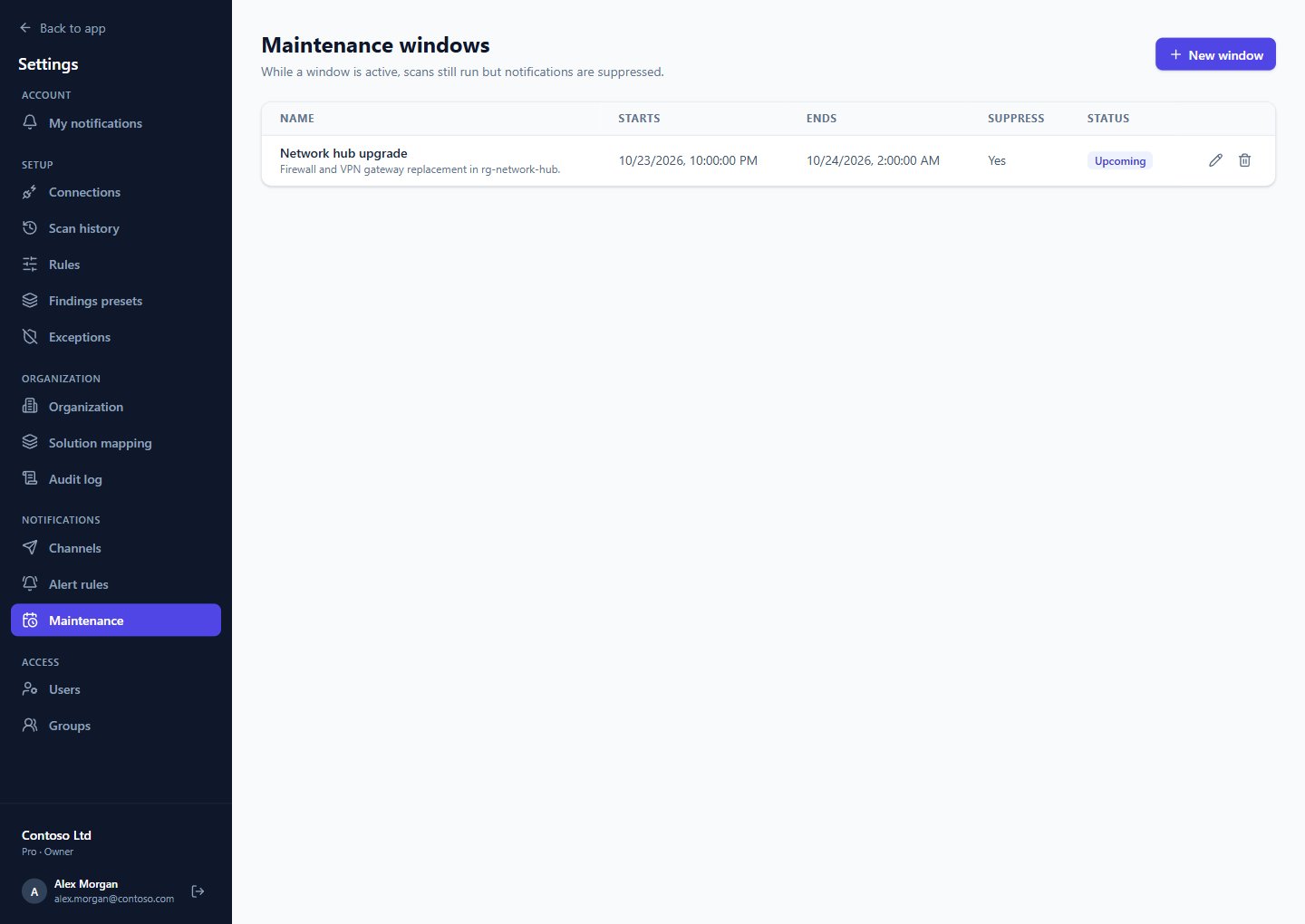
Maintenance windows silence alerts during planned work. Scans keep running and findings are still recorded; only the notifications are held back. A window shows as Upcoming, Active or Past.
Users
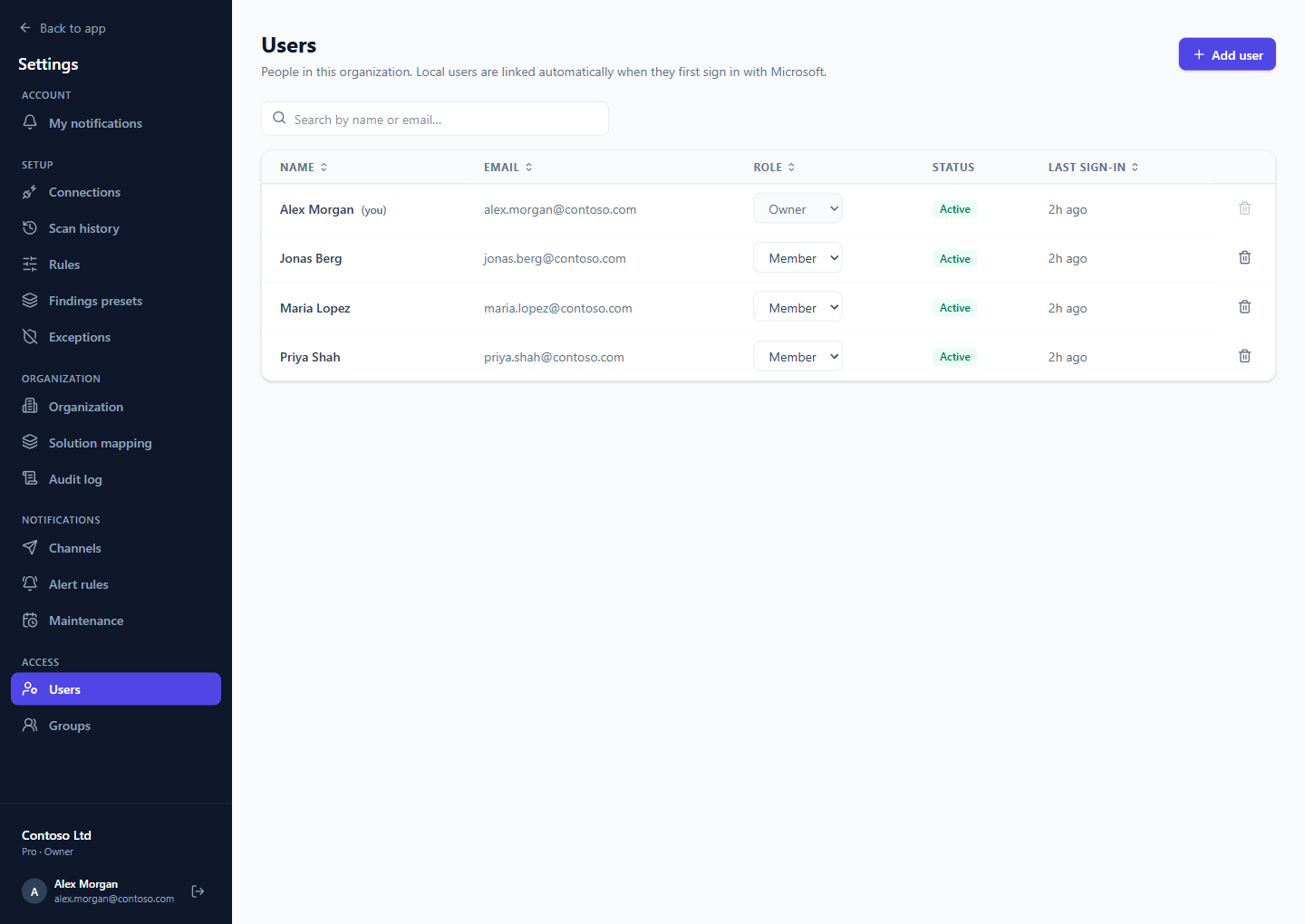
Everyone in the organization, with their role and last sign-in. Change a role from the list (see Roles) or remove someone.
Add user adds a colleague by email address before they have signed in, with the role you choose. When they first sign in with Microsoft, they are linked to that entry automatically.
Groups
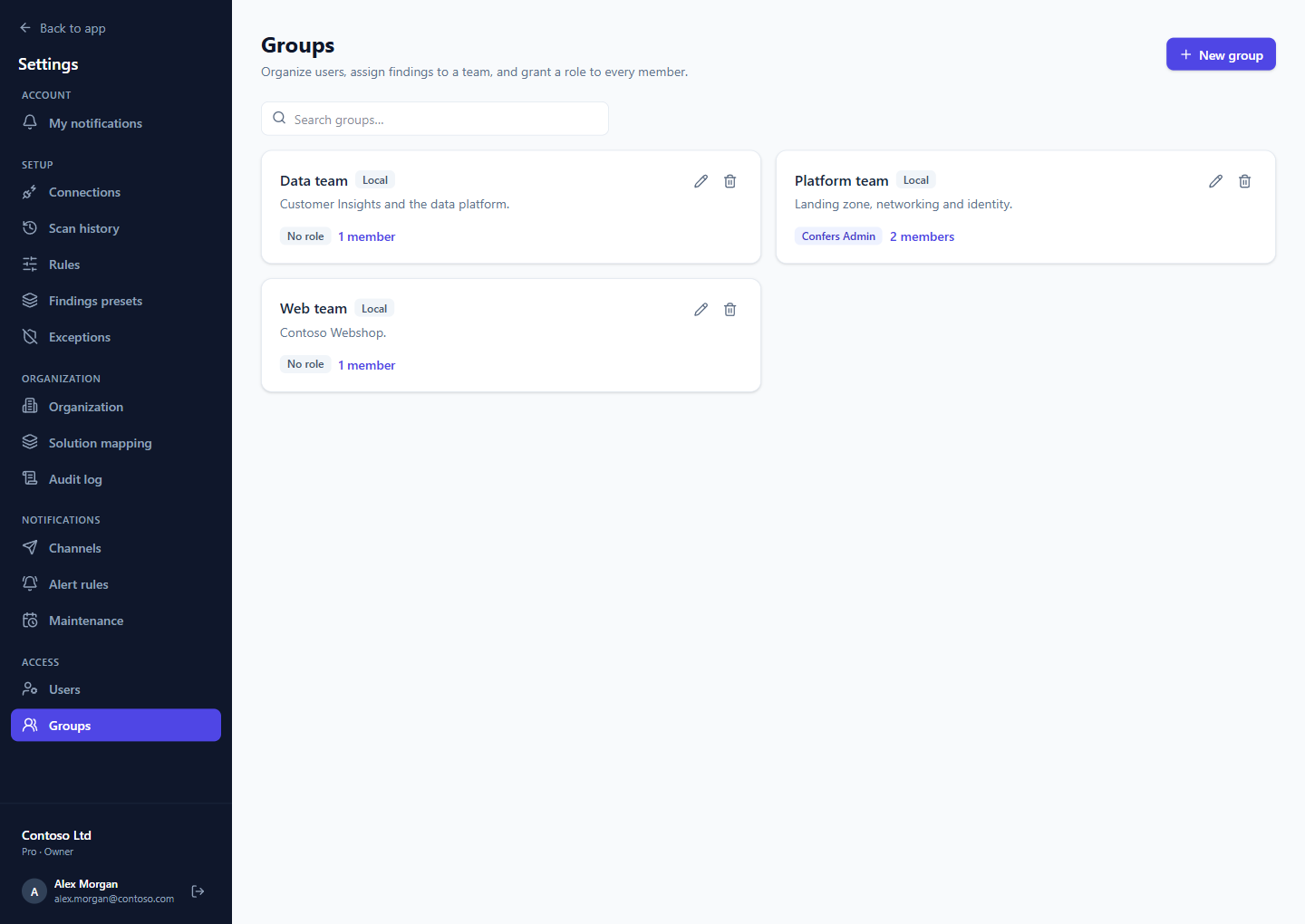
Teams of users. Findings, solutions and services can be assigned to a group instead of a person, and a group can confer a role on all its members — for example Admin for the platform team — so access follows team membership. A member has the highest of their own role and the roles their groups confer; an Owner role can only be conferred by an Owner. A change to a group's role takes effect at each member's next sign-in.