Dashboard & search
The Dashboard is where DNS Tool opens: one page that says how healthy your DNS is, what changed this week, and what needs attention first.
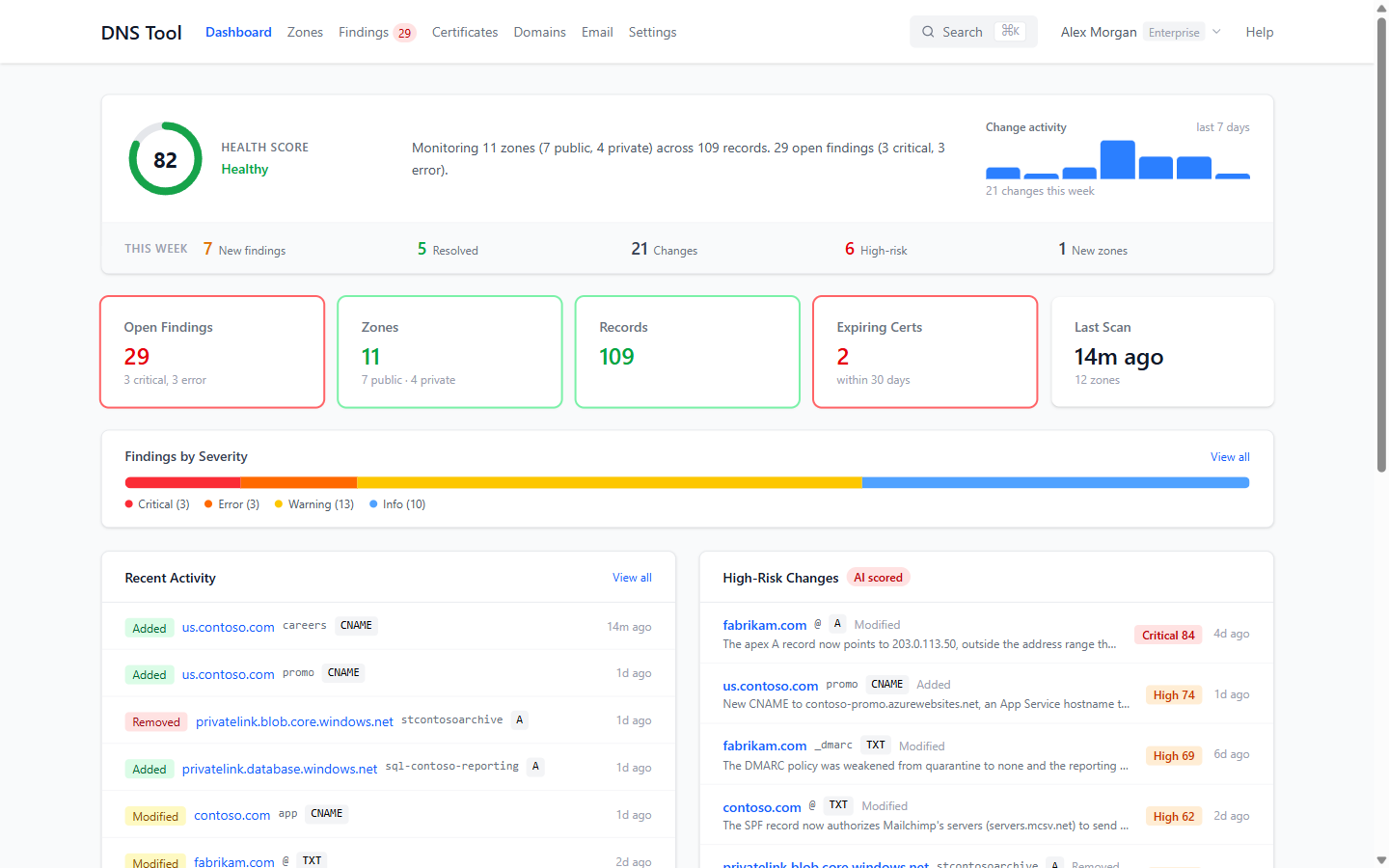
Health and this week
The top card shows your overall health score — the average of your zones' scores (see How the health score works) — with Healthy (80 and above), Needs attention (50–79) or At risk (below 50). Next to it, a one-line summary of what DNS Tool monitors, and a chart of change activity over the last seven days.
The This week strip counts the last seven days: new findings, resolved findings, record changes, high-risk changes, and newly discovered zones.
At a glance
| Card | Shows |
|---|---|
| Open Findings | Findings still to deal with, with the number of critical and error findings. Opens the findings list. |
| Zones | Zones monitored, public and private. |
| Records | Records across those zones. |
| Expiring Certs | Certificates serving HTTPS that expire within 30 days. |
| Last Scan | When the latest scan finished, and how many zones and changes it saw. |
Hidden zones are left out of the zone, record and health figures; see Hide a zone.
The rest of the page
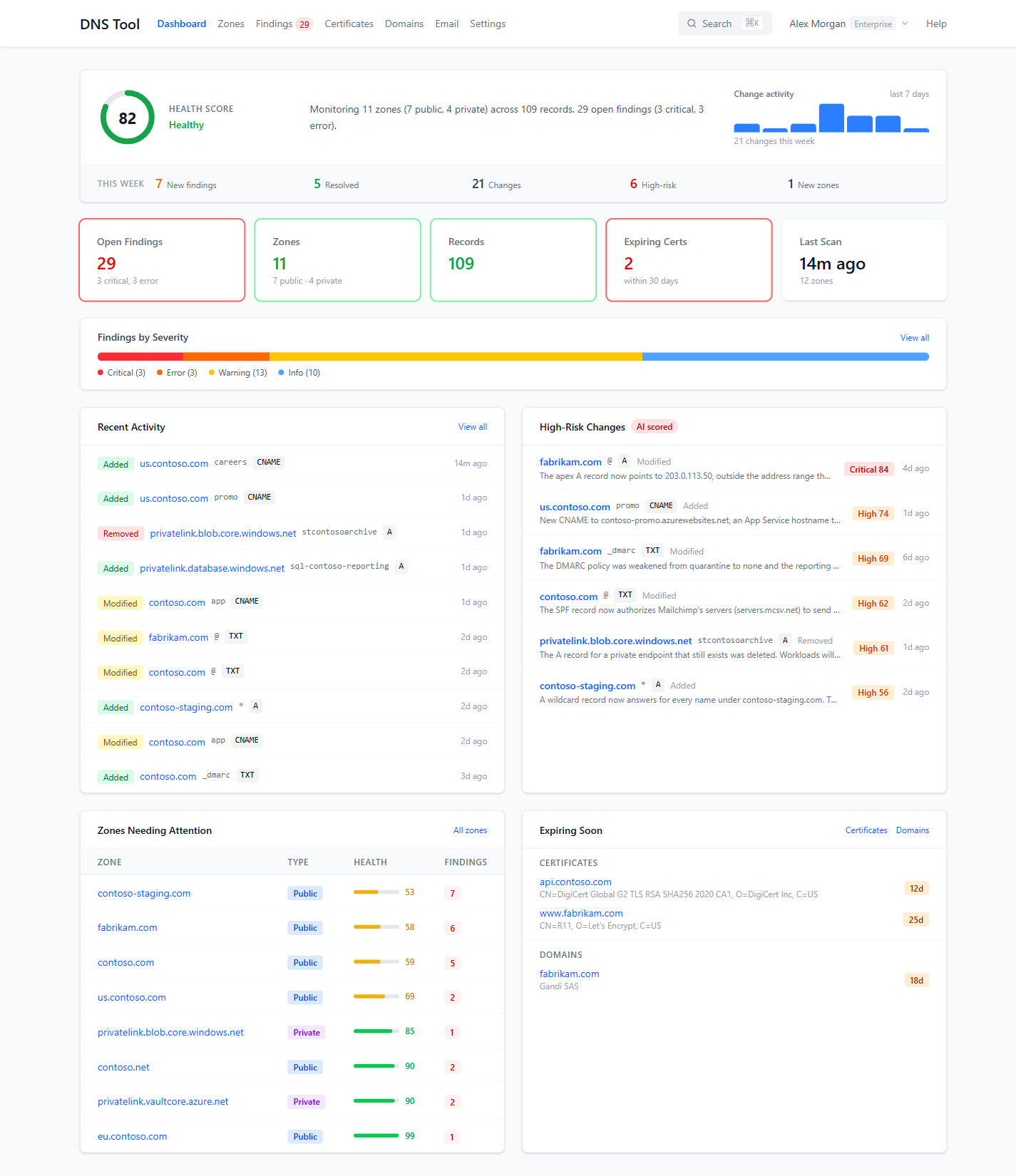
Scroll down for:
- Findings by Severity — open findings split into Critical, Error, Warning and Info. Click a segment to see those findings.
- Recent Activity — the latest record changes. View all opens the change history.
- High-Risk Changes — changes the AI risk scoring rated High or Critical, with the reason. See AI risk scoring.
- Zones Needing Attention — the zones with the lowest health scores and their open findings.
- Expiring Soon — certificates and domain registrations that expire within 30 days.
If you're over your plan's zone limit, a banner at the top says so; see Zone overage handling.
Search
Search in the top bar — or Ctrl+K (⌘K on a Mac) anywhere — finds zones, records, certificates, domains and findings as you type, and jumps to pages such as Alert Rules or Users. Use the arrow keys and Enter to open a result, or See all results for the full results page.
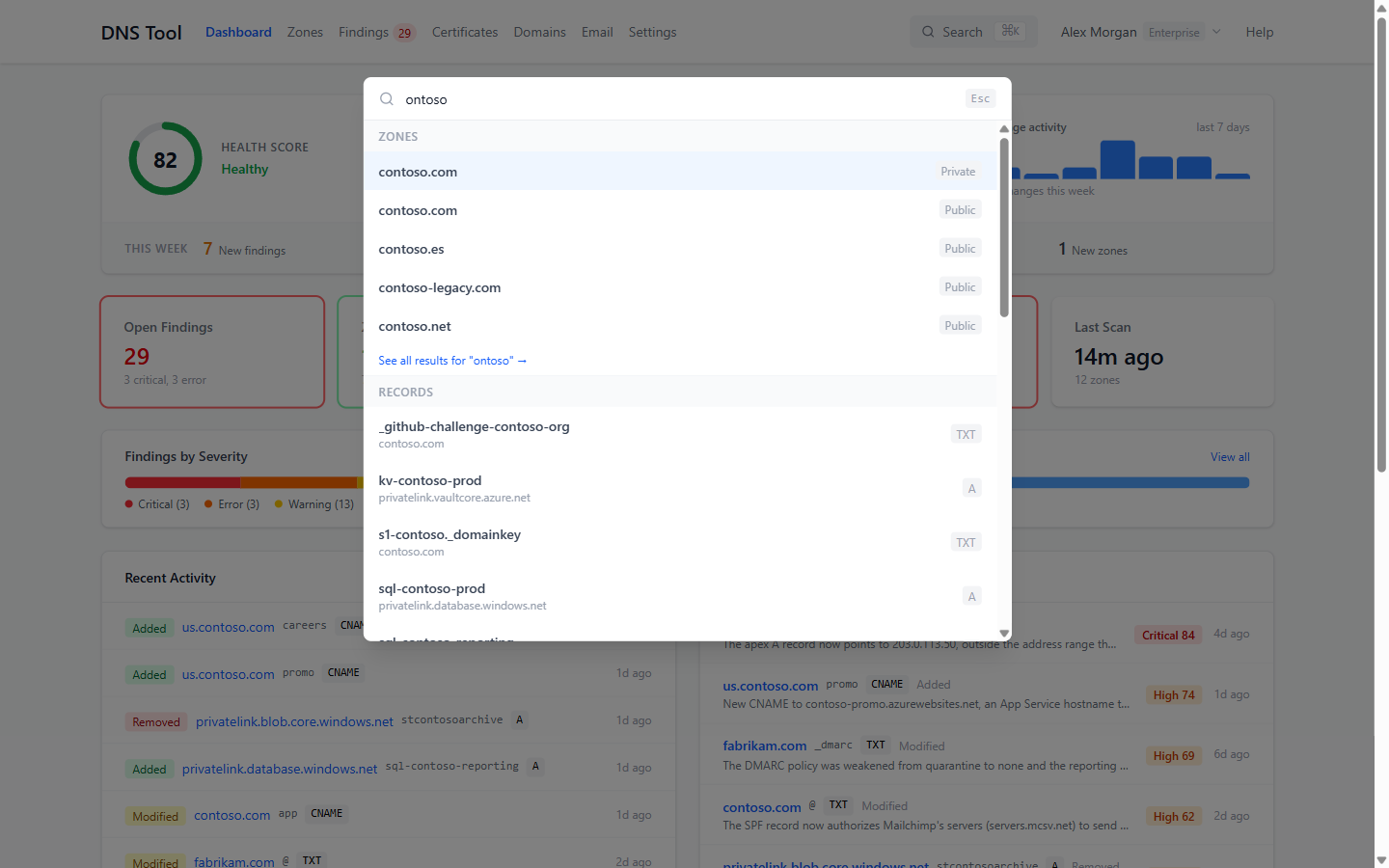
Records are found by name or by value, so searching for an IP address or a hostname shows every record that points at it.
Navigation
The top bar holds Dashboard, Zones, Findings (with the number of open findings), Certificates, Domains, Email and Settings. The menu under your name shows your plan, links to Subscription, switches organization if you belong to several, and signs you out. Help opens this documentation.
Keyboard shortcuts: press g and then h (dashboard), z (zones), f (findings), c (certificates), d (domains) or s (settings).