EasyRadius administration portal
Everything about a running EasyRadius instance is managed in the administration portal at https://portal.just-software.com. Open Manage subscriptions and choose your EasyRadius subscription.
What you can change depends on your role: Readers can look, Contributors manage RADIUS clients and VLANs, and Owners also manage certificates, system settings and access.
Dashboard
The dashboard is the first page you see.
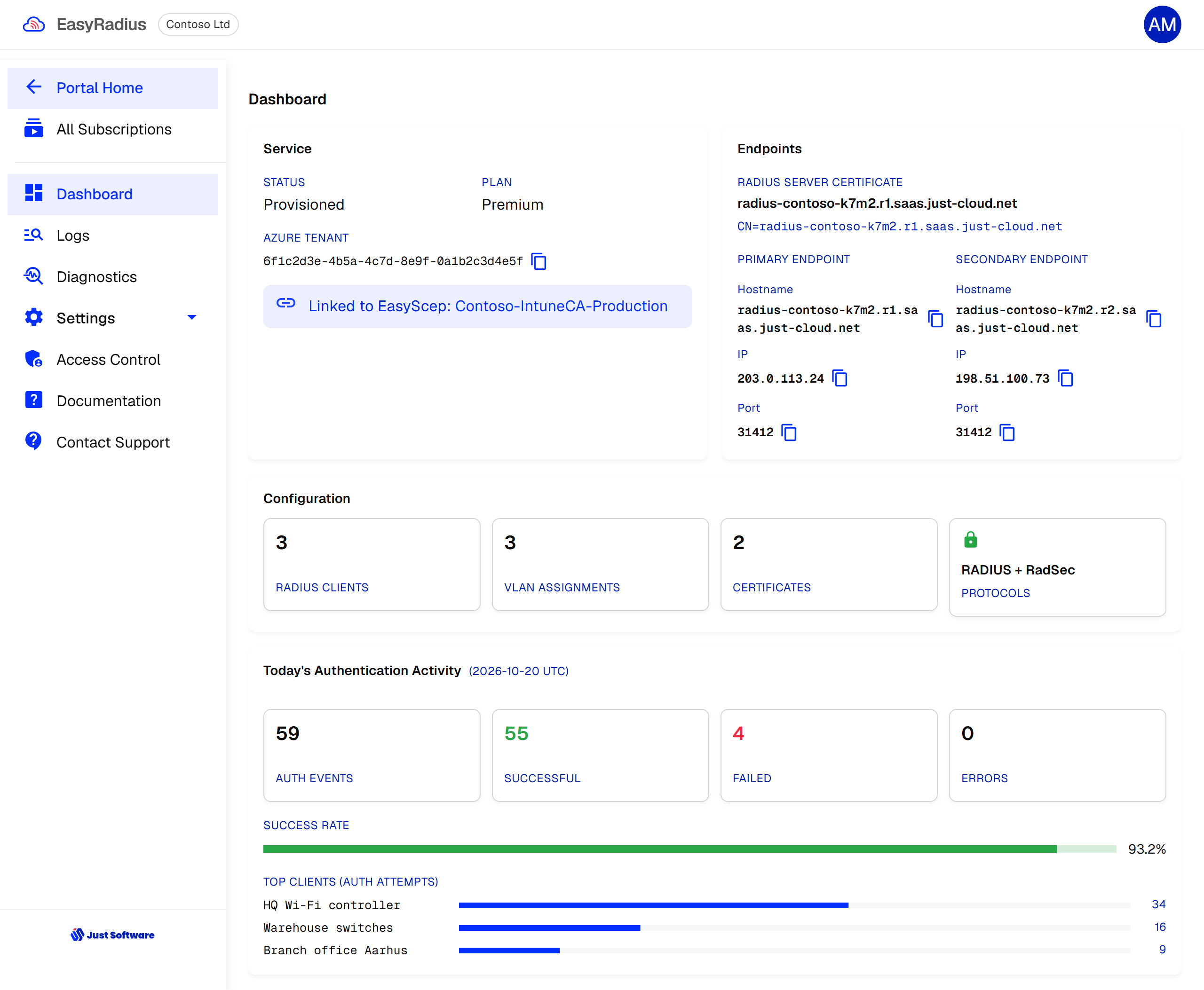
- Service — status, plan, your Azure tenant and, if the instance is linked to EasyScep, which EasyScep subscription it is linked to.
- Endpoints — the name on the RADIUS server certificate, and the hostname, IP address and port of the primary and secondary endpoint. These are the values to configure in your network equipment.
- Configuration — how many RADIUS clients, VLAN rules and certificates are configured, and which protocols are offered.
- Today's Authentication Activity — authentication attempts, successes, failures and errors so far today (UTC), and the busiest clients.
The dashboard also warns you when something needs attention — for example when no RADIUS clients are configured (every request is rejected until you add one), or when a client defined by hostname cannot be resolved.
RADIUS clients
Settings → Radius Clients lists the network equipment allowed to send requests to EasyRadius: access points, wireless controllers, switches and VPN gateways. A request from an address that is not listed is refused and recorded on the Logs page.
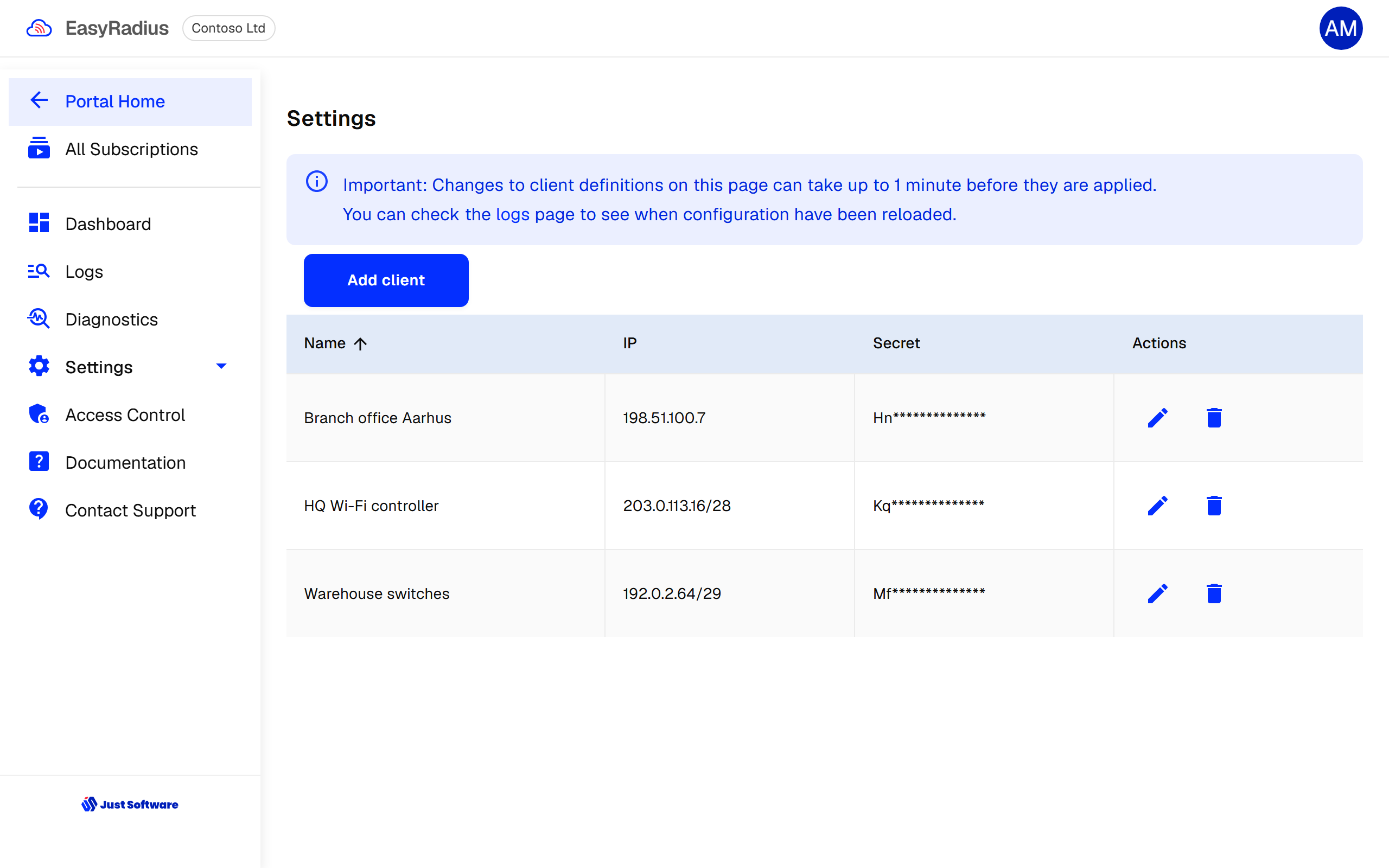
Click Add client and fill in:
| Field | What to enter |
|---|---|
| Client description / Name | A name you recognise, e.g. HQ Wi-Fi controller. |
| Client IP / Network / Hostname | The public address the equipment connects from: a single IPv4 address (203.0.113.10), a network in CIDR notation (203.0.113.16/28), or a DNS hostname. Private (RFC 1918), loopback and link-local addresses are not accepted, and IPv6 is not supported. |
| Radius Secret | The shared secret, also entered on the equipment. At least 6 characters are required; we recommend 32 or more random characters. |
Changes can take up to a minute to apply — the Logs page shows when the configuration has been reloaded.
A client defined by hostname is looked up again every minute. If the name stops resolving, EasyRadius keeps using the last known address for a while and the dashboard tells you; if it has never resolved, that client cannot authenticate.
Certificates
Settings → Certificates holds the certificate authorities EasyRadius trusts and the server certificate it presents to your devices. Only Owners can change this page.
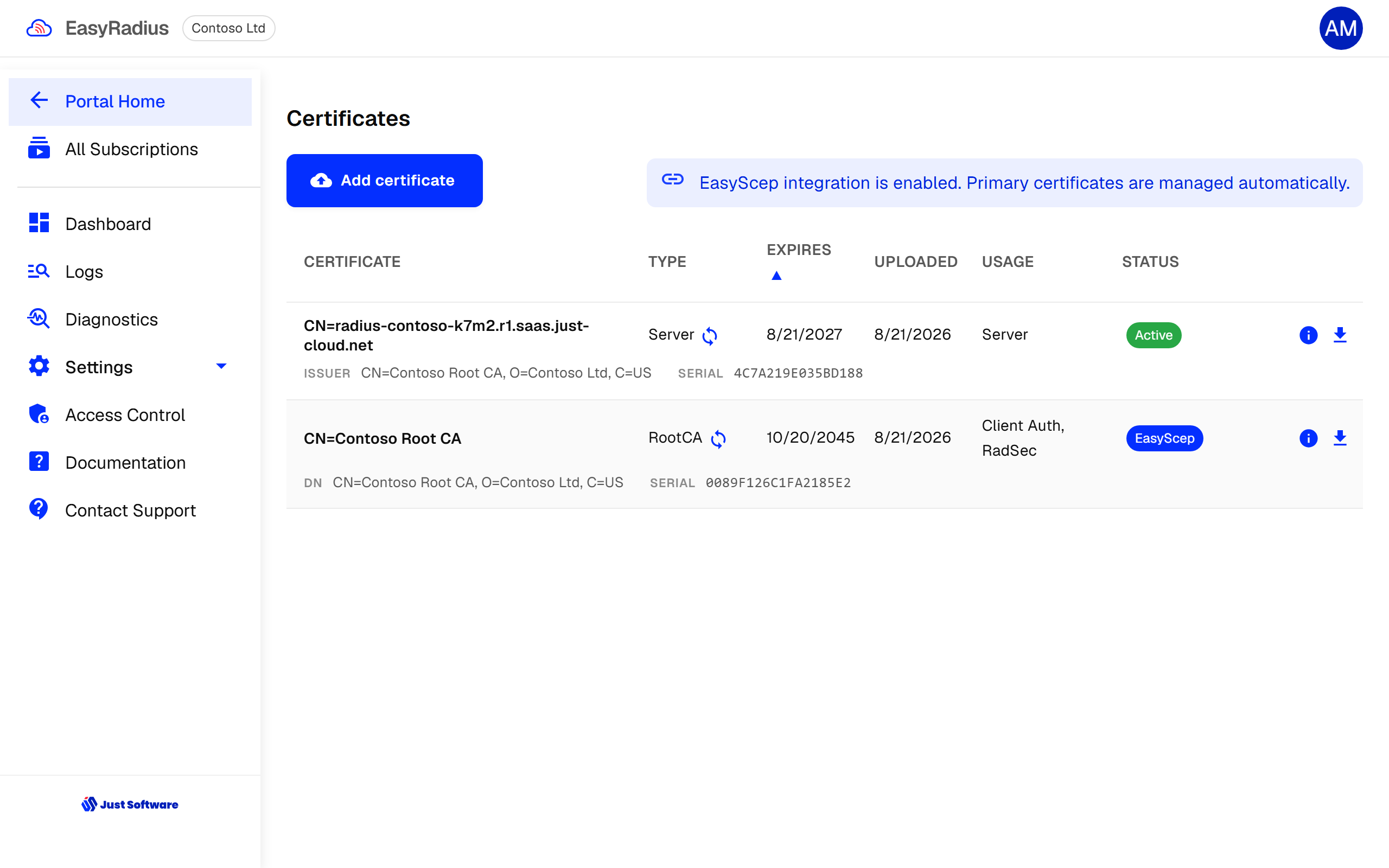
Linked to EasyScep. EasyRadius trusts your EasyScep root CA and gets its server certificate from EasyScep, which also renews it before it expires. You do not need to upload anything.
Manual configuration. Click Add certificate to upload .cer, .pem, .p7b or .pfx files (up to 5 MB). A file can contain a whole chain; each certificate in it is recognised as a root CA, an intermediate CA, or — when it has a private key — a server certificate. Each certificate has these settings:
| Setting | Meaning |
|---|---|
| Use as Server certificate | The certificate EasyRadius presents to devices. It needs its private key. If several are active, the one issued most recently is used. |
| Allow for client auth | Devices with a client certificate issued by this CA may authenticate. A newly uploaded root CA is not trusted until you tick this. |
| Allow for RadSec | Network equipment connecting over RadSec may present a certificate issued by this CA. A root CA must be marked; an intermediate alone is not enough. |
Important: In manual configuration EasyRadius does not renew the server certificate. Upload a replacement and make it active before the current one expires — the page warns you 30 days ahead.
The page lists any problem with the configuration at the top — for example no CA trusted for client authentication (every EAP-TLS authentication is then rejected), an expiring server certificate, or an incomplete chain. If an intermediate CA's issuer is missing, the page offers to download it from the address in the certificate, or to import the root yourself.
Click the information icon on a certificate to see its details. The Endpoints tab tests whether its OCSP responder, CRL and issuer addresses can be reached — useful when revocation checks fail. The download icon saves the public certificate as PEM.
VLAN assignment
Settings → VLANs decides which VLAN an authenticated device is placed on. EasyRadius returns the VLAN in the standard attributes Tunnel-Type = VLAN, Tunnel-Medium-Type = IEEE-802 and Tunnel-Private-Group-Id = <VLAN ID>, which your equipment must be configured to honour (often called dynamic VLAN or RADIUS-assigned VLAN).
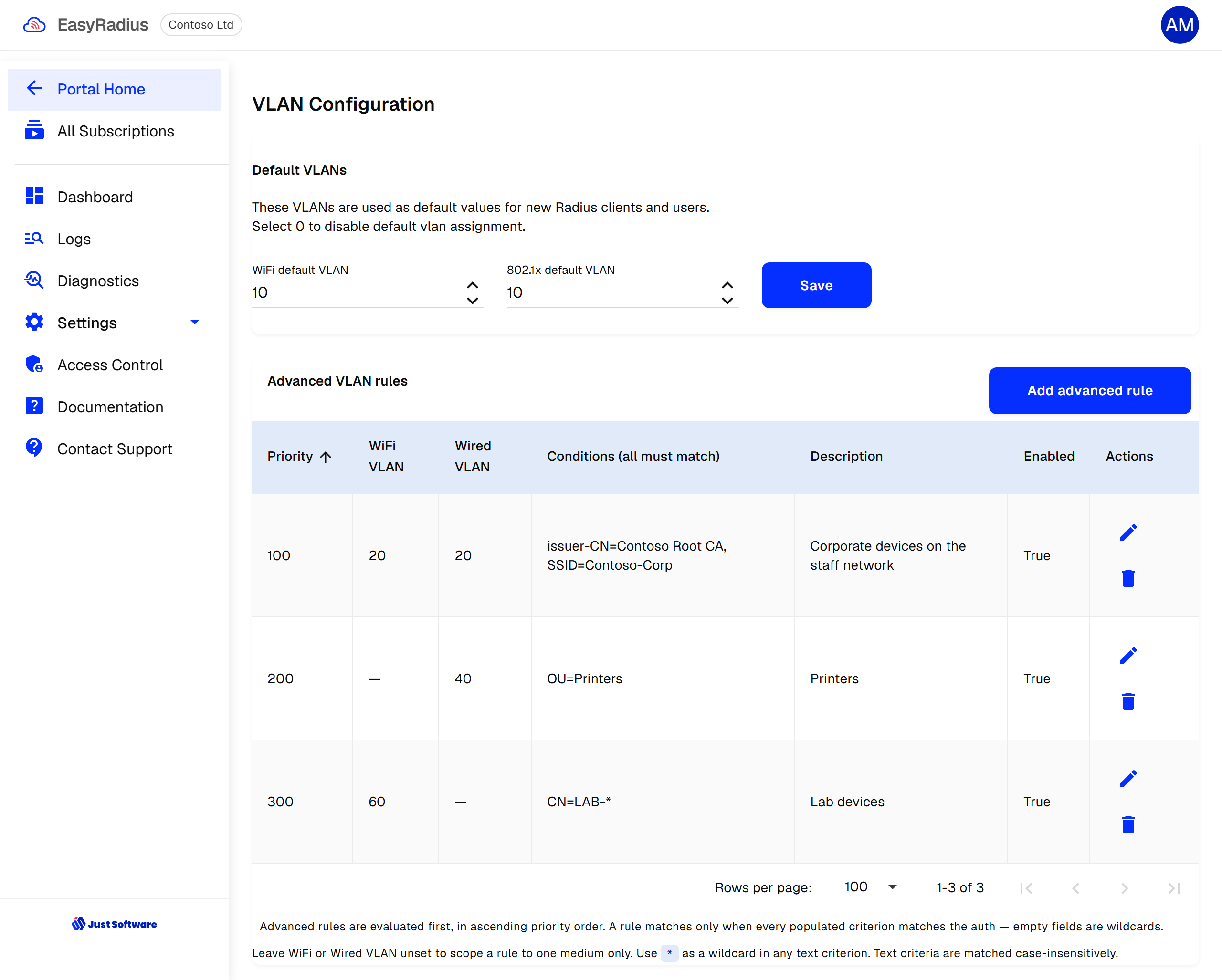
Default VLANs. The VLAN used when no rule matches — one for Wi-Fi and one for wired (802.1X) connections. 0 means no VLAN is assigned.
Advanced VLAN rules. Rules are evaluated in ascending priority order and the first match wins. A rule can set a Wi-Fi VLAN, a wired VLAN, or both; leave one empty to apply the rule to one kind of connection only. All conditions in a rule must match. Values are compared case-insensitively, and * and ? work as wildcards.
| Condition | Matches |
|---|---|
| Cert subject · CN, O, OU, E | Fields of the device's client certificate subject |
| Issued by · CN, O, OU | Fields of the certificate's issuer — e.g. to separate two CAs |
| Network · SSID | The Wi-Fi network the device connects to |
| Network · NAS-Identifier | The access point or switch, as it identifies itself |
| Network · Calling-Station-Id (MAC) | The device's MAC address |
Whether a request is wired or wireless is decided from the NAS-Port-Type attribute sent by your equipment.
Older instances have legacy VLAN rules that match on SSID only; Migrate legacy rules converts them to advanced rules. If advanced rules are not shown for your instance, contact support@just-software.com.
System settings
Settings → System is available to Owners.
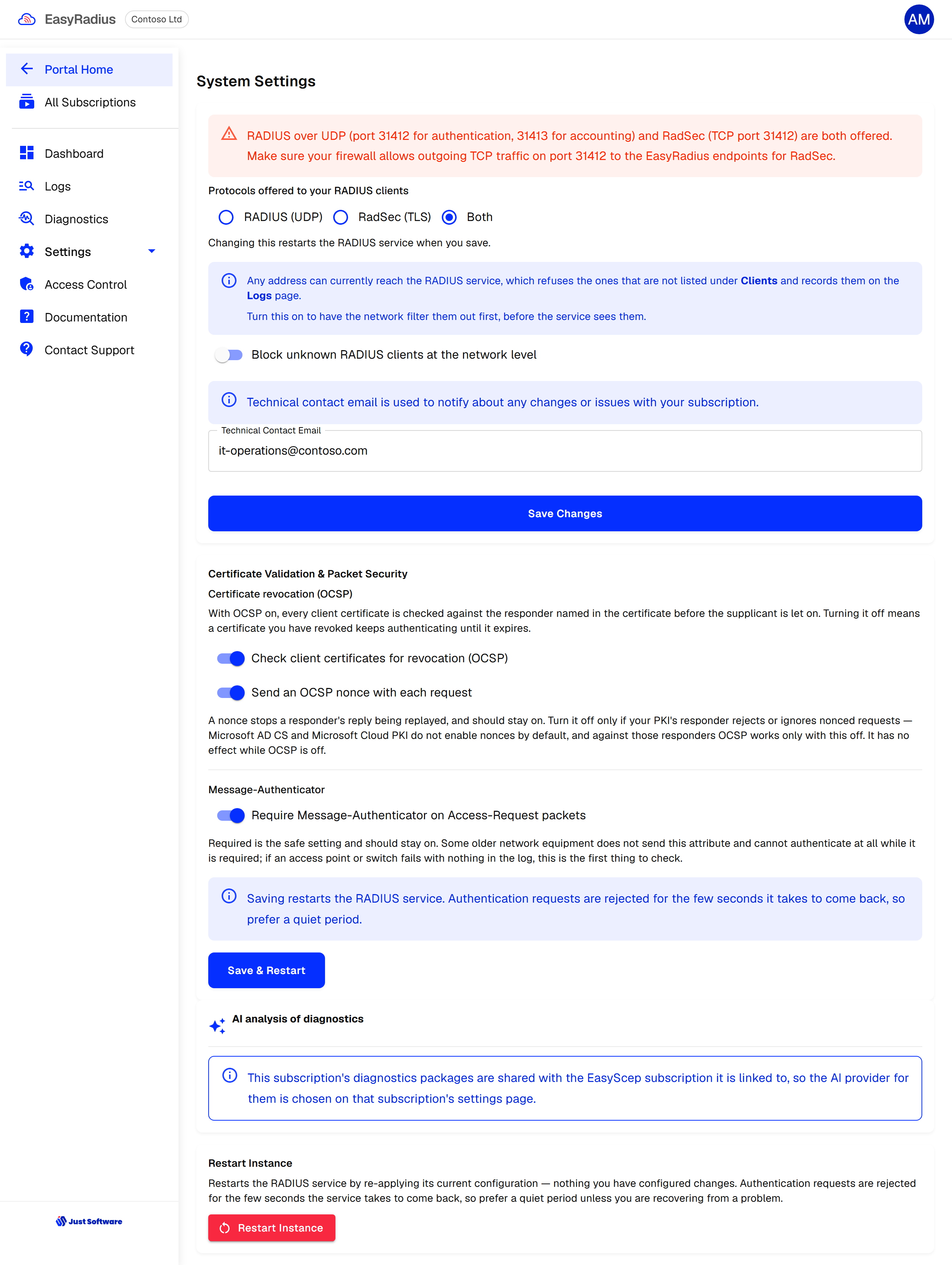
Protocols and ports
Choose which protocols your network equipment may use:
| Choice | Your equipment connects to | Port |
|---|---|---|
| RADIUS (UDP) | Both endpoints over UDP | Authentication on the port shown on the dashboard; accounting on the next port up |
| RadSec (TLS) | Both endpoints over TCP, encrypted with TLS | The port shown on the dashboard |
| Both | Either of the above | As above |
Allow this traffic outbound from your network equipment to the IP addresses of both endpoints. The port is specific to your instance — it is not 1812 or 2083.
RadSec encrypts RADIUS traffic in transit and avoids problems with fragmented UDP packets. Equipment that only speaks plain RADIUS cannot connect when only RadSec is offered. A RadSec connection uses the same RADIUS client entry (address and shared secret) as plain RADIUS, and the equipment must present a certificate issued by a CA marked Allow for RadSec on the Certificates page.
Changing the protocols restarts the RADIUS service when you save.
Blocking unknown clients
By default any address can reach the RADIUS service, which refuses those not listed under RADIUS clients and records them on the Logs page. Turn on Block unknown RADIUS clients at the network level to have the network drop them before they reach the service. While it is on, unknown addresses leave no trace on the Logs page, clients defined by hostname cannot be used, and a newly added client may be dropped for up to a minute until the filter is updated.
Certificate validation and packet security
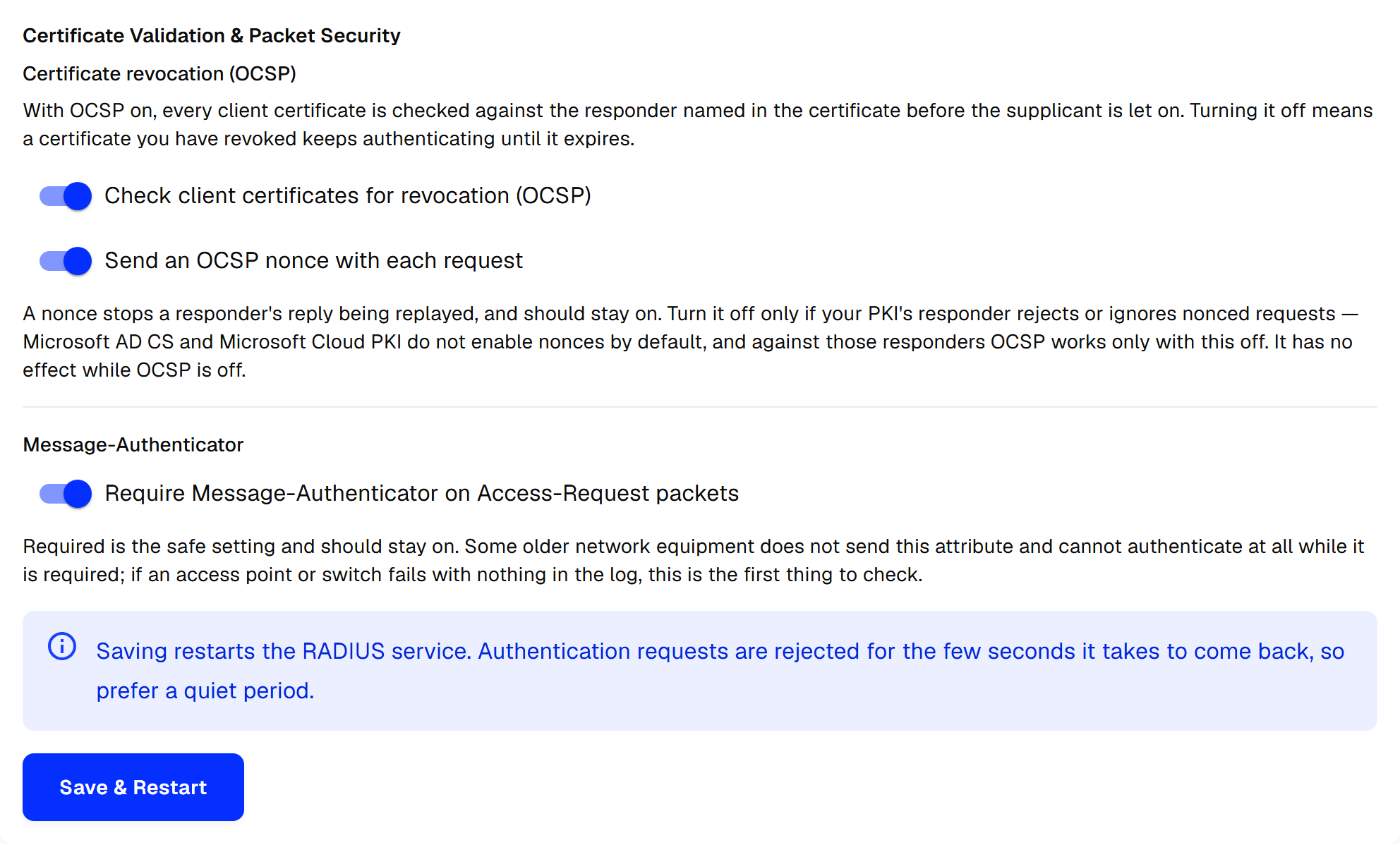
- Check client certificates for revocation (OCSP) — every client certificate is checked against the OCSP responder named in it, and the device is rejected if the certificate is revoked or the responder cannot be reached. Turning this off means a certificate you have revoked keeps working until it expires. See Certificate revocation checking.
- Send an OCSP nonce with each request — protects against replayed responses and should stay on. Turn it off only if your CA's responder rejects nonces; Microsoft AD CS and Microsoft Cloud PKI do not enable them by default.
- Require Message-Authenticator on Access-Request packets — protects against the Blast-RADIUS attack (CVE-2024-3596) and should stay on. Some older network equipment does not send this attribute; if an access point or switch fails with nothing in the log, this is the first thing to check.
Save & Restart applies the changes. The RADIUS service restarts and rejects requests for a few seconds, so choose a quiet moment.
On some older instances the two OCSP switches are shown read-only, with both enabled. Contact support@just-software.com to have your instance upgraded.
AI analysis of diagnostics
Decides whether diagnostics packages you upload may be analysed by an AI provider: No AI analysis (nothing leaves the portal — the default), Mistral (processed in the EU) or Anthropic (processed in the US). For an instance linked to EasyScep, this is chosen on the EasyScep subscription.
Restart instance
Restarts the RADIUS service by re-applying its current configuration. Nothing you have configured changes. Requests are rejected for a few seconds.
Logs
Logs shows the RADIUS service's log for the last 7 days: successful and failed authentications, errors, and requests from unknown clients. Filter by date and severity, search by client, user or message, and Download the result as CSV. The first column shows whether the entry came from the primary (P) or secondary (S) endpoint.
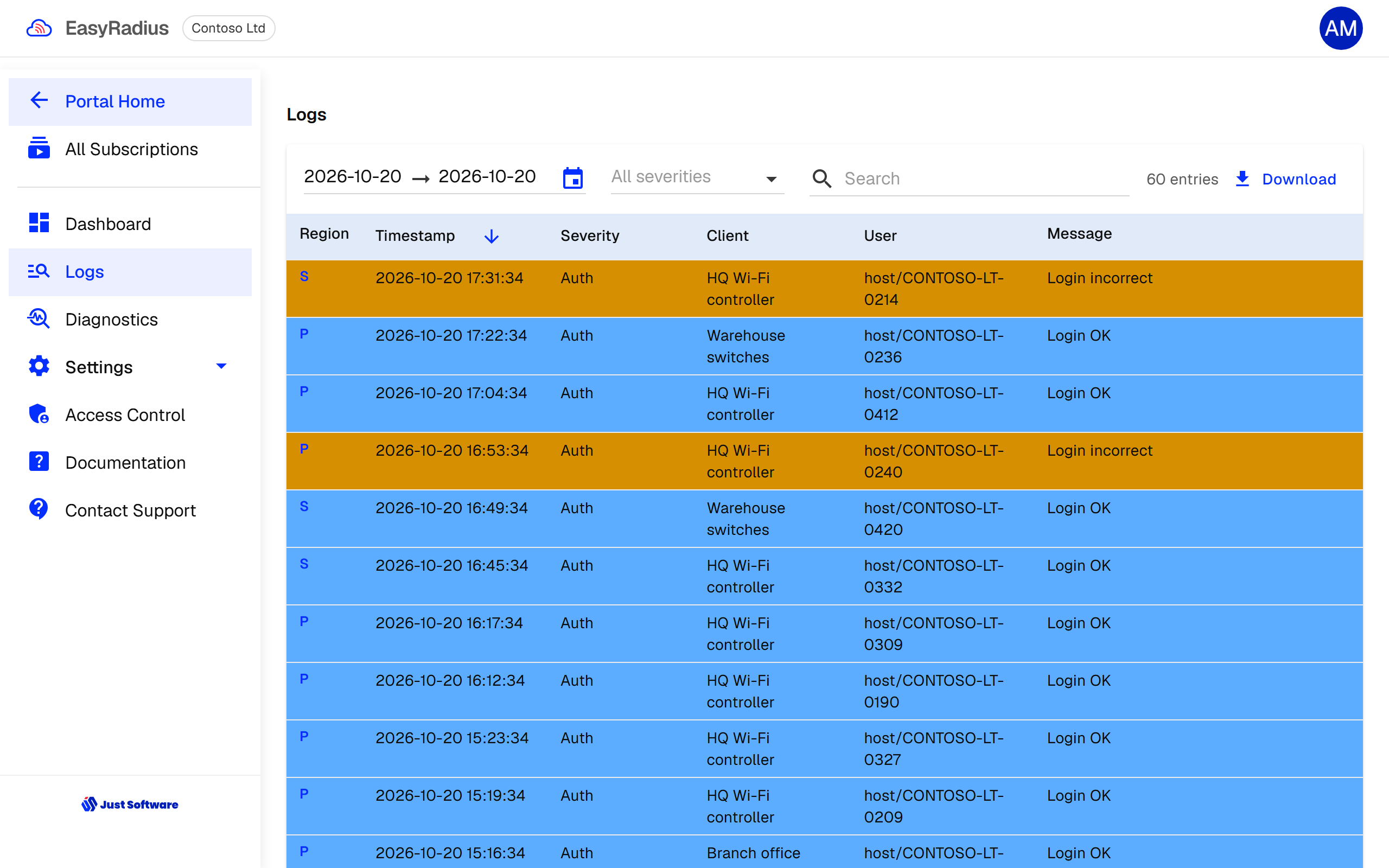
Login OK is a successful authentication and Login incorrect a rejected one. The search covers the full log line, including the device's identity and the reason a request was rejected, so you can search for a device name or MAC address.
Diagnostics
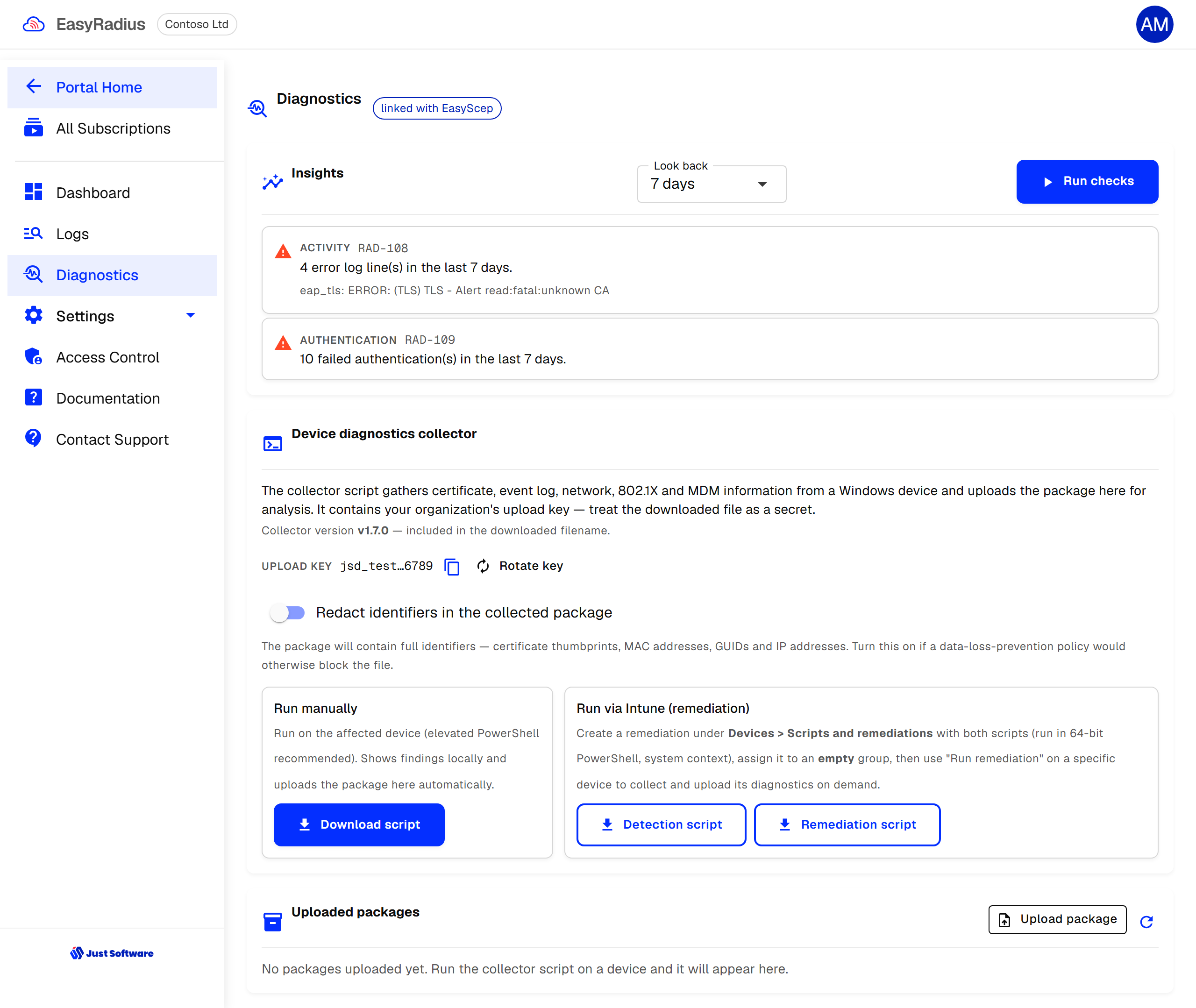
Diagnostics runs checks over the last 7, 14 or 30 days of activity and lists what needs attention — for example an expiring server certificate, devices that fail repeatedly, or requests from unknown clients.
The device diagnostics collector is a PowerShell script for Windows devices that fail to connect. Run it manually, or deploy it as an Intune remediation, and it uploads a diagnostics package you and our support can examine. You can choose to redact identifiers in the package. For an instance linked to EasyScep, packages are shared with the EasyScep subscription.
Access control
Access Control is available to Owners. Click Add user, enter the person's Microsoft Entra ID sign-in email and choose a role. Optionally, the portal emails them an invitation. Users show as Invited until they first sign in, and can be disabled or removed at any time.
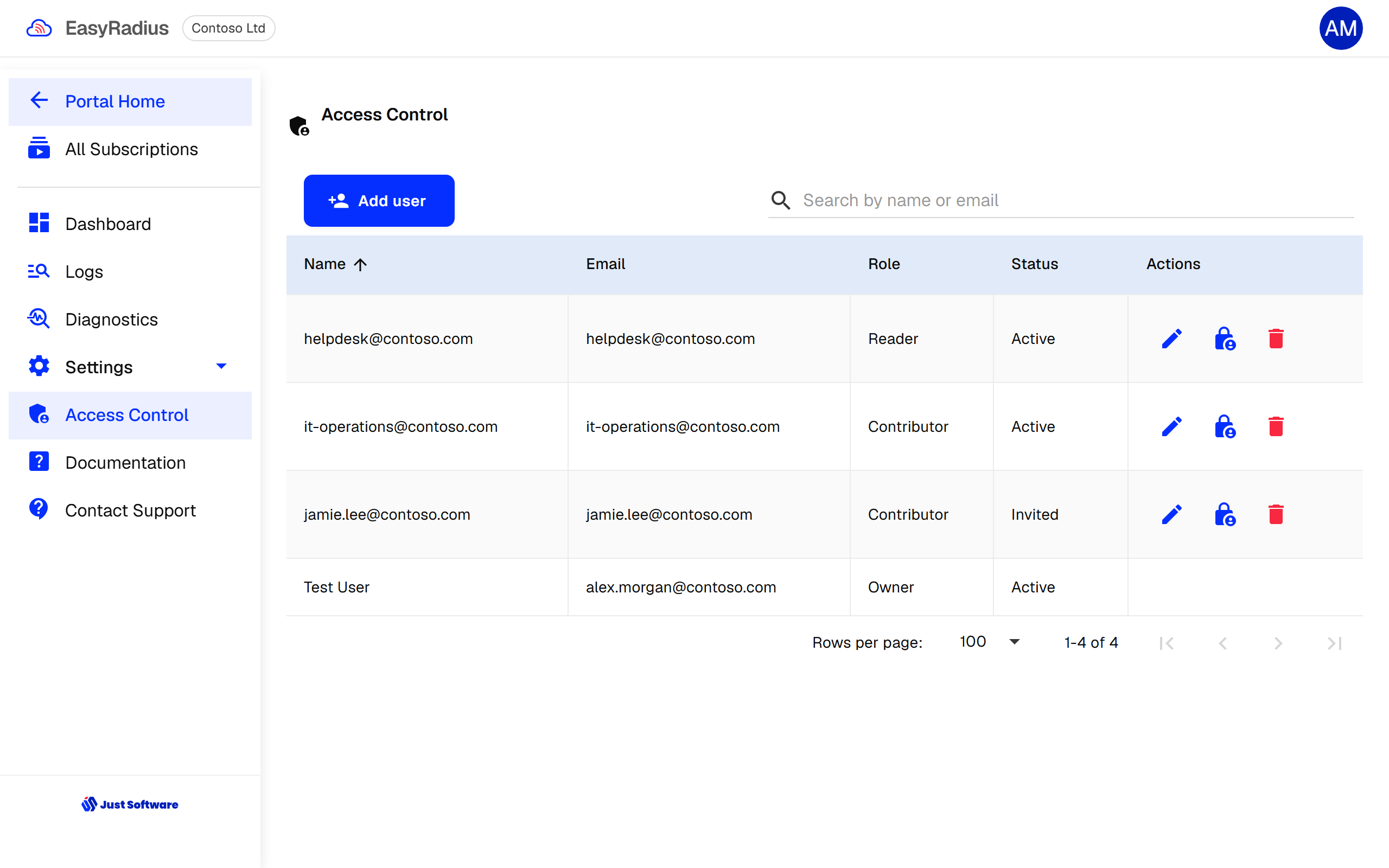
| Role | Can |
|---|---|
| Reader | View everything except RADIUS client secrets |
| Contributor | Also manage RADIUS clients and VLANs, and restart the instance |
| Owner | Also manage certificates, system settings and access control |