Credentials: SCEP secrets and API keys
Credentials are the secrets that devices and your own systems use to request certificates from your EasyScep instance. There are two kinds:
| Credential | Used by |
|---|---|
| SCEP secret | An MDM that sends a challenge password in its SCEP profile. |
| API key | Your own systems that call the EasyScep API. |
A profile only accepts a credential when the credential's kind is ticked on the profile's Who may request tab. See Profiles.
Overview
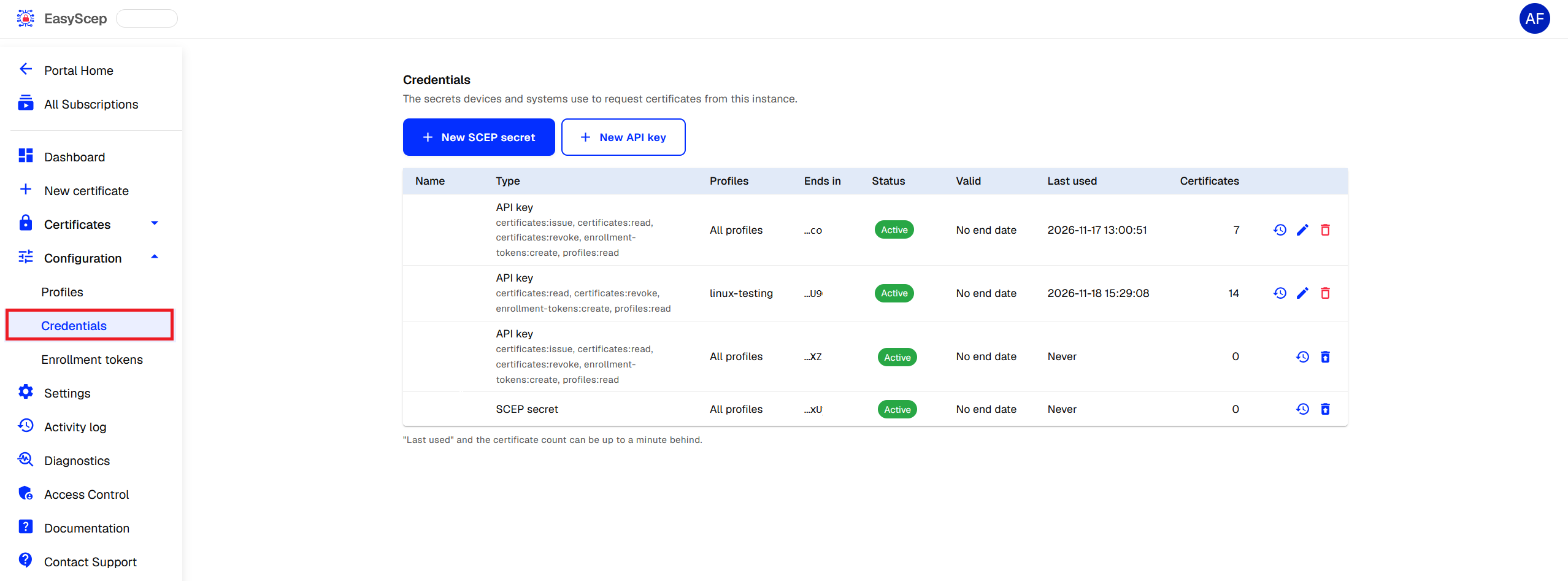
Open Configuration > Credentials in the EasyScep portal. The list shows each credential's type, profiles, last characters, status, validity, when it was last used and how many certificates it has issued.
Create a credential
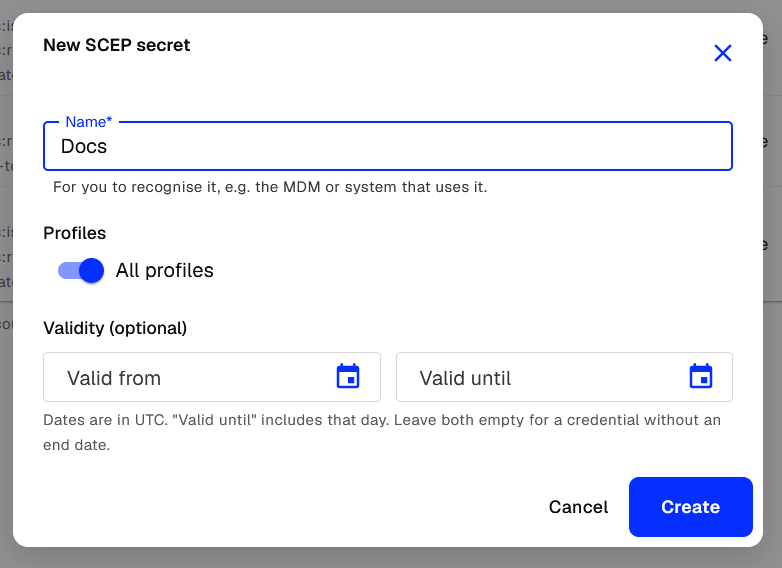
- Click New SCEP secret.
- Enter a Name so you can recognise it, for example the MDM that uses it.
- Under Profiles, keep All profiles on, or turn it off and choose the profiles the secret may be used for.
- Optional: set Valid from and Valid until (UTC). Leave both empty for a secret without an end date.
- Click Create.
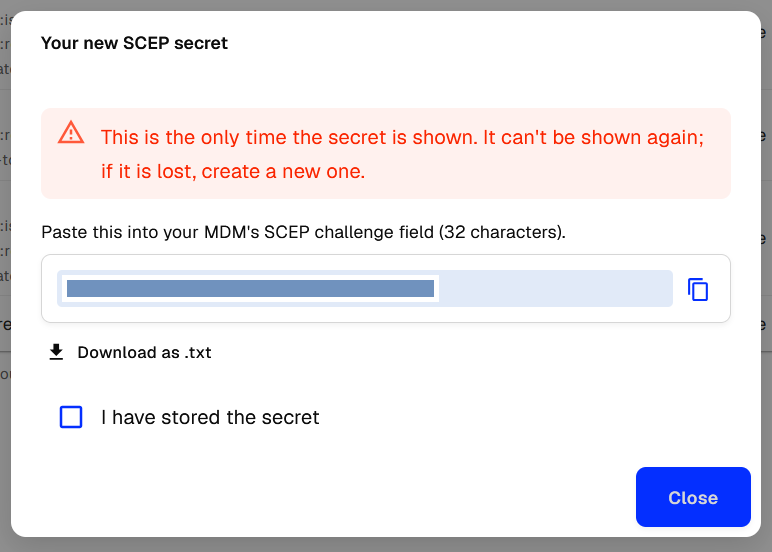
The secret is shown once, after you click Create.
Warning: This is the only time the secret is shown. If you lose it, you have to create a new one.
- Copy the secret with the copy button, or click Download as .txt.
- Store it somewhere safe.
- Tick I have stored the secret and click Close.
Paste the secret into your MDM's SCEP challenge field.
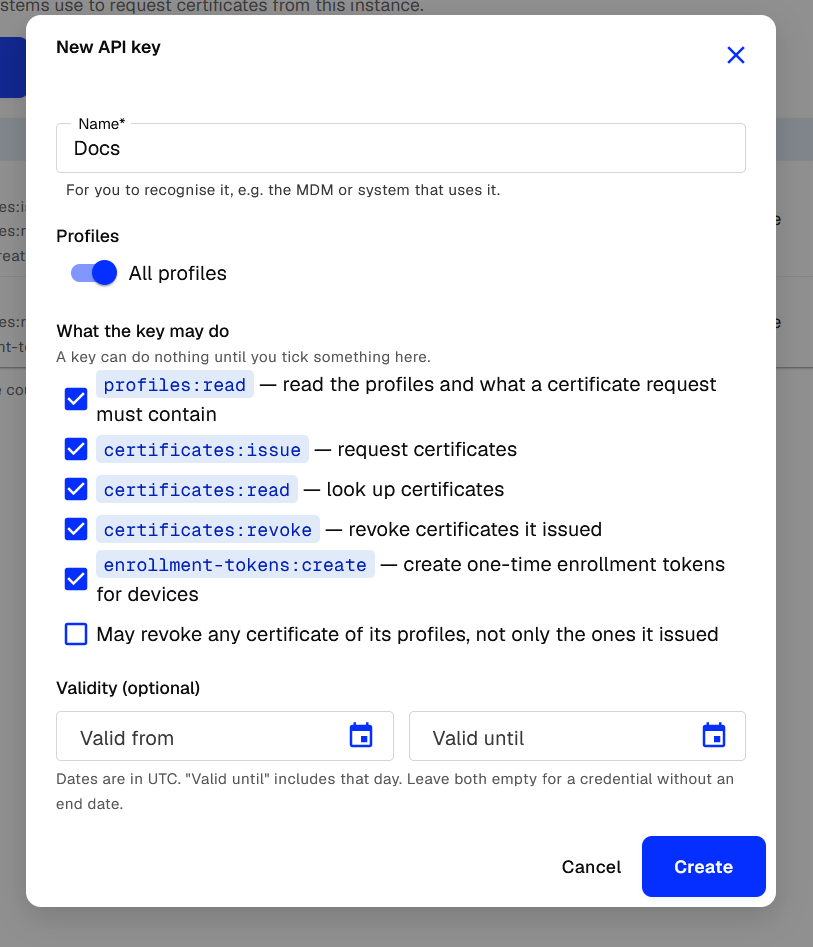
- Click New API key.
- Enter a Name so you can recognise it, for example the system that uses it.
- Under Profiles, keep All profiles on, or turn it off and choose the profiles the key may be used for.
-
Under What the key may do, tick what the key is allowed to do. A key can do nothing until you tick something.
Permission Allows profiles:readRead the profiles and what a certificate request must contain. certificates:issueRequest certificates. certificates:readLook up certificates. certificates:revokeRevoke certificates the key issued. Tick May revoke any certificate of its profiles to let it revoke others too. enrollment-tokens:createCreate one-time enrollment tokens for devices. -
Optional: set Valid from and Valid until (UTC). Leave both empty for a key without an end date.
- Click Create.
The key is shown once, after you click Create.
Warning: This is the only time the key is shown. If you lose it, you have to create a new one.
- Copy the key with the copy button, or click Download as .txt.
- Store it somewhere safe.
- Tick I have stored the secret and click Close.
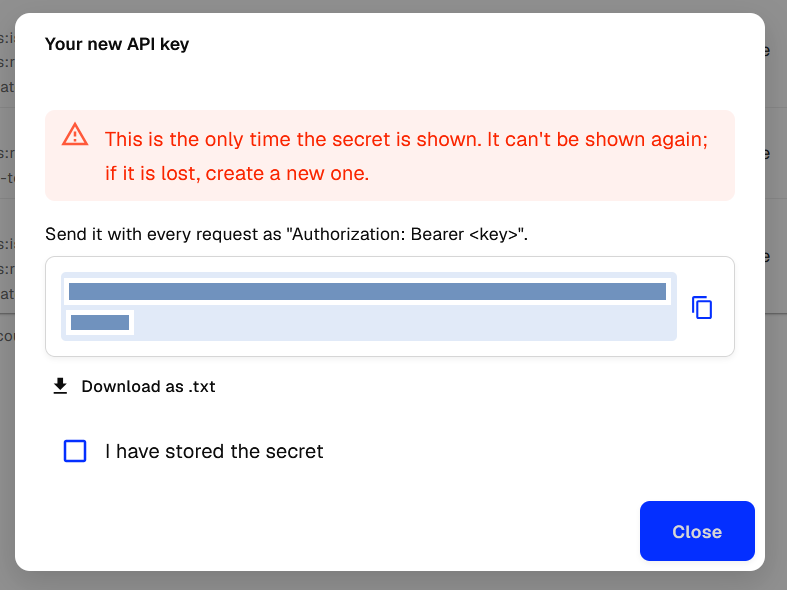
Send the key with every API request in the header Authorization: Bearer <key>. With enrollment-tokens:create, your system can create enrollment tokens, as the Linux Device Kit does.
Manage credentials
Use the buttons at the end of each row in the Credentials list to see a credential's history, edit it or revoke it. "Last used" and the certificate count can be up to a minute behind.