Certificate profiles
A profile decides what a certificate contains and who may request it. Each profile has its own enrollment URL, so you can use different rules for different devices, for example one profile for Wi-Fi devices and one for servers.
Overview
Open Configuration > Profiles in the EasyScep portal. The list shows each profile's status, version, enrollment URL and when it was last updated.
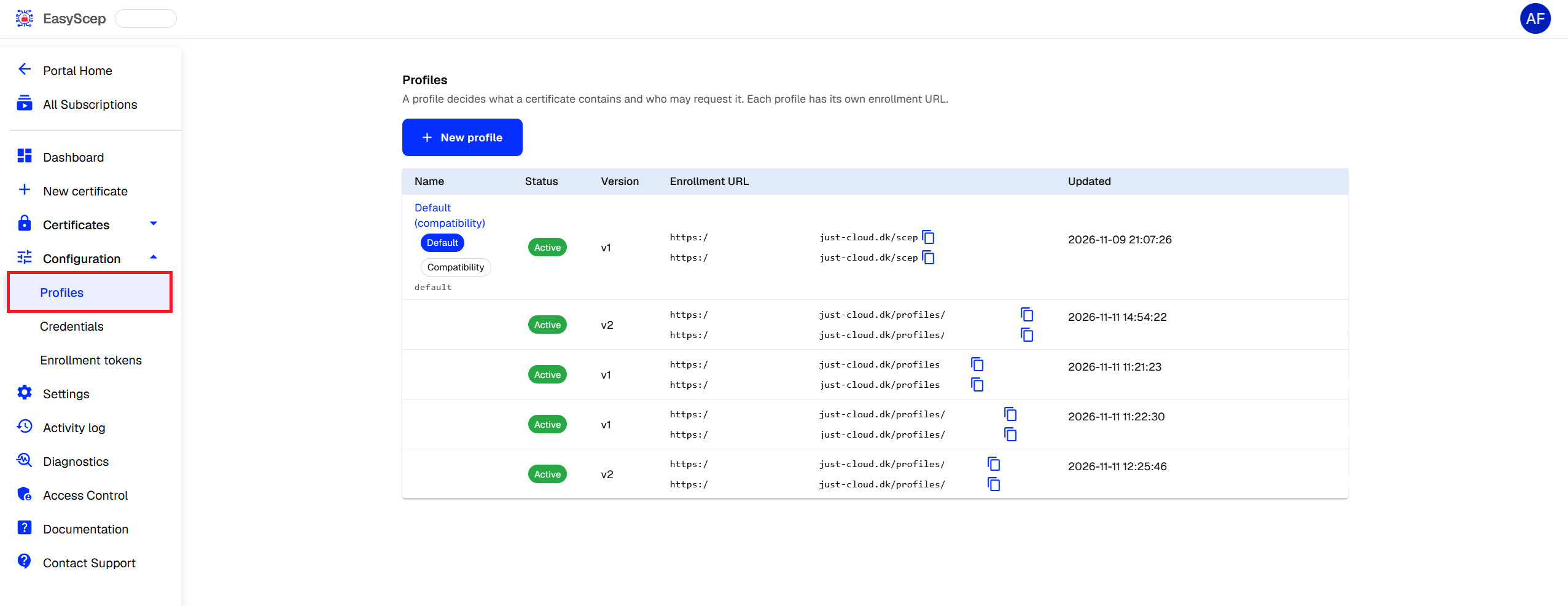
Every instance has a Default (compatibility) profile. It uses the /scep enrollment URL and keeps working as before, so existing Intune setups don't need any changes.
Create a profile
- Click New profile.
- Enter a Name, for example Wi-Fi devices.
- Enter a Slug: lowercase letters, digits and hyphens. The slug is part of the enrollment URL (
/profiles/<slug>) and can't be changed later. -
Choose a starting point under Start from:
Start from Use it for Wi-Fi or VPN devices (Intune) Device certificates for client authentication, checked through Intune. See the Intune setup guide. User certificates (Intune) User certificates with the user's sign-in name and email address, checked through Intune. For Android BYOD, see Android Enterprise. Linux devices with enrollment tokens Devices that enroll with a one-time token. See the Linux Device Kit. Server certificates (API) Server certificates requested by your own systems with an API key. Minimal (Intune, name only) An empty starting point to build your own rules. -
Click Create.
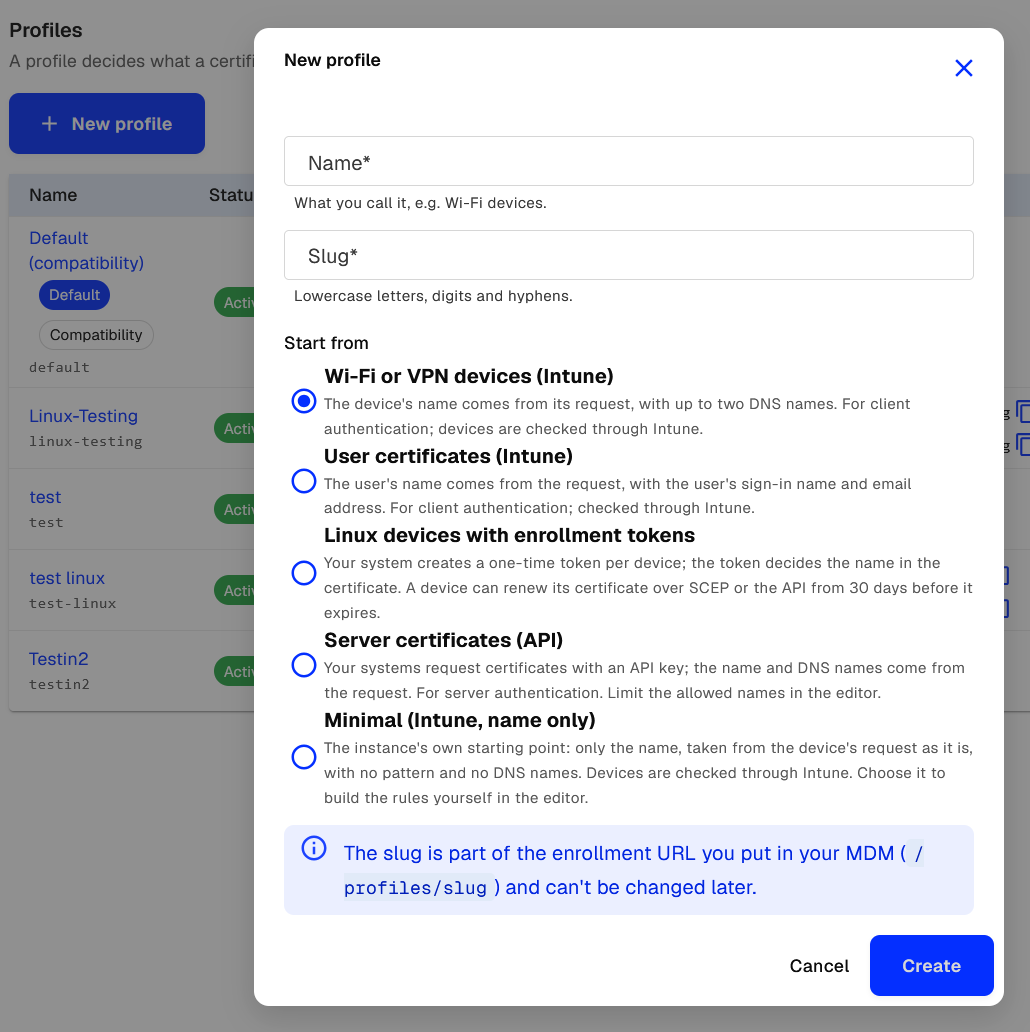
You can change all settings afterwards in the profile editor.
Edit a profile
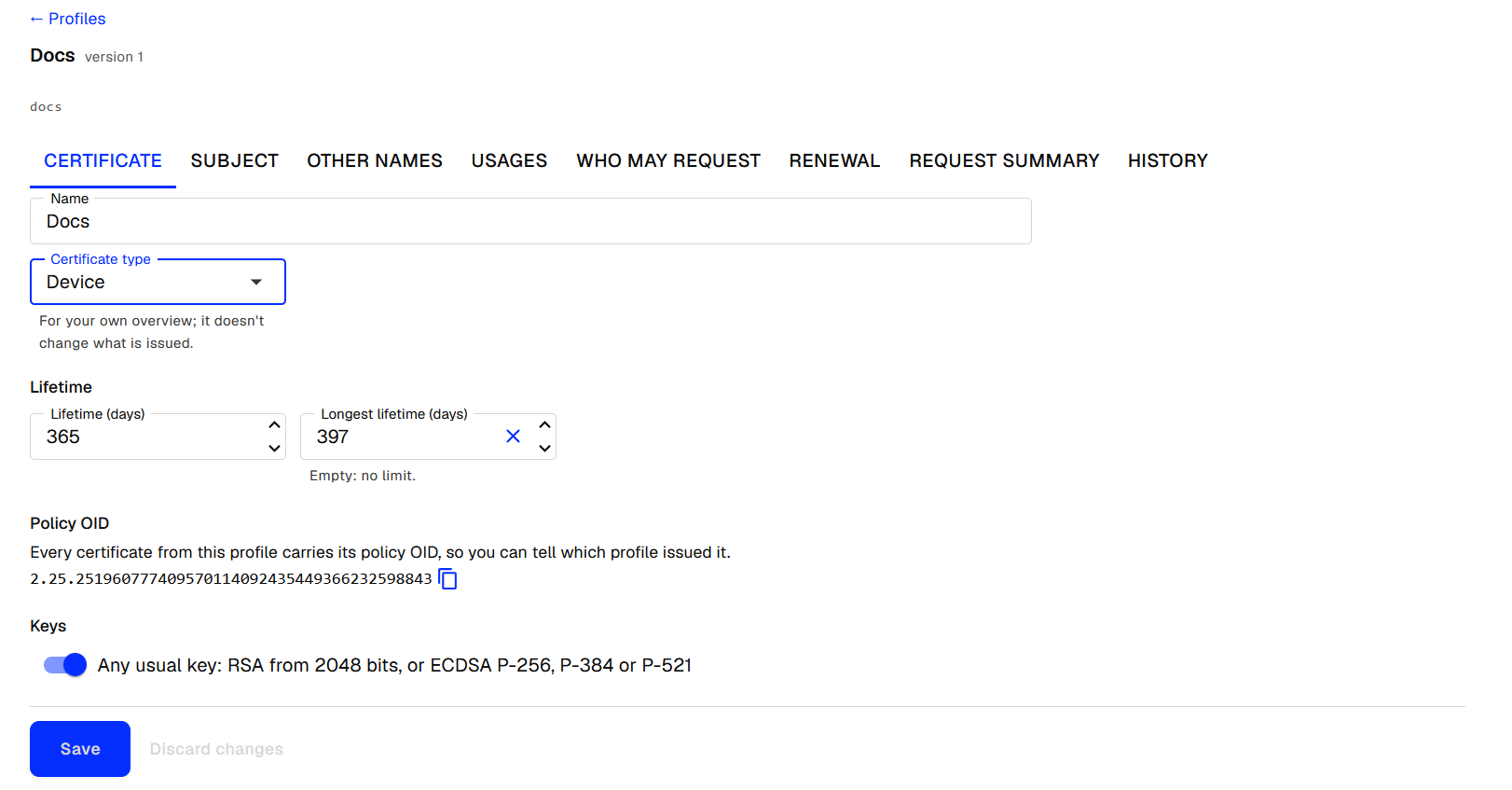
Click a profile's name to open the editor. The settings are grouped in tabs. Click Save to apply your changes, or Discard changes to undo them.
Certificate
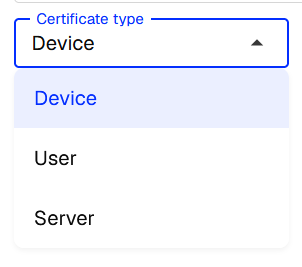
- Certificate type: Device, User or Server. It helps you keep track of your profiles and doesn't change what is issued.
- Lifetime (days): how long a certificate is valid. Longest lifetime sets an upper limit (empty means no limit).
- Policy OID: every certificate from this profile carries this OID, so you can tell which profile issued it.
- Keys: which key types a request may use.
Subject
The name in the certificate. Click Add a part to add a part of the subject: CN (Common Name), O (Organization), OU (Organizational Unit), C (Country), L (Locality), ST (State or Province), E (Email address), DC (Domain Component), Serial Number or UID.
For each part, choose where it Comes from:
| Comes from | Meaning |
|---|---|
| The request | Taken from the device's request. You can make it required, limit how many values it may have, and restrict it with a pattern (regular expression) or a list of allowed values. |
| Fixed value | Always the value you set, whatever the request says. |
| Template | Built from a template, for example {{csr.subject.cn}} or {{profile.slug}}. |
| Not allowed | A request that has this part is refused. |
Note: A template that uses a
{{token.…}}value comes from an enrollment token, so the profile can only accept enrollment tokens.
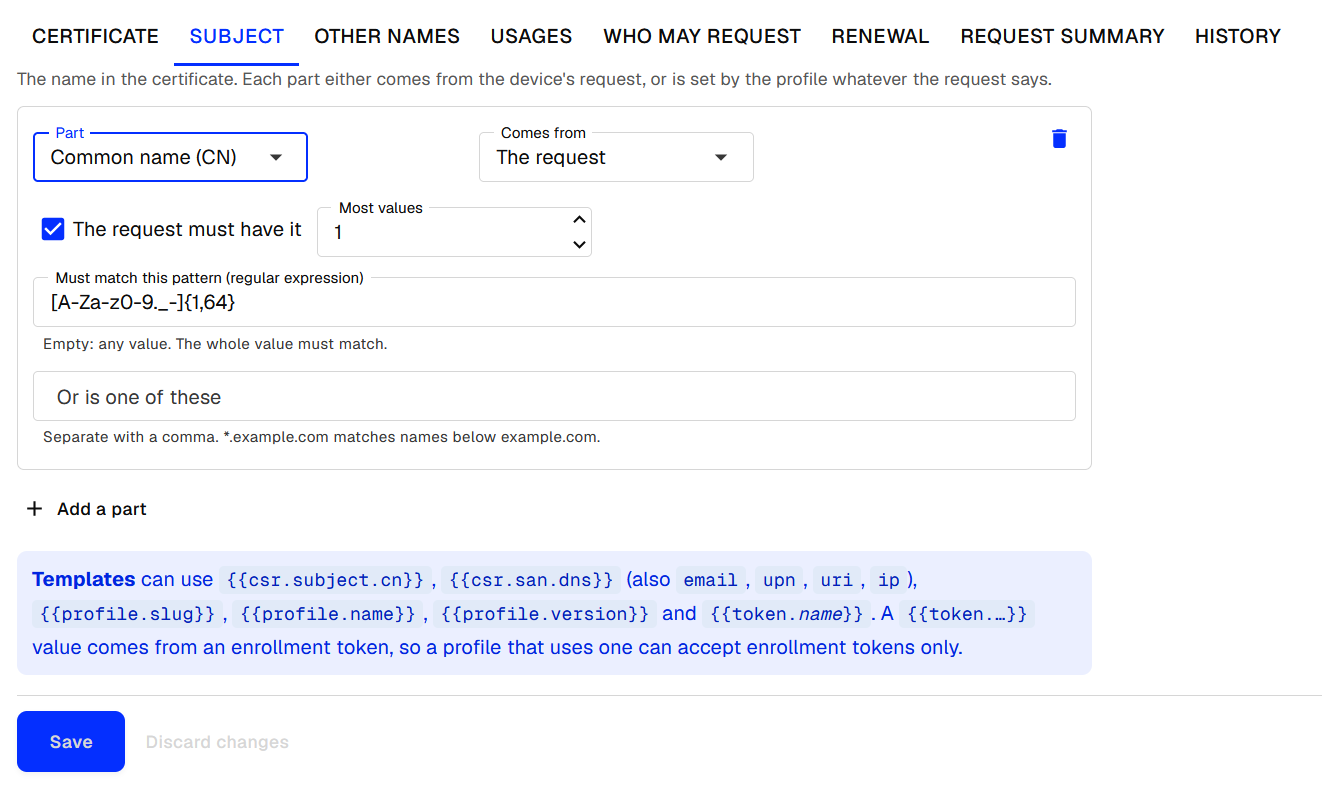
Other names
The subject alternative names: DNS names, email addresses, sign-in names (UPN), URIs and IP addresses. For each kind, choose Not allowed, From the request, Fixed values or Templates. A kind set to Not allowed is refused when a request has it.
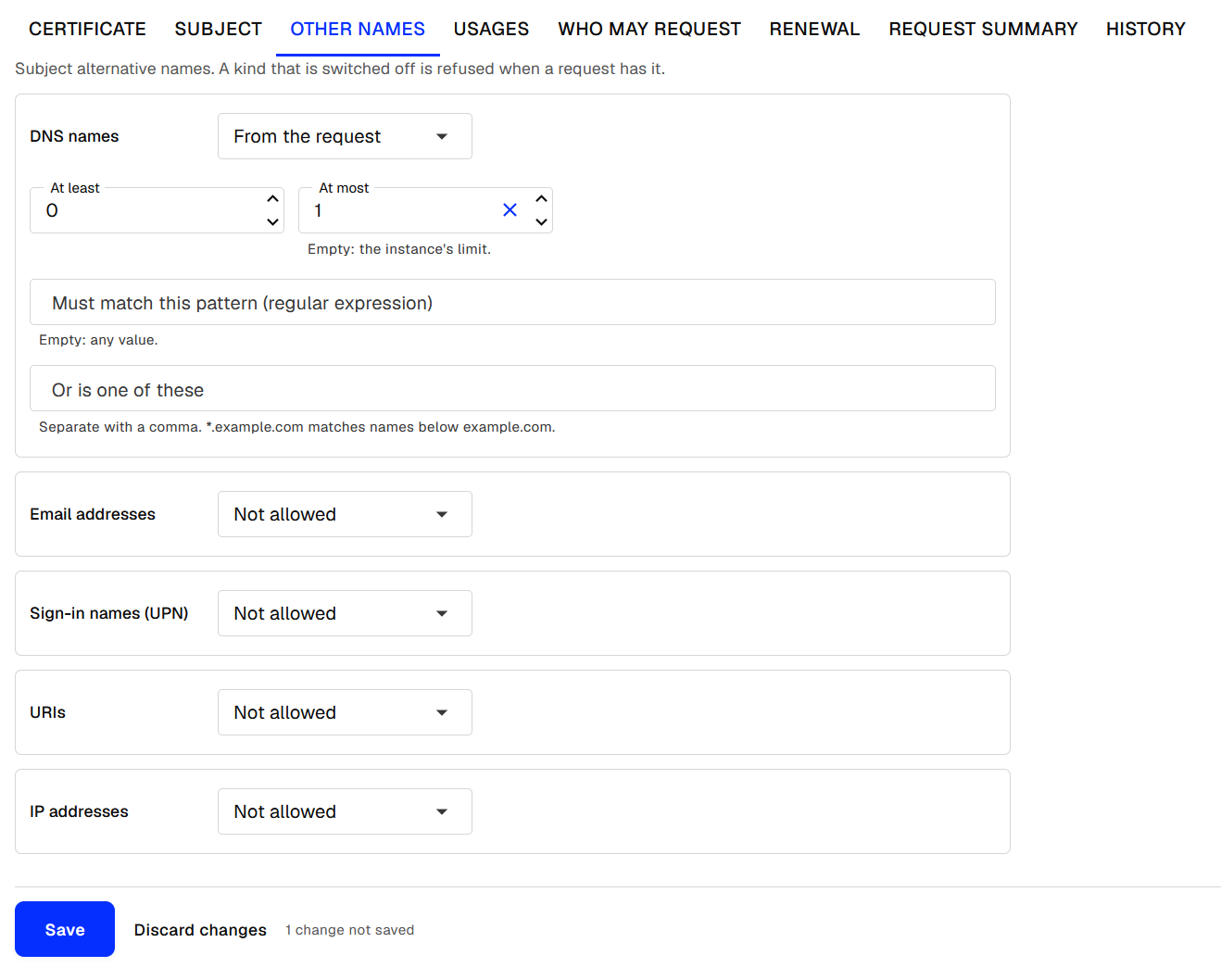
Usages
The key usage and extended key usage in the certificate, for example Client authentication or Server authentication. You can also list other extensions that are copied from the request.
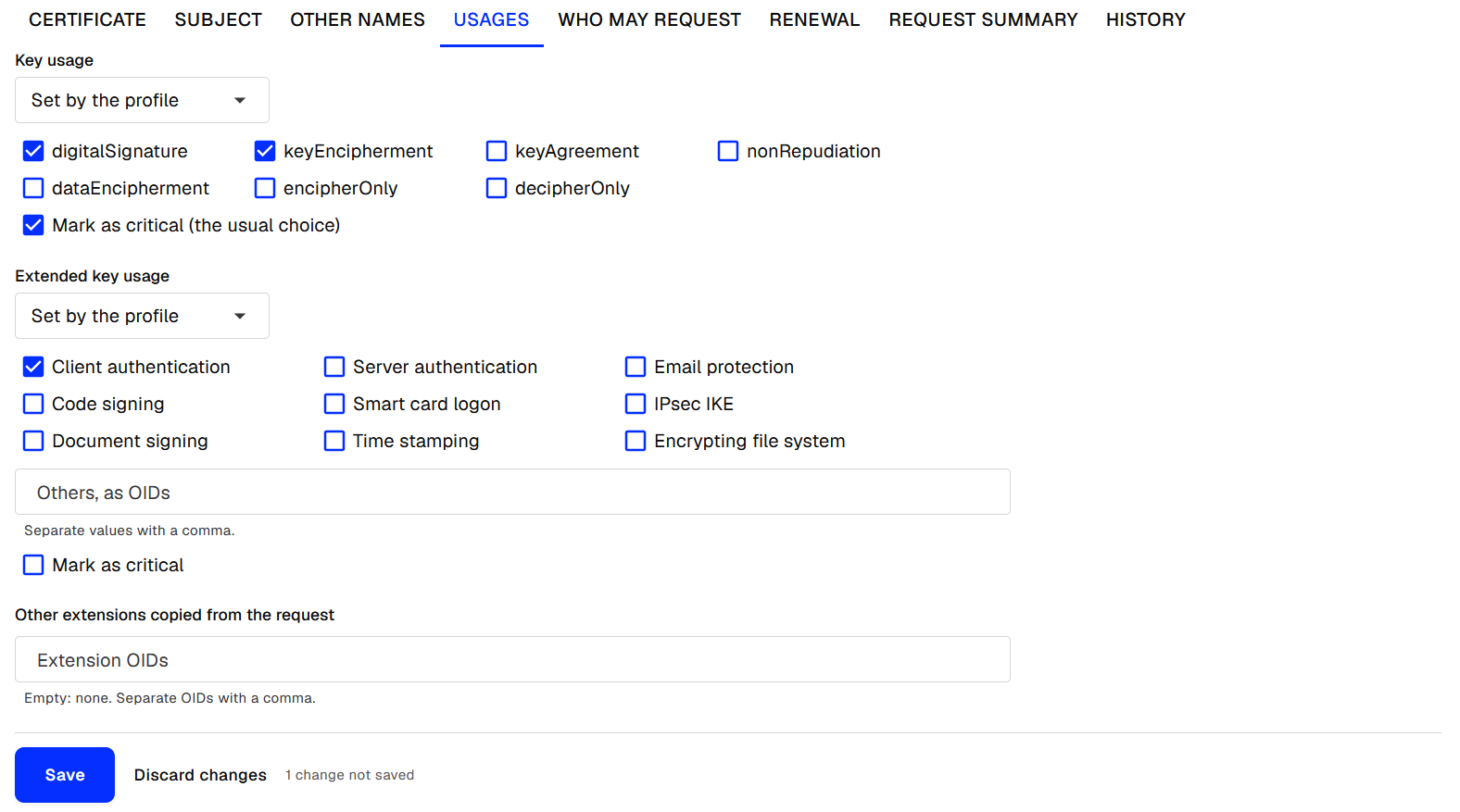
Who may request
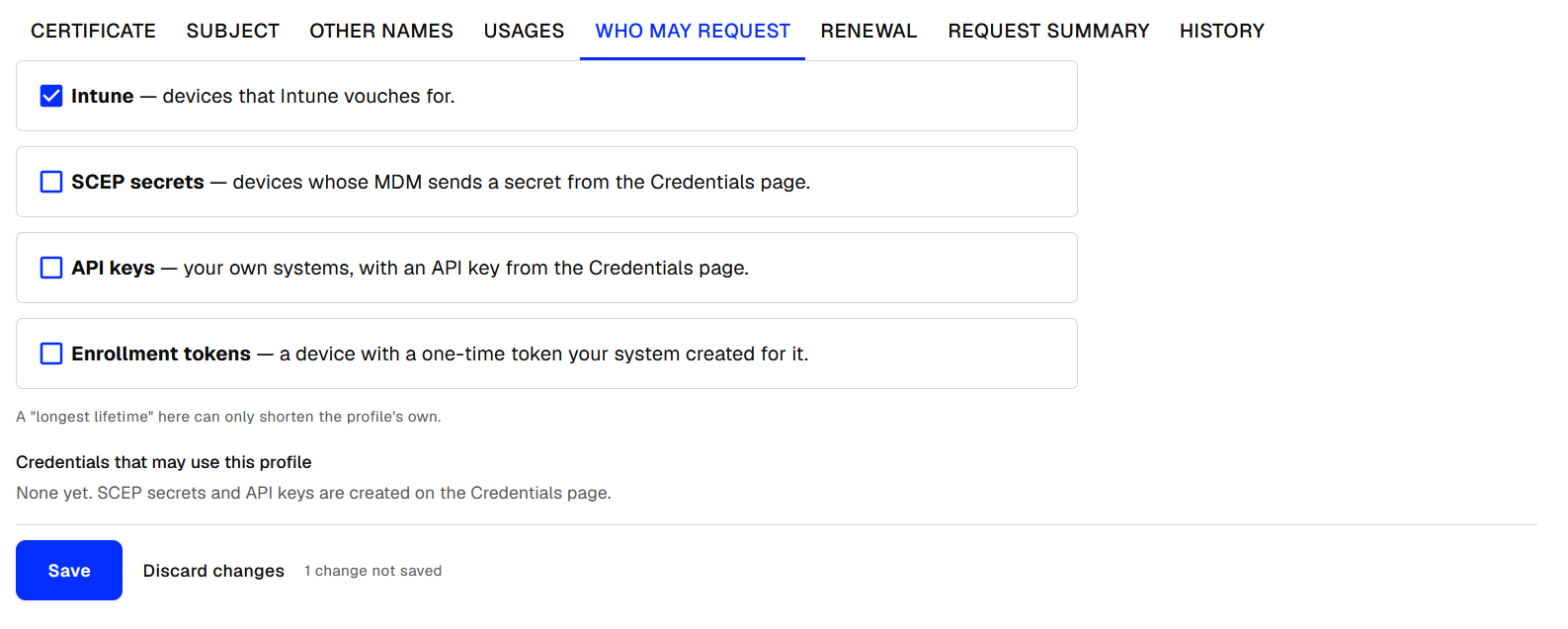
Choose who may request certificates from this profile:
- Intune: devices that Intune vouches for.
- SCEP secrets: devices whose MDM sends a SCEP secret from the Credentials page.
- API keys: your own systems, with an API key from the Credentials page.
- Enrollment tokens: a device with a one-time enrollment token.
Renewal
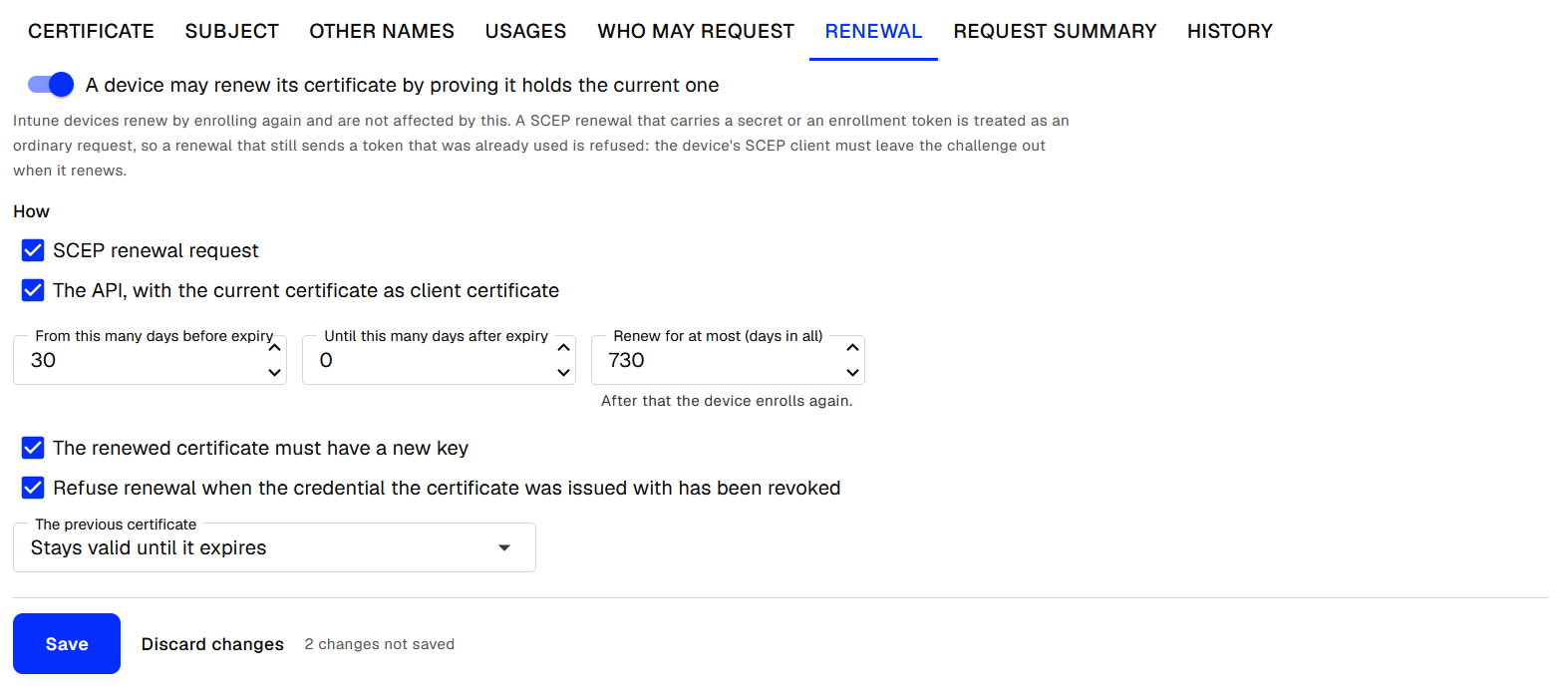
Turn on A device may renew its certificate by proving it holds the current one to let devices renew. When it is off, the other renewal settings are hidden.
Note: Intune devices renew by enrolling again and are not affected by this setting.
When renewal is on, you can set:
- How a device renews: a SCEP renewal request, the API with its current certificate, or both.
- When: from how many days before expiry until how many days after, and the total number of days a certificate may be renewed before the device must enroll again.
- Whether the renewed certificate must have a new key.
- Whether to refuse renewal when the credential the certificate was issued with has been revoked.
- What happens to the previous certificate: it stays valid until it expires, is revoked at once, or is revoked after a number of days that you choose.
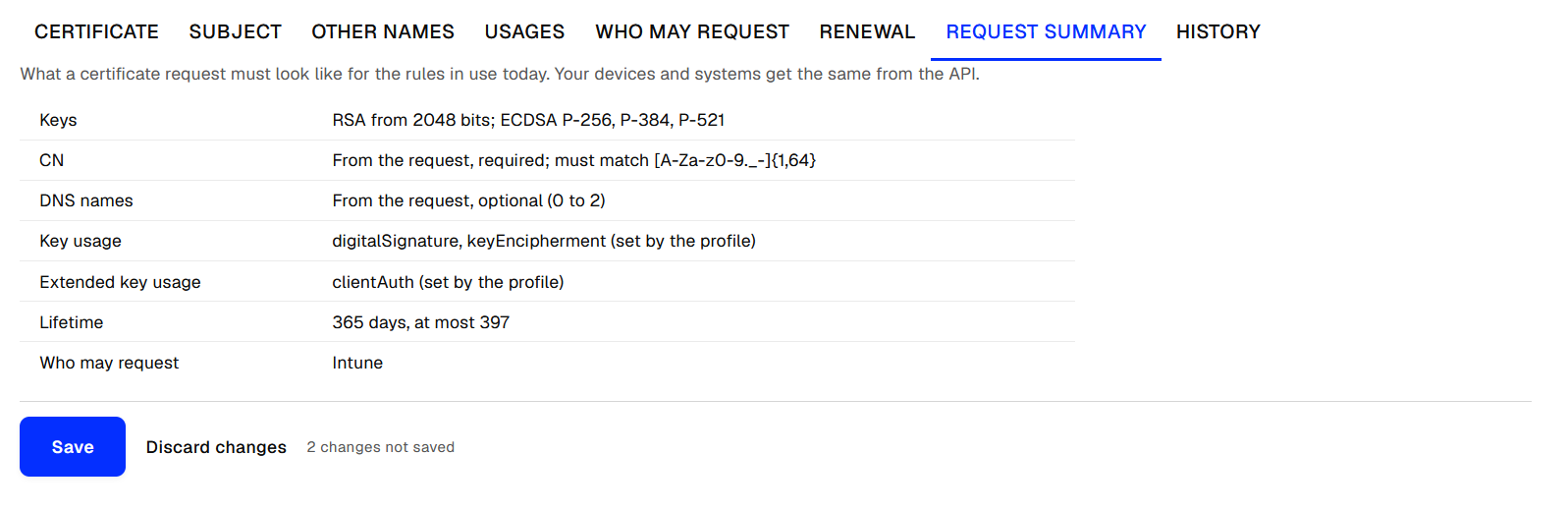
Request summary
A summary of what a certificate request must look like with the current settings. Check that everything is correct, then click Save.
History
Every save creates a new version of the profile. The History tab shows the older versions of its settings.
Use the enrollment URL
Copy the profile's enrollment URL from the Profiles list with the copy button. Paste it into your MDM's SCEP profile (for Intune, see the Intune setup guide), or use it in your own systems.